如何在 Dell Security Management Server Administration Console 中管理多因素身份验证
Résumé: Dell Security Management Server 可以配置为需要双因素身份验证 (2FA) 才能登录到管理控制台。
Cet article concerne
Cet article ne concerne pas
Cet article n’est associé à aucun produit spécifique.
Toutes les versions du produit ne sont pas identifiées dans cet article.
Instructions
受影响的产品:
- Dell Security Management Server
- Dell Security Management Server Virtual
受影响的版本:
- v11.4.0 及更高版本
可以在 用户组 或 单个用户 级别管理多因素身份验证。有关详细信息,请选择下面的相应部分。
用户组
- 使用具有帐户管理员角色的帐户登录到 Dell Data Security Administration Console。有关更多信息,请参阅 如何访问 Dell Data Security Server 管理控制台 。
提醒:有关管理员角色的更多信息,请参阅手册和文档中 AdminHelp - Security Management Server PDF 的“Administrator Roles”部分。
- 从左侧菜单窗格中,展开 Populations 选项卡,然后单击 User Groups。
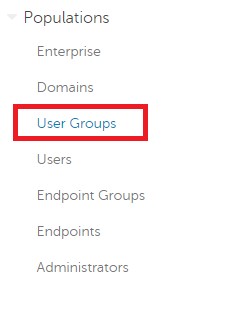
图 1:用户组
- 从列表中选择要编辑的用户组。
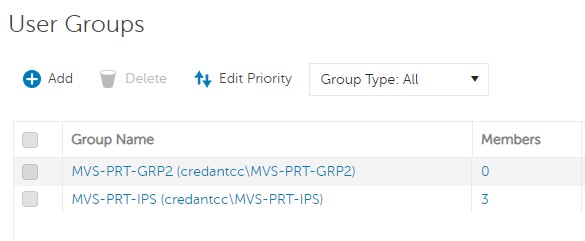
图 2:选择用户组
提醒:组在此列表中的位置决定了组优先级。有关更多信息,请参阅手册和文档中 AdminHelp - Security Management Server PDF 的“Edit User Group Priority”部分。
- 选择 Admin 选项卡。

图 3:Admin 选项卡
- 从“MFA Configuration”中:
- 选择 Enabled。
- 选择 Email 或 Google Authenticator。
- 单击 Update 按钮。
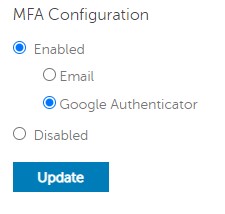
图 4:MFA 配置
单个用户
- 使用具有帐户管理员角色的帐户登录到 Dell Data Security Administration Console。有关更多信息,请参阅 如何访问 Dell Data Security Server 管理控制台 。
提醒:有关管理员角色的更多信息,请参阅手册和文档中 AdminHelp - Security Management Server PDF 的“Administrator Roles”部分。
- 从左侧菜单窗格中,展开 Populations 选项卡,然后单击 Users。
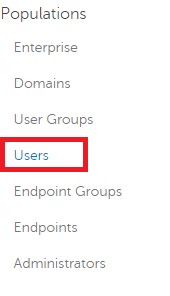
图 5:用户
- 从列表中选择要编辑的用户。
- 选择 Admin 选项卡。

图 6:Admin 选项卡
- 从“MFA Configuration”中:
- 选择 Enabled。
- 选择 Email、Google Authenticator 或 Inherited Configuration from User Group。
- 单击 Update 按钮。
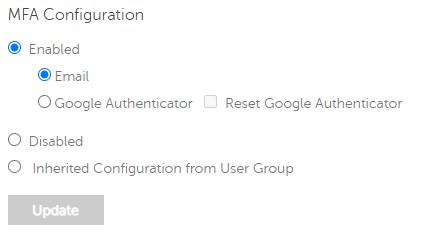
图 7:MFA 配置
要联系支持部门,请参阅 Dell Data Security 国际支持电话号码。
转至 TechDirect,在线生成技术支持请求。
要获得更多见解和资源,请加入戴尔安全社区论坛。
Produits concernés
Dell EncryptionPropriétés de l’article
Numéro d’article: 000200440
Type d’article: How To
Dernière modification: 22 nov. 2023
Version: 6
Trouvez des réponses à vos questions auprès d’autres utilisateurs Dell
Services de support
Vérifiez si votre appareil est couvert par les services de support.