How to Manage Multi-Factor Authentication in the Dell Security Management Server Administration Console
Résumé: Dell Security Management Server can be configured to require two-factor authentication (2FA) to log in to the administration console.
Cet article concerne
Cet article ne concerne pas
Cet article n’est associé à aucun produit spécifique.
Toutes les versions du produit ne sont pas identifiées dans cet article.
Instructions
Affected Products:
- Dell Security Management Server
- Dell Security Management Server Virtual
Affected Versions:
- v11.4.0 and Later
Multi-factor authentication can be managed at either a User Group or Individual User level. Choose the appropriate section below for more information.
User Group
- Log in to the Dell Data Security Administration Console with an account that has the account administrator role. For more information, reference How to Access the Dell Data Security Server Administration Console.
Note: For more information about administrator roles, reference the Administrator Roles section of the AdminHelp - Security Management Server PDF in Manuals and Documents.
- From the left menu pane, expand the Populations tab and then click User Groups.
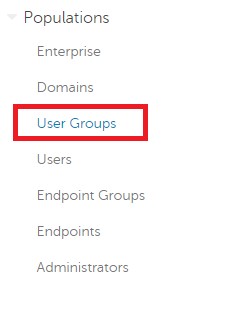
Figure 1: User Groups
- Select a User Group from the list to edit.
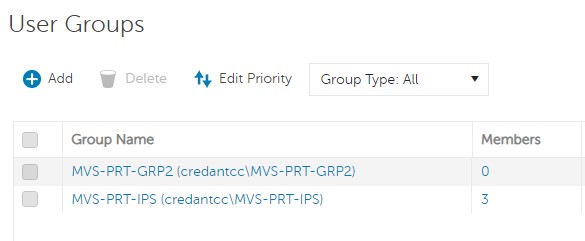
Figure 2: Selecting a user group
Note: The group’s position in this list is what determines Group Priority. For more information, reference the Edit User Group Priority section of the AdminHelp - Security Management Server PDF in Manuals and Documents.
- Select the Admin tab.

Figure 3: Admin tab
- From MFA Configuration:
- Select Enabled.
- Select either Email or Google Authenticator.
- Click the Update button.
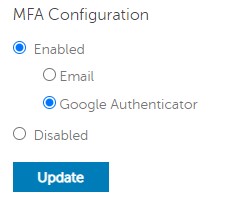
Figure 4: MFA Configuration
Individual User
- Log in to the Dell Data Security Administration Console with an account that has the account administrator role. For more information, reference How to Access the Dell Data Security Server Administration Console.
Note: For more information about administrator roles, reference the Administrator Roles section of the AdminHelp - Security Management Server PDF in Manuals and Documents.
- From the left menu pane, expand the Populations tab and then click Users.
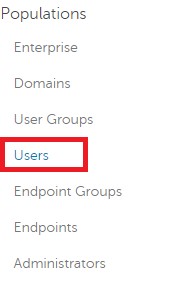
Figure 5: Users
- Select a User from the list to edit.
- Select the Admin tab.

Figure 6: Admin tab
- From MFA Configuration:
- Select Enabled.
- Select either Email, Google Authenticator, or Inherited Configuration from User Group.
- Click the Update button.
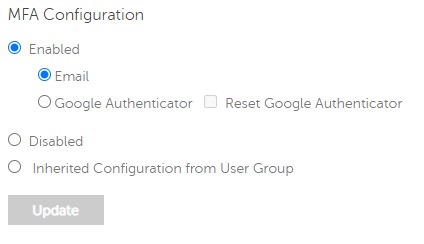
Figure 7: MFA Configuration
To contact support, reference Dell Data Security International Support Phone Numbers.
Go to TechDirect to generate a technical support request online.
For additional insights and resources, join the Dell Security Community Forum.
Produits concernés
Dell EncryptionPropriétés de l’article
Numéro d’article: 000200440
Type d’article: How To
Dernière modification: 22 nov. 2023
Version: 6
Trouvez des réponses à vos questions auprès d’autres utilisateurs Dell
Services de support
Vérifiez si votre appareil est couvert par les services de support.