How to Determine the Printer Driver for Wyse Thin Client Printing
Résumé: This article discusses how to determine the printer driver identifier or Printer ID for Dell Thin Client.
Cet article concerne
Cet article ne concerne pas
Cet article n’est associé à aucun produit spécifique.
Toutes les versions du produit ne sont pas identifiées dans cet article.
Instructions
Affected Products:
- Dell Thin Client
The Printer ID is vital for the VDI to autodetect the printer when connecting with a ThinOS device. Otherwise the printer needs to be added manual on every connection.
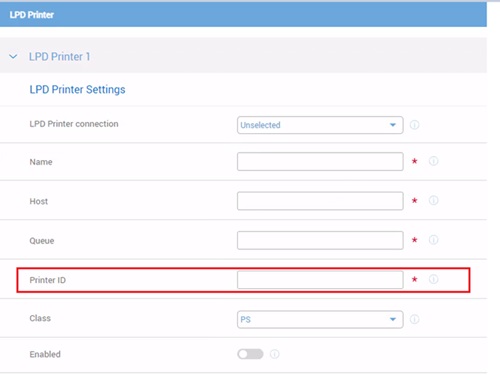
Figure 1: (English Only) LPD Printer Settings
To find the printer driver name:
On the Windows Server:
- Open Printer settings

Figure 2: (English Only) Printer settings
- Click on Printer server properties and select drivers.
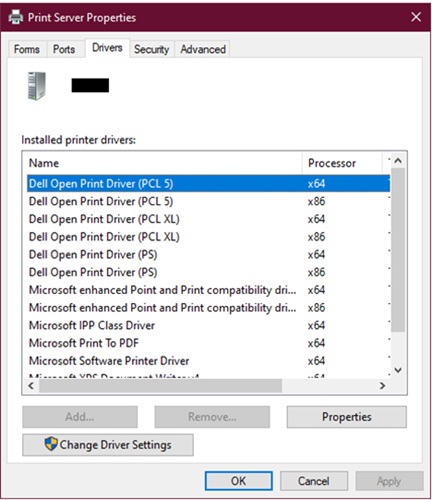
Figure 3: (English Only) Printer server properties
- The driver's name must be added as the Printer ID in the LPD Settings on the Thin Client.
Note: Case, spaces and special characters are all important and cannot be omitted.

Figure 4: (English Only) Add the driver's name to the Printer ID in the LPD Settings on the Thin Client
Produits concernés
Wyse 3020 Thin / Zero Client, Wyse 3030 Thin Client, Wyse 5020 Thin Client, Wyse 5040 AIO Thin Client, Wyse 5050 All-In-One, Wyse 5070 Thin Client, Wyse 7020 Thin Client, Dell ThinOS, Wyse 7010 Thin Client / Z90D7Propriétés de l’article
Numéro d’article: 000127989
Type d’article: How To
Dernière modification: 19 avr. 2026
Version: 8
Trouvez des réponses à vos questions auprès d’autres utilisateurs Dell
Services de support
Vérifiez si votre appareil est couvert par les services de support.