Avamar: How to upgrade clients using Client Manager
Résumé: This article provides the steps to perform a Push Client upgrade using the Client Manager Web Page. Using this method, multiple client plugins can be upgraded.
Instructions
Using client manager to perform bulk plugin upgrades:
(https://<hostname>/dtlt/home.html#downloads) and installed (Not covered by this article).
Reference Guide: https://elabnavigator.dell.com/vault/pdf/Avamar_All_19_12.pdf
(Login required)
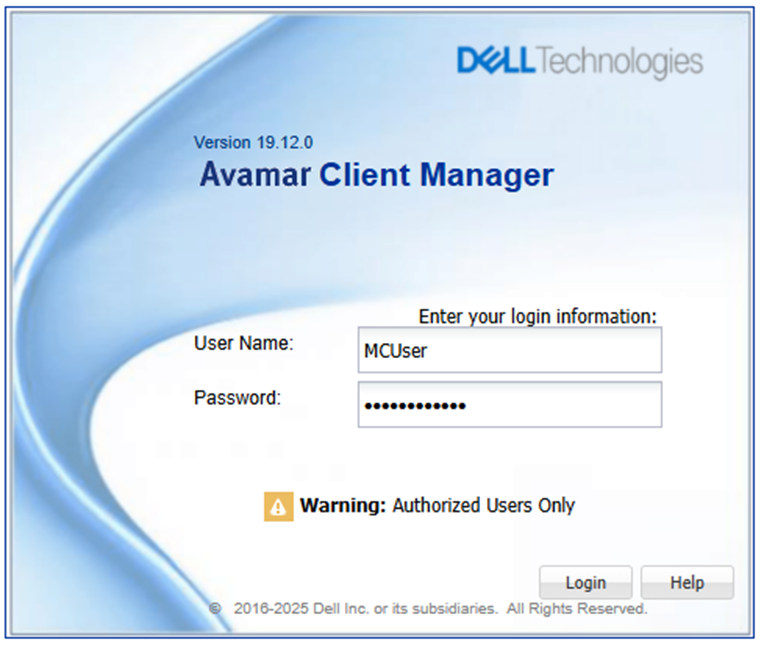
1. Log in to the Client Manager Page as MCUser:
(URL: https://<hostname>/aam)
2. Ensure that the server is showing a green checkbox.
- Additionally, select the server in the dropdown in the left panel if it shows as blank.

3. Select Clients > Upgrade clients on the left panel.
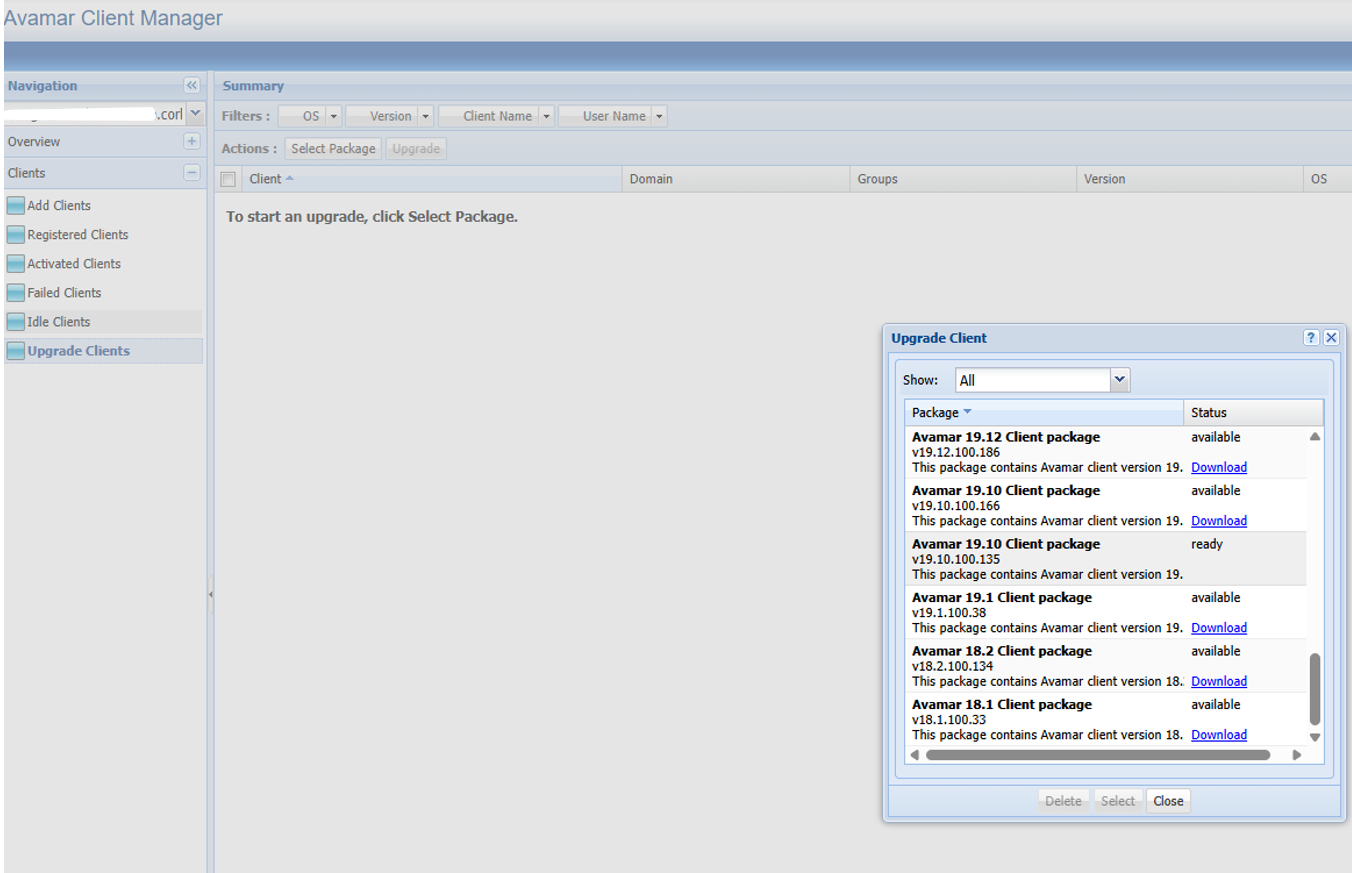
4. Select the package under the Actions bar.
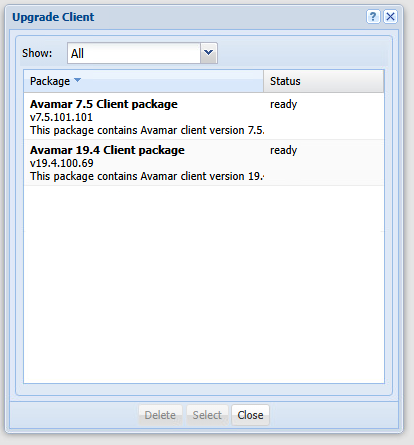
- If the required package is already available, the status shows as ready:
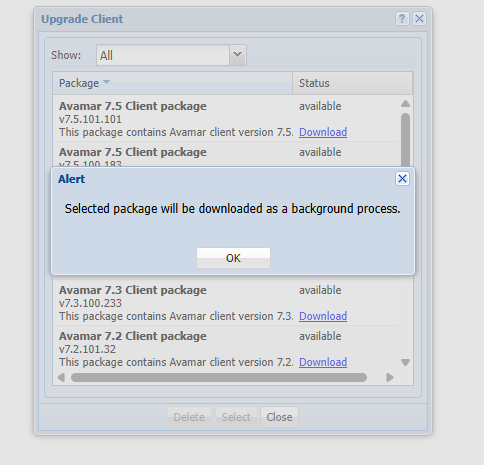
- If the required package is not ready, but available for download, select download (and it downloads in the background).
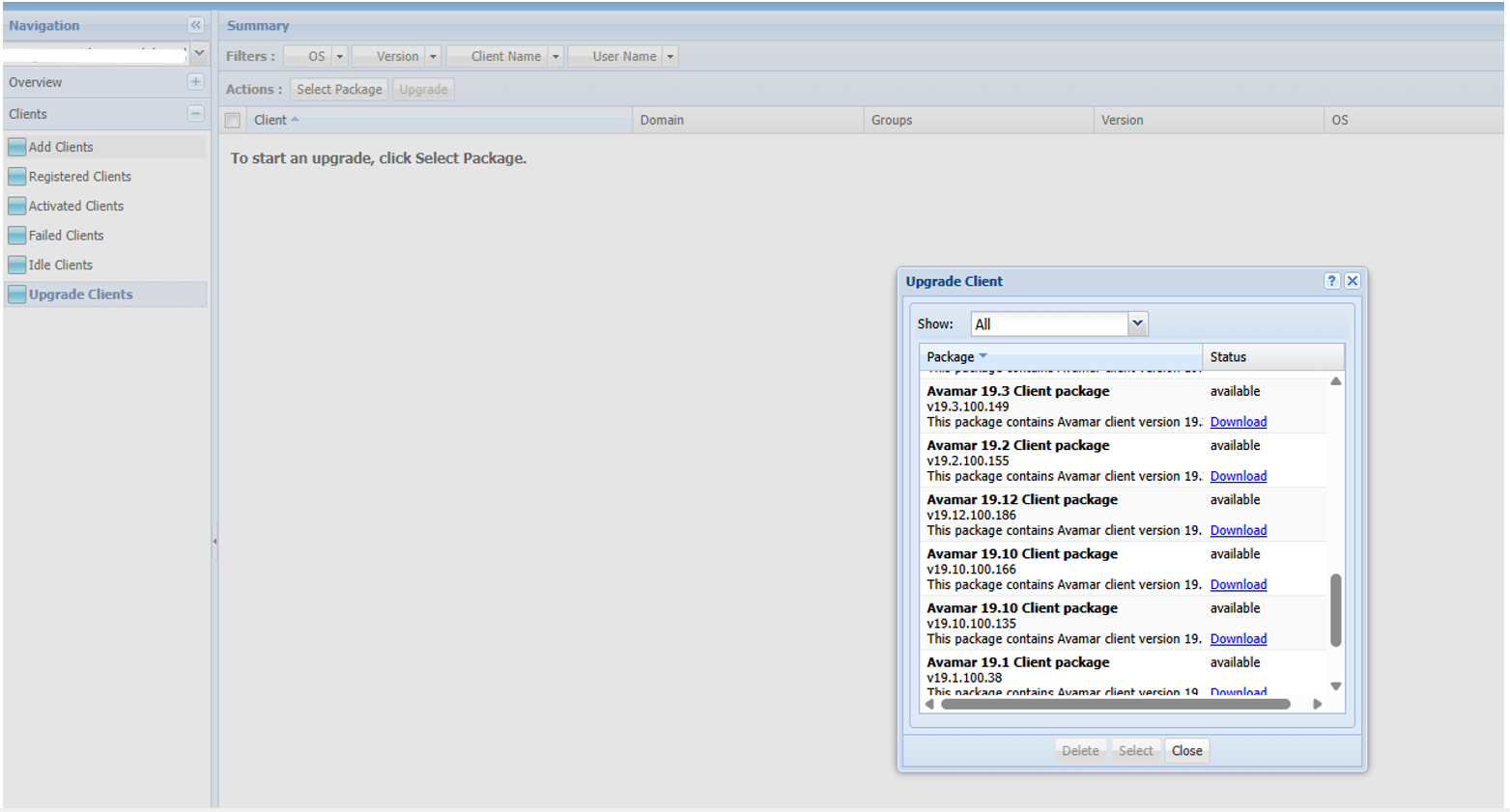
- If the required package is not visible (for example, In the image below, the 19.12 version is not visible), it can be downloaded from the support portal and uploaded using the Avamar Installer.
Support Portal:
| Support site link | https://www.dell.com/support/product-details/en-us/product/avamar/drivers |
| File name | Avamar <version> for Client Installers |
| Package name | Avamar_Client_Installers <version>.avp |
-
-
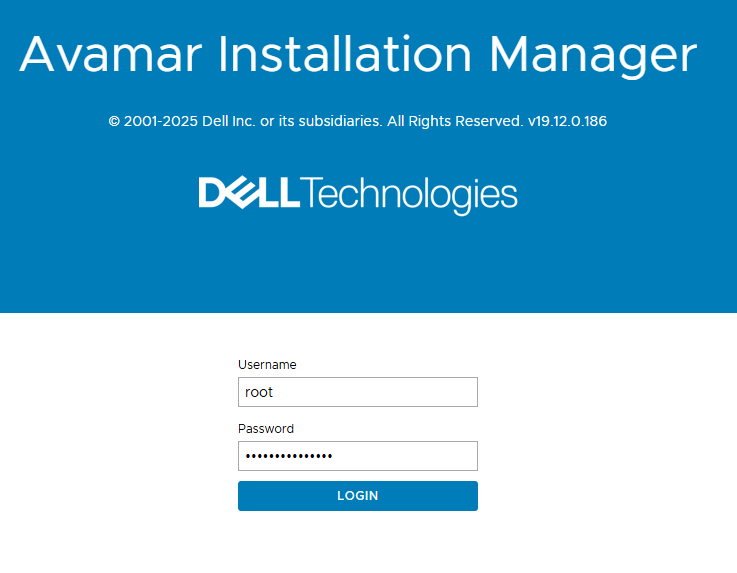
- Once the package is downloaded to the local machine, log in to the AVI page (
https://<hostname_or_IP>/avi) with the Operating System (OS) root account:
- Once the package is downloaded to the local machine, log in to the AVI page (
-
-
-
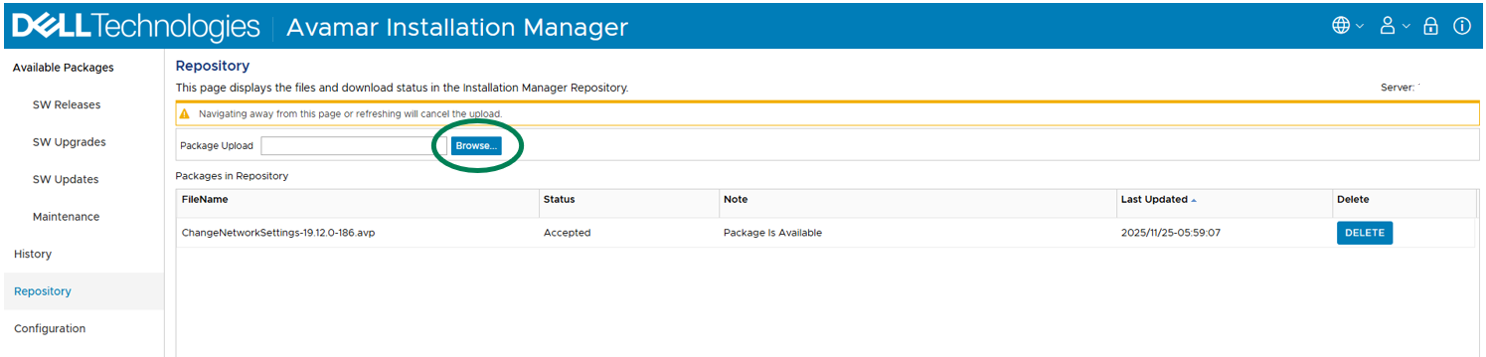
- Click the Repository tab and browse the downloaded file to upload.
-
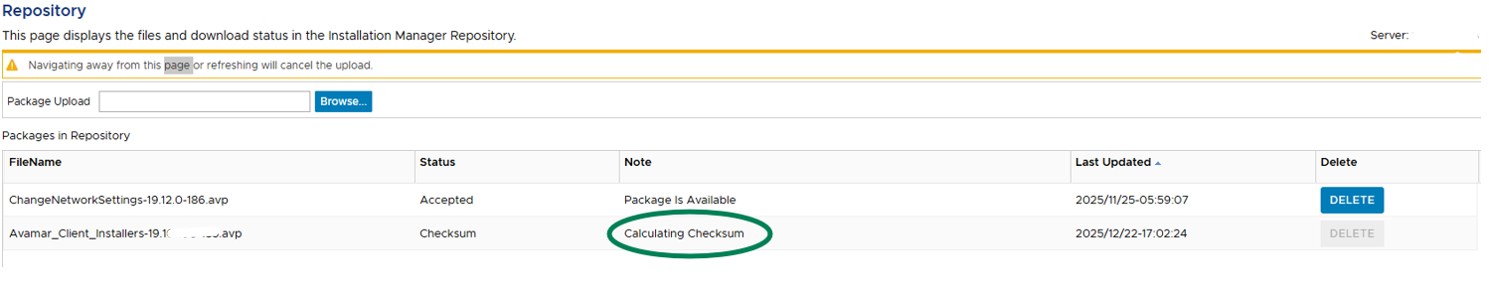
The package gets extracted and uploaded to the server repository.
Once successfully uploaded, the package name in the repository is cleared and visible in the client manager page)

-
-
- Return to the client manager page to verify the package is available.
-
5. When the package is ready, select the package.
For example, the 19.12 version is now ready:
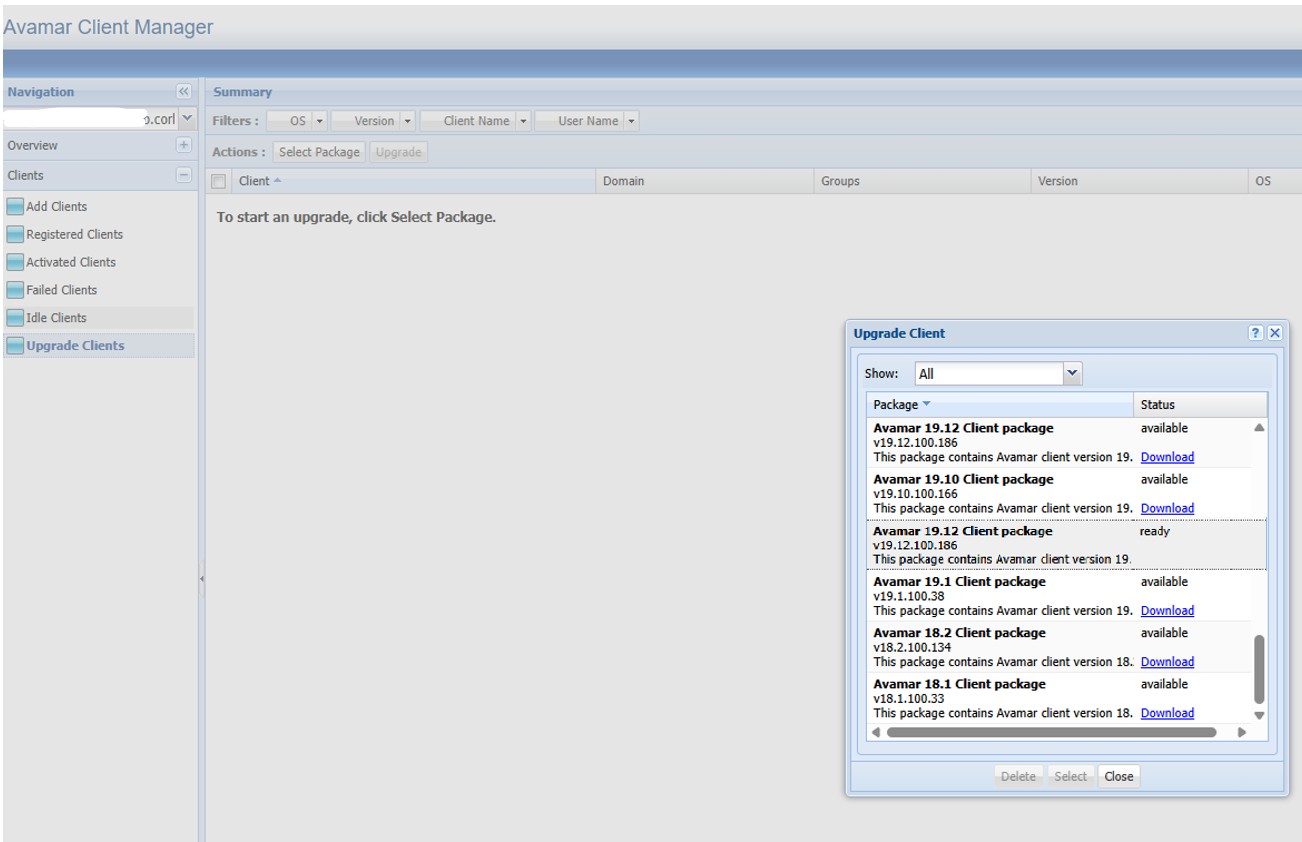
6. Once the package is selected, the list of available clients is available from the Upgrade tab.

7. Select the clients to be upgraded.
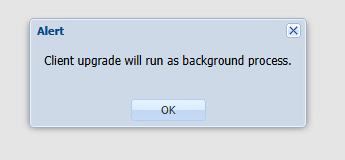
- The client name first appears in the Queues tab, and once the upgrade starts the status can be seen in the logs.
- Logging in to Avamar UI to check the upgrade status in the activity monitor is also a valid option.
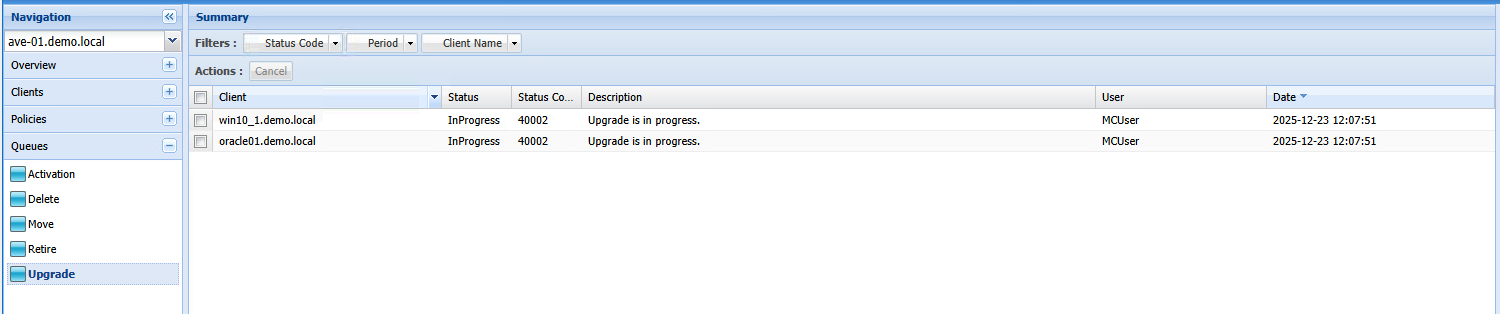
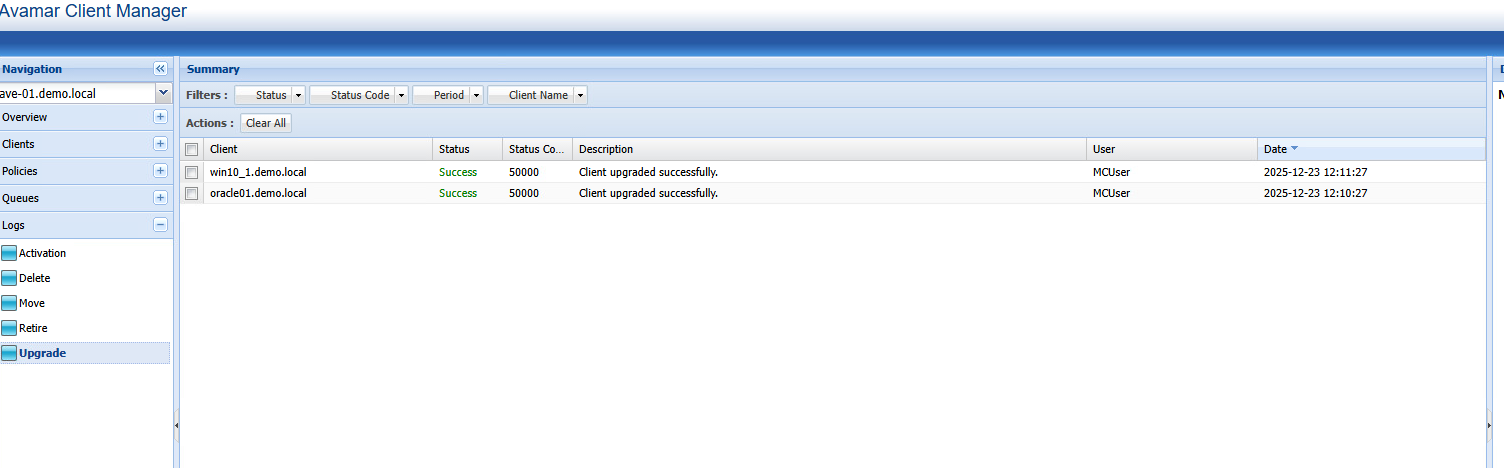
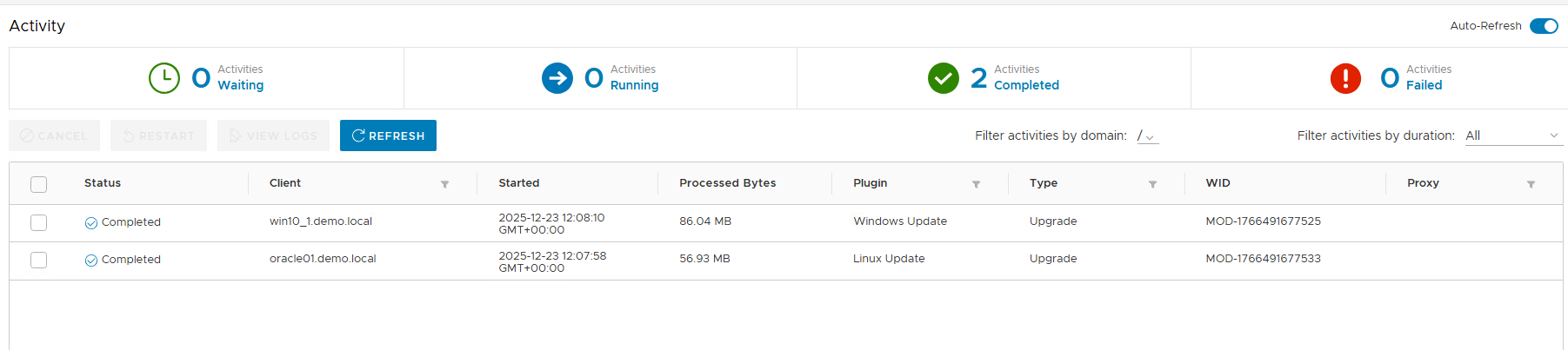
These screenshots indicate that the client push upgrade was successful.
If any issues are encountered during the upgrade, engage the technical support team by creating a Service Request or by contacting chat support.
Informations supplémentaires
Refer to the Client manager guide for more details. The version of this document is old, but valid for all versions.