How to Stop and Start Services in Dell Security Management Server Virtual
Résumé: Learn about how to stop or start Dell Security Management Server Virtual services by following these step-by-step instructions.
Instructions
This article covers how to stop and start services in Dell Security Management Server Virtual (formerly Dell Data Protection | Virtual Edition).
Affected Products:
- Dell Security Management Server Virtual
- Dell Data Protection | Virtual Edition
Dell Security Management Server Virtual services may be stopped and started for:
- Modifications to the server
- Maintenance
- Troubleshooting
The process to stop and start Dell Security Management Server Virtual services varies between v11.3.0 and Later, v10.2.13 to 11.2.0, v10.2.10 to 10.2.12, v10.1.0 to 10.2.9, v9.11.0 to 10.0.0, and v9.10.1 and Earlier. Click the appropriate version for specific steps. For versioning information, reference How to Identify the Dell Data Security Server Version.
v11.3.0 and Later
A Dell Security Management Server Virtual administrator can either Stop Services or Start Services. Click the appropriate task for more information.
Stop Services
- Log in to the Dell Enterprise Server Virtual administration console.
 Note:
Note:- The default credentials for Dell Security Management Server Virtual are:
- Username:
delluser - Password:
delluser
- Username:
- An administrator can change the default password within the product’s virtual appliance menu.
- The default credentials for Dell Security Management Server Virtual are:
- From the Main Menu, select Basic Configuration and then press Enter.
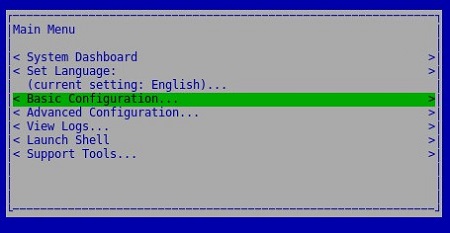
- Select Stop Application and then press Enter.
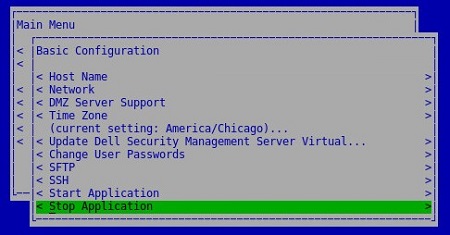
- Select Yes and then press Enter.
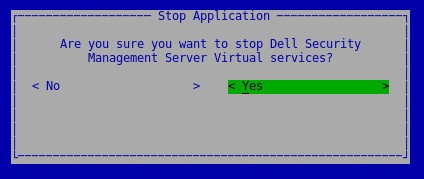
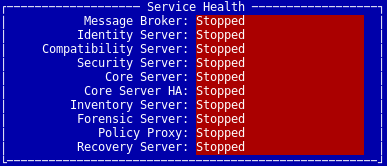
- It may take several minutes for the services to stop. Once services are fully stopped, all services show a status of Stopped.
Start Services
- Log in to the Dell Enterprise Server Virtual administration console.
 Note:
Note:- The default credentials for Dell Security Management Server Virtual are:
- Username:
delluser - Password:
delluser
- Username:
- An administrator can change the default password within the product’s virtual appliance menu.
- The default credentials for Dell Security Management Server Virtual are:
- From the Main Menu, select Basic Configuration and then press Enter.
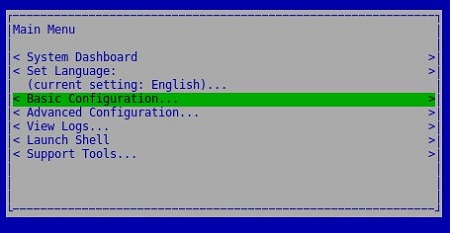
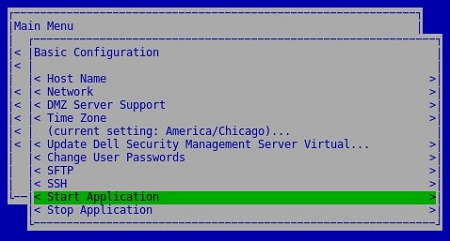
- Select Start Application and then press Enter.
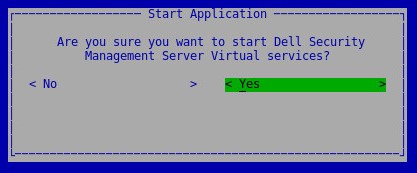
- Select Yes and then press Enter.
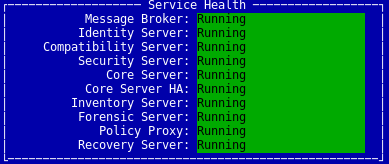
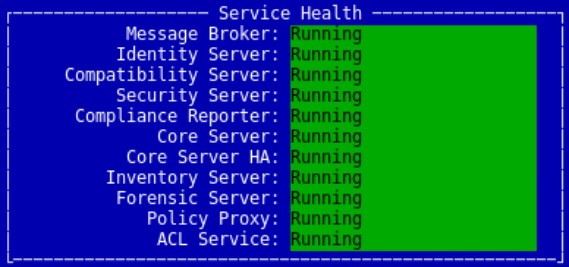
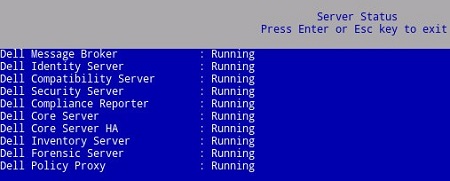
- It may take several minutes for the services to start. Once services are fully started, all services show a status of Running.
v10.2.13 to 11.2.0
A Dell Security Management Server Virtual administrator can either Stop Services or Start Services. Click the appropriate task for more information.
Stop Services
- Log in to the Dell Enterprise Server Virtual administration console.
 Note:
Note:- The default credentials for Dell Security Management Server Virtual are:
- Username:
delluser - Password:
delluser
- Username:
- An administrator can change the default password within the product’s virtual appliance menu.
- The default credentials for Dell Security Management Server Virtual are:
- From the Main Menu, select Basic Configuration and then press Enter.
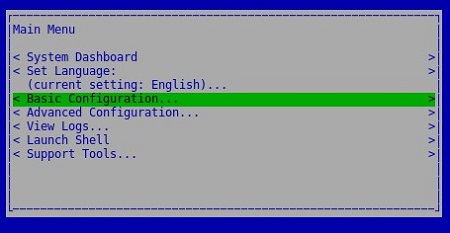
- Select Stop Application and then press Enter.
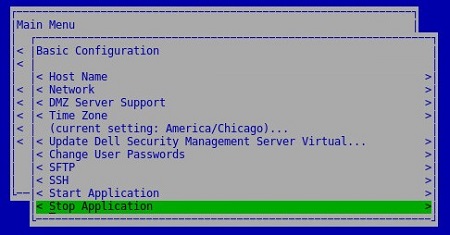
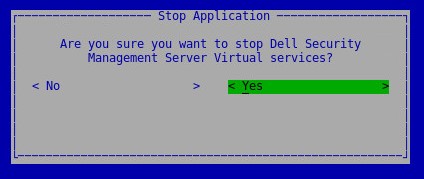
- Select Yes and then press Enter.
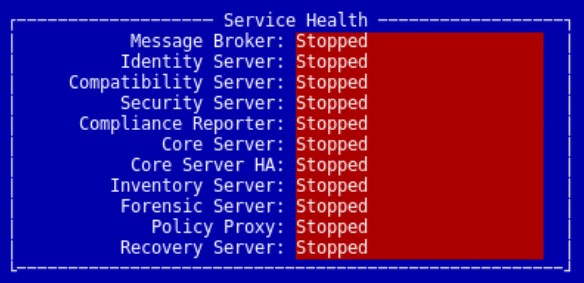
- It may take several minutes for the services to stop. Once services are fully stopped, all services show a status of Stopped.
Start Services
- Log in to the Dell Enterprise Server Virtual administration console.
 Note:
Note:- The default credentials for Dell Security Management Server Virtual are:
- Username:
delluser - Password:
delluser
- Username:
- An administrator can change the default password within the product’s virtual appliance menu.
- The default credentials for Dell Security Management Server Virtual are:
- From the Main Menu, select Basic Configuration and then press Enter.
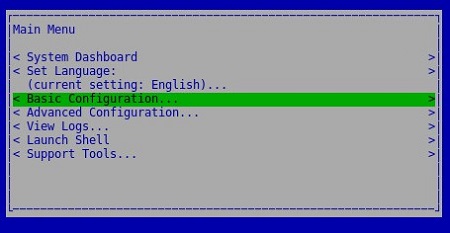
- Select Start Application and then press Enter.

- Select Yes and then press Enter.
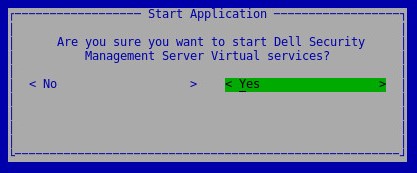
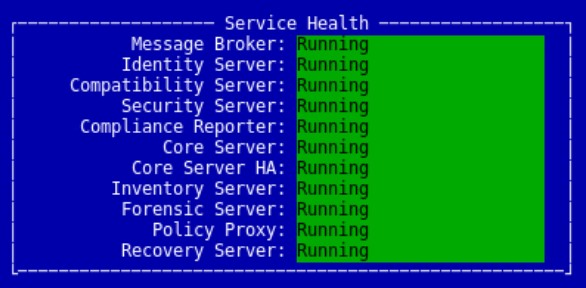
- It may take several minutes for the services to start. Once services are fully started, all services show a status of Running.
v10.2.10 to 10.2.12
A Dell Security Management Server Virtual administrator can either Stop Services or Start Services. Click the appropriate task for more information.
Stop Services
- Log in to the Dell Enterprise Server Virtual administration console.
 Note:
Note:- The default credentials for Dell Security Management Server Virtual are:
- Username:
delluser - Password:
delluser
- Username:
- An administrator can change the default password within the product’s virtual appliance menu.
- The default credentials for Dell Security Management Server Virtual are:
- From the Main Menu, select Basic Configuration and then press Enter.
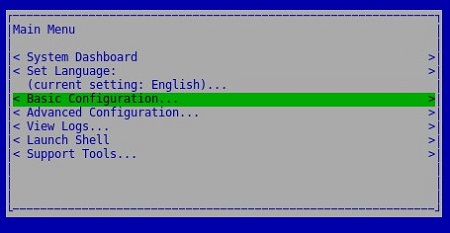
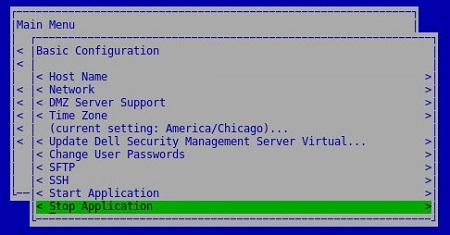
- Select Stop Application and then press Enter.
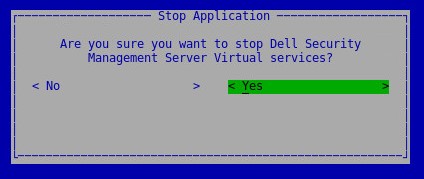
- Select Yes and then press Enter.
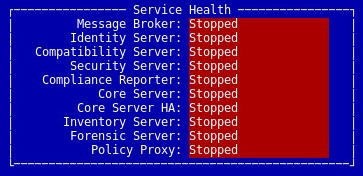
- It may take several minutes for the services to stop. Once services are fully stopped, all services show a status of Stopped.
Start Services
- Log in to the Dell Enterprise Server Virtual administration console.
 Note:
Note:- The default credentials for Dell Security Management Server Virtual are:
- Username:
delluser - Password:
delluser
- Username:
- An administrator can change the default password within the product’s virtual appliance menu.
- The default credentials for Dell Security Management Server Virtual are:
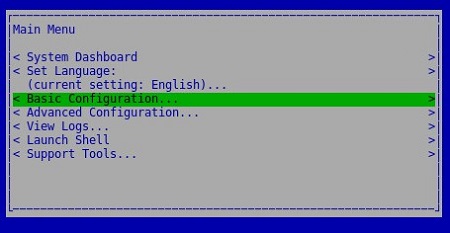
- From the Main Menu, select Basic Configuration and then press Enter.
- Select Start Application and then press Enter.

- Select Yes and then press Enter.
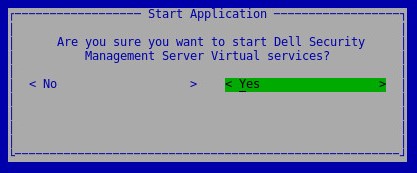
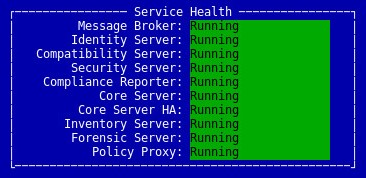
- It may take several minutes for the services to start. Once services are fully started, all services show a status of Running.
v10.1.0 to 10.2.9
A Dell Security Management Server Virtual administrator can either Stop Services or Start Services. Click the appropriate task for more information.
Stop Services
- Log in to the Dell Enterprise Server Virtual administration console.
 Note:
Note:- The default credentials for Dell Security Management Server Virtual are:
- Username:
delluser - Password:
delluser
- Username:
- An administrator can change the default password within the product’s virtual appliance menu.
- The default credentials for Dell Security Management Server Virtual are:
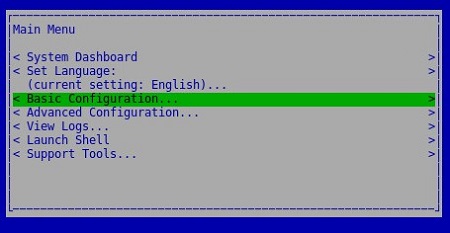
- From the Main Menu, select Basic Configuration and then press Enter.
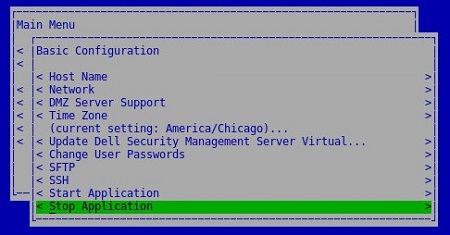
- Select Stop Application and then press Enter
- Select Yes and then press Enter.
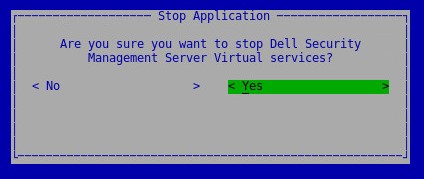
- It may take several minutes for the services to stop. Once services are fully stopped, all services show a status of Stopped.

Start Services
- Log in to the Dell Enterprise Server Virtual administration console.
 Note:
Note:- The default credentials for Dell Security Management Server Virtual are:
- Username:
delluser - Password:
delluser
- Username:
- An administrator can change the default password within the product’s virtual appliance menu.
- The default credentials for Dell Security Management Server Virtual are:
- From the Main Menu, select Basic Configuration and then press Enter.
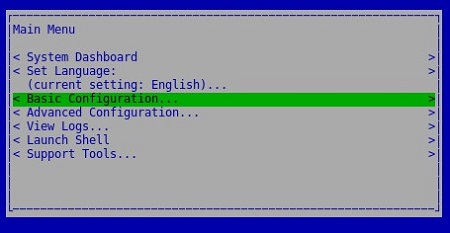
- Select Start Application and then press Enter.
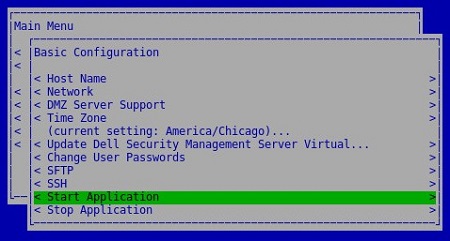
- Select Yes and then press Enter.
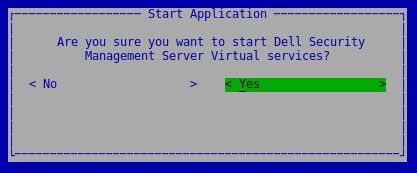
- It may take several minutes for the services to start. Once services are fully started, all services show a status of Running.
v9.11.0 to 10.0.0
A Dell Security Management Server Virtual administrator can either Stop Services or Start Services. Click the appropriate task for more information.
Stop Services
- Log in to the Dell Enterprise Server Virtual administration console.
 Note:
Note:- The default credentials for Dell Security Management Server Virtual are:
- Username:
delluser - Password:
delluser
- Username:
- An administrator can change the default password within the product’s virtual appliance menu.
- The default credentials for Dell Security Management Server Virtual are:
- From the Main Menu, select Basic Configuration and then press Enter.
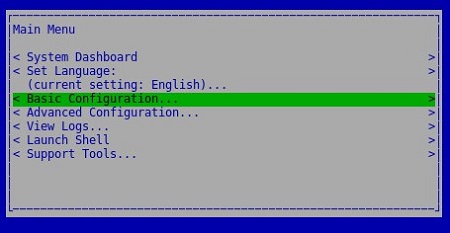
- Select Stop Application and then press Enter.

- Select Yes and then press Enter.
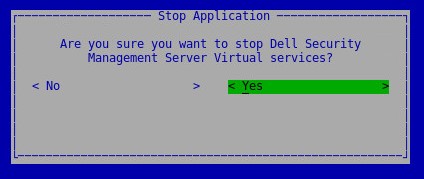
- It may take several minutes for the services to stop. Once services are fully stopped, all services show a status of Stopped.

Start Services
- Log in to the Dell Enterprise Server Virtual administration console.
 Note:
Note:- The default credentials for Dell Security Management Server Virtual are:
- Username:
delluser - Password:
delluser
- Username:
- An administrator can change the default password within the product’s virtual appliance menu.
- The default credentials for Dell Security Management Server Virtual are:
- From the Main Menu, select Basic Configuration and then press Enter.
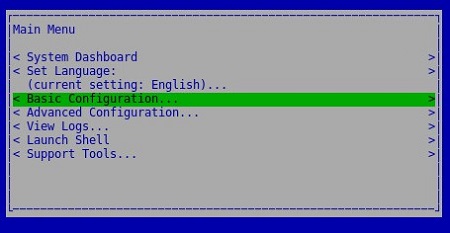
- Select Start Application and then press Enter.
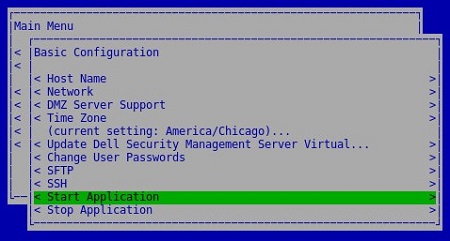
- Select Yes and then press Enter.

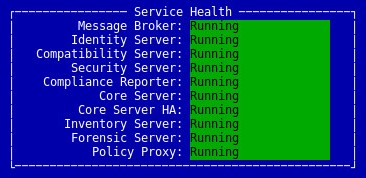
- It may take several minutes for the services to start. Once services are fully started, all services show a status of Running.
v9.10.1 and Earlier
A Dell Security Management Server Virtual administrator can either Stop Services or Start Services. Click the appropriate task for more information.
Stop Services
- Log in to the Dell Enterprise Server Virtual administration console.
 Note:
Note:- The default credentials for Dell Security Management Server Virtual are:
- Username:
ddpuser - Password:
ddpuser
- Username:
- An administrator can change the default password within the product’s virtual appliance menu.
- The default credentials for Dell Security Management Server Virtual are:
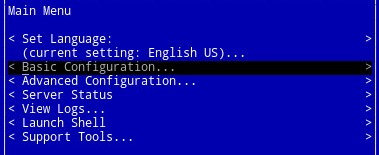
- From the Main Menu, select Basic Configuration and then press Enter.
- Select Stop Application and then press Enter.

- Select Yes and then press Enter.
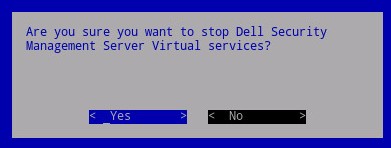
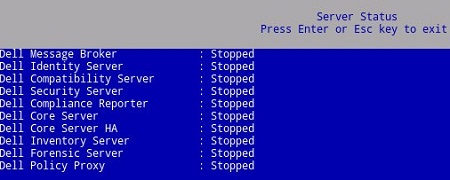
- It may take several minutes for the services to stop. Once services are fully stopped, all services show a status of Stopped.
Start Services
- Log in to the Dell Enterprise Server Virtual administration console.
 Note:
Note:- The default credentials for Dell Security Management Server Virtual are:
- Username:
ddpuser - Password:
ddpuser
- Username:
- An administrator can change the default password within the product’s virtual appliance menu.
- The default credentials for Dell Security Management Server Virtual are:
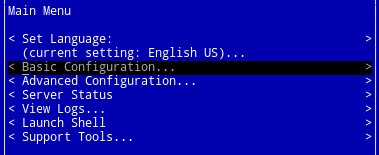
- From the Main Menu, select Basic Configuration and then press Enter.
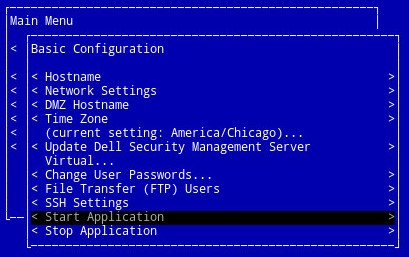
- Select Start Application and then press Enter.
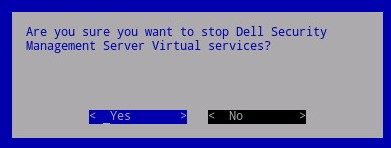
- Select Yes and then press Enter.
- It may take several minutes for the services to start. Once services are fully started, all services show a status of Running.
To contact support, reference Dell Data Security International Support Phone Numbers.
Go to TechDirect to generate a technical support request online.
For additional insights and resources, join the Dell Security Community Forum.