Dell Unity: How to Manually Renew a Unity Management SSL Certificate
요약: This article explains how to manually renew the Unity Management SSL certificate when the existing certificate is nearing expiration or has already expired. It provides the steps required to generate, install, and verify a new management certificate to maintain secure access to the Unity management interfaces and prevent certificate-related warnings or connectivity issues. ...
이 문서는 다음에 적용됩니다.
이 문서는 다음에 적용되지 않습니다.
이 문서는 특정 제품과 관련이 없습니다.
모든 제품 버전이 이 문서에 나와 있는 것은 아닙니다.
지침
The Unity Management SSL certificate is automatically generated during initial system configuration and is normally renewed automatically before it expires. If automatic renewal does not occur, the certificate can be renewed manually using either the Unisphere user interface (UI) or the Unity command-line interface (CLI).
Renewing the Certificate Using Unisphere UI
- In Unisphere, go to:
Settings → Management → Unisphere IP Address - Modify the system hostname to a temporary name and click Apply.
- Wait for the operation to complete and for Unisphere to become available again.
- A new SSL certificate is generated using the temporary hostname.
- Log back in to Unisphere.
- Change the hostname back to its original value and click Apply.
- After the operation completes, Unity generates a new SSL certificate containing the original hostname and updated validity dates.
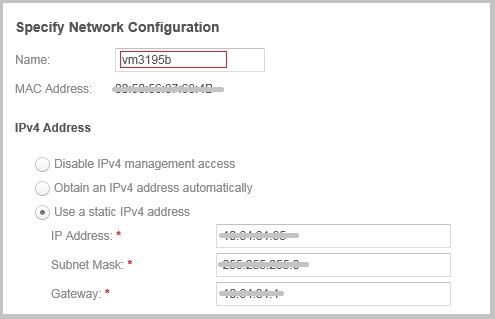
Renewing the Certificate Using the Unity CLI
Before proceeding, record the following information from Unisphere:
- Management IP address
- Subnet mask
- Default gateway
- System hostname
To preserve the existing management IP address, the renewal process must be performed twice:
- First, assign a temporary hostname.
- Then, restore the original hostname.
Step 1: Change the Hostname to a Temporary Value
Log in to the Unity service account using SSH and run:
svc_initial_config -4 "IP_ADDRESS SUBNET_MASK IP_GATEWAY" -f hostnameA
Where
hostnameA is a temporary hostname that differs from the current system name.
Step 2: Restore the Original Hostname
After the first operation completes, run:
svc_initial_config -4 "IP_ADDRESS SUBNET_MASK IP_GATEWAY" -f hostnameShow more lines
Where
hostname is the original system hostname.
Note: The IP address, subnet mask, and gateway values must remain enclosed in quotation marks.
A successful execution updates the hostname and triggers regeneration of the management SSL certificate.
Example of a successful hostname change:
09:28:47 service@VSA-spa spa:~> svc_initial_config -4 "IP_ADDRESS SUBNET_MASK IP_GATEWAY" -f vm3195
Attempting to set friendly name to <vm3195>
Successfully set friendly name to <vm3195>
Validating address IP.xxx.xx.xxx format ... Pass
Validating address GW.xxx.xx.xxx format ... Pass
Validating address Subnet.xxx.xx.xxx format ... Pass
Validating IP and Gateway subnet with Mask ... Pass
Successfully configured network with parameters <static IP_ADDRESS SUBNET_MASK IP_GATEWAY>
Troubleshooting
Automatic and manual certificate renewal may fail if the following file exists:
/EMC/backend/CEM/ssl/.doNotGenerateCert
Verify its presence by running:
ls -al /EMC/backend/CEM/ssl/
If .doNotGenerateCert is present, certificate generation is blocked.
Example:
18:45:22 service@xxx spb:~/user# ls -al /EMC/backend/CEM/ssl/
total 40
drwxr-xr-x  2 root root 4096 Jul  2 19:13 .
drwxr-xr-x 21 ecom c4   4096 Apr  9 01:21 ..
-rw-r--r--  1 root root   90 May 31  2025 .doNotGenerateCert     <<<<<<<<<<<<<<<<<<<
-r--r--r--  1 root root 9060 Jul  2 19:13 cert_config.cnf
-rw-r--r--  1 root root   41 Apr  3  2025 currentSubjectAltName
-rw-------  1 ecom root 1679 May 31  2025 ecomtls-rsa.pk
-rw-r--r--  1 root root 2086 May 31  2025 ecomtls.crt
-rw-------  1 root root 1704 May 31  2025 ecomtls.pk
Resolution
If the .doNotGenerateCert file exists, contact Dell Technical Support and reference this article ID. Support can assist with renaming the file so that manual SSL certificate renewal can be completed successfully.
추가 정보
Dell Unity Family Security Configuration Guide 5.5.3 (requires log in as registered Dell Support user)
[Extracted from page: 37 of the above document]
The storage system automatically generates a self-signed certificate during its first initialization. The certificate is preserved both in NVRAM and on the backend LUN. Later, the storage system presents it to a client when the client attempts to connect to the storage system through the management port.
The certificate is set to expire after 3 years; however, the storage system regenerates the certificate one month before its expiration date. Also, you can upload a new certificate by using the
svc_custom_cert servicecommand. This command installs a specified SSL certificate inPEMformat for use with the Unisphere management interface. For more information about this service command, see the Service Commands Technical Notes document. You cannot view the certificate through Unisphere or the Unisphere CLI; however, you can view the certificate through a browser client or a web tool that tries to connect to the management port.
Note: When the array is inFIPSmode and a certificate is generated off-array, in addition to the certificate being inPEMformat, the private key needs to be inPKCS#1format. You can use an OpenSSL command to do this conversion. Once the.cerand.pkfiles are generated, this additional step is required when the certificate is used on an array inFIPSmode.
To increase security, some organizations use CA certificate chaining. Certificate chaining links two or more CA certificates together. The primary CA certificate is the root certificate at the end of the CA certificate chain. Since the system needs the complete certificate chain to verify the authenticity of a certificate that is received, ask the directory server administrator if certificate chaining is used. If so, you must concatenate all the relevant certificates into a single file and upload that version. The certificate must be in
PEM/Base64 encoded formatand use the suffix.cer.
How to Check the SSL Certificate Expiration Date
Certificate Expiry date can be checked by command:
uemcli -u <Unisphere login ID> -p <Unisphere login PW> /sys/cert show
Check "Valid to" date. It shows expiry date of the SSL Certificate.
The certificate expiration date can also be verified through a web browser.
- Open Google Chrome and access the Unisphere UI.
- Open the Chrome menu and select More Tools > Developer Tools.
- Select the Security tab and click View Certificate.
- Review the Valid until field to determine the certificate expiration date.
해당 제품
Dell EMC Unity, Dell EMC Unity Family |Dell EMC Unity All Flash, Dell EMC Unity Hybrid, Dell Unity Operating Environment (OE)문서 속성
문서 번호: 000022509
문서 유형: How To
마지막 수정 시간: 15 7월 2026
버전: 9
다른 Dell 사용자에게 질문에 대한 답변 찾기
지원 서비스
디바이스에 지원 서비스가 적용되는지 확인하십시오.