DTA(Dell Technical Advisories) 및 DSA(Dell Security Advisories)를 구독하는 방법
요약: Dell DTA 또는 DSA를 구독하거나 구독을 취소하는 방법.
이 문서는 다음에 적용됩니다.
이 문서는 다음에 적용되지 않습니다.
이 문서는 특정 제품과 관련이 없습니다.
모든 제품 버전이 이 문서에 나와 있는 것은 아닙니다.
지침
Dell Technologies는 중요한 문제와 환경에 미칠 수 있는 영향에 대해 알리기 위해 Dell 제품에 대한 권장 사항을 게시합니다. Dell 보안 또는 기술 권고가 발령될 때마다 또는 특정 제품에 대한 권고가 발령된 경우에만 자동 이메일 알림을 설정합니다.
권장 사항을 해결하는 단계는 MyService360 내에서 보안 및 기술 권장 사항 관리를 참조하십시오. MyService360에는 로그인이 필요합니다.
1. https://www.dell.com/support에 로그인합니다.
2. 오른쪽 상단 모서리에 마우스를 올려 놓고 Dell Preferences를 클릭합니다. 계정 설정 및 기본 설정 페이지가 표시됩니다.
3. NOTIFICATIONS & ALERTS 탭을 클릭하고 Product Advisories 탭을 클릭합니다.
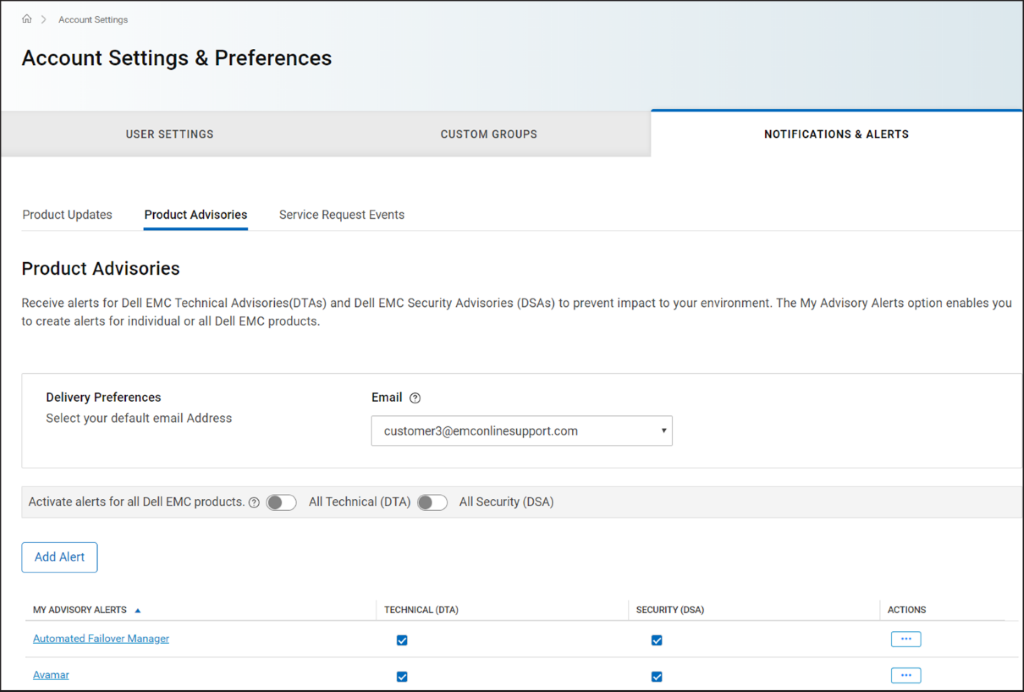
그림 1 Product Advisories 탭
4. Delivery Preferences 창에서 알림을 받을 이메일 주소를 선택합니다.
5. 권고 사항이 발령될 때마다 이메일 알림을 받으려면 다음을 수행하십시오.
참고: 기본적으로 이메일 알림은 기술 및 보안 권장 사항에 대해 전송됩니다. 요구 사항에 따라 TECHNICAL(DTA) 또는 SECURITY(DSA) 열의 확인란을 선택 취소할 수 있습니다.
권장 사항을 해결하는 단계는 MyService360 내에서 보안 및 기술 권장 사항 관리를 참조하십시오. MyService360에는 로그인이 필요합니다.
1. https://www.dell.com/support에 로그인합니다.
2. 오른쪽 상단 모서리에 마우스를 올려
놓고 Dell Preferences를 클릭합니다. 계정 설정 및 기본 설정 페이지가 표시됩니다.
3. NOTIFICATIONS & ALERTS 탭을 클릭하고 Product Advisories 탭을 클릭합니다.
그림 1 Product Advisories 탭
4. Delivery Preferences 창에서 알림을 받을 이메일 주소를 선택합니다.
5. 권고 사항이 발령될 때마다 이메일 알림을 받으려면 다음을 수행하십시오.
- 기술 권장 사항을 보려면 All Technical (DTA) 토글 스위치를 켭니다.
- 보안 권고 사항의 경우 모든 보안(DSA) 토글 스위치를 켭니다.
- Add Alert를 클릭합니다.
- 제품 이름을 입력하고 Add Product를 클릭합니다.
- 알림이 생성되어 Product Advisories 페이지에 표시됩니다.
문서 속성
문서 번호: 000113250
문서 유형: How To
마지막 수정 시간: 18 4월 2026
버전: 8
다른 Dell 사용자에게 질문에 대한 답변 찾기
지원 서비스
디바이스에 지원 서비스가 적용되는지 확인하십시오.