How to Back Up and Restore Dell Security Management Server
요약: Dell Security Management Server and Dell Data Protection Enterprise Edition Server can be backed up and restored by following these instructions.
이 문서는 다음에 적용됩니다.
이 문서는 다음에 적용되지 않습니다.
이 문서는 특정 제품과 관련이 없습니다.
모든 제품 버전이 이 문서에 나와 있는 것은 아닙니다.
지침
Dell Security Management Server (formerly Dell Data Protection Enterprise Edition Server) may be backed up and restored in order to:
- Migrate the server.
- Troubleshoot the product.
- Address operating system incompatibility.
This article covers the steps to back up and restore the product.
Affected Products:
- Dell Security Management Server
- Dell Data Protection Enterprise Edition Server
Affected Versions:
- 8.0.0 and Later
Upon completing a successful Backup, an administrator must Restore it. Click the appropriate function for more information.
Note: Front-end Dell Security Management Servers are not required to be backed up or restored.
Backup
Dell Security Management Server
Note: Backups should be stored on an external source, for example, network-attached storage (NAS).
A weekly backup should be created on the back-end Dell Security Management Server for:
%ENV:SYSTEMDRIVE%\Program Files\Dell\Enterprise Edition\Compatibility Server\conf\server_config.xml%ENV:SYSTEMDRIVE%\Program Files\Dell\Enterprise Edition\Compatibility Server\conf\secretKeyStore%ENV:SYSTEMDRIVE%\Program Files\Dell\Enterprise Edition\Compatibility Server\conf\gkresource.xml
Note: The default path may differ if modified during installation. Confirm the directory where these files are stored before creating a backup task.
For more information about backups, refer to:
- How to Back Up and Import Custom Compliance Reports in Dell Security Management Server if custom Compliance Reporter reports are in use.
- How to Back Up and Restore the Advanced Threat Prevention Certificate for Dell Data Security Servers if Advanced Threat Prevention is in use.
SQL Server
The Dell Security Management Server SQL database should be backed up nightly using full backups with transactional logging enabled. For more information, refer to Backup Overview (SQL Server)
Restore
- Perform a clean install of the same version of Dell Security Management Server or Dell Data Protection | Enterprise Edition Server that was previously installed. During installation, when prompted to select a SQL database, select create a new database.
Note:
- For more information, refer to How to Install Dell Security Management Server.
- For more information about identifying the version, refer to How to Identify the Dell Data Security Server Version.
- Restore the Dell Security Management Server SQL database. For more information, refer to Restore and recovery overview (SQL Server)
- Configure the restored SQL database for use with the Dell Security Management Server. For more information, refer to How to Configure SQL for Dell Security Management Server.
- Stop the Dell Security Management Server services. For more information, refer toHow to Stop and Start Services in Dell Security Management Server.
- Restore the backed-up files:
%ENV:SYSTEMDRIVE%\Program Files\Dell\Enterprise Edition\Compatibility Server\conf\server_config.xml%ENV:SYSTEMDRIVE%\Program Files\Dell\Enterprise Edition\Compatibility Server\conf\secretKeyStore%ENV:SYSTEMDRIVE%\Program Files\Dell\Enterprise Edition\Compatibility Server\conf\gkresource.xml
- Go to
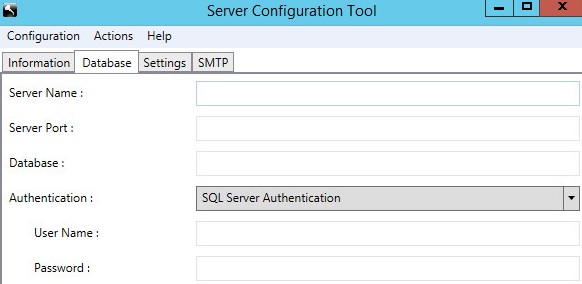
%ENV:SYSTEMDRIVE%\Program Files\Dell\Enterprise Edition\Server Configuration Tooland run the Server Configuration Tool (Credant.Configuration.exe). Click the Database tab and populate the fields.
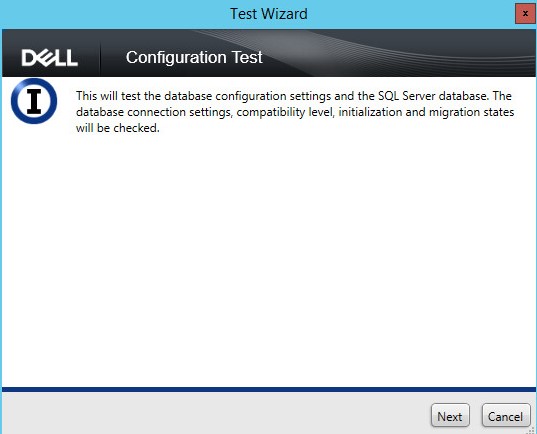
- Click the Actions menu and then select Test Database Configuration.

- Click Next.
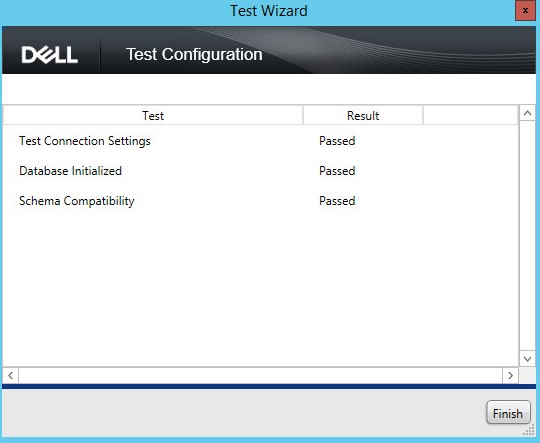
- Click Finish.
- Click the Configuration menu and then select Save.

- Click the Configuration menu and then select Exit.

- Start the Dell Security Management Server services. For more information, refer to How to Stop and Start Services in Dell Security Management Server.
For more information, refer to:
- How to Back Up and Import Custom Compliance Reports in Dell Security Management Server if custom Compliance Reporter reports must be restored.
- How to Back Up and Restore the Advanced Threat Prevention Certificate for Dell Data Security Servers if the Advanced Threat Prevention certificate must be restored.
해당 제품
Dell Encryption문서 속성
문서 번호: 000124922
문서 유형: How To
마지막 수정 시간: 20 7월 2026
버전: 11
다른 Dell 사용자에게 질문에 대한 답변 찾기
지원 서비스
디바이스에 지원 서비스가 적용되는지 확인하십시오.