How to Apply a VMware Carbon Black Cloud Endpoint Policy
요약: Learn step-by-step instructions to apply VMware Carbon Black Cloud Endpoint policies by following these directions.
이 문서는 다음에 적용됩니다.
이 문서는 다음에 적용되지 않습니다.
이 문서는 특정 제품과 관련이 없습니다.
모든 제품 버전이 이 문서에 나와 있는 것은 아닙니다.
지침
This article covers how to automatically and manually apply a VMware Carbon Black Cloud Endpoint policy in the VMware Carbon Black Cloud console.
Affected Products:
- VMware Carbon Black Cloud
- VMware Carbon Black Cloud Endpoint
Affected Operating Systems:
- Windows
- Mac
- Linux
By default, VMware Carbon Black Cloud Endpoint sensors are assigned to the Standard policy. Sensors can be assigned automatically to any policy they meet criteria for within a sensor group.
Note: For more information about assigning a device to a sensor group, reference How to Create a VMware Carbon Black Cloud Endpoint Sensor Group.
Warning: Manually applying a policy overrides any automatic assignment.
- In a web browser, go to [REGION].conferdeploy.net.
Note: [REGION] = Region of tenant
- Americas = https://defense-prod05.conferdeploy.net/
- Europe = https://defense-eu.conferdeploy.net/
- Asia Pacific = https://defense-prodnrt.conferdeploy.net/
- Australia and New Zealand = https://defense-prodsyd.conferdeploy.net
- Americas = https://defense-prod05.conferdeploy.net/
- Sign In to the VMware Carbon Black Cloud.

- In the left menu pane, click Inventory and then click Endpoints.
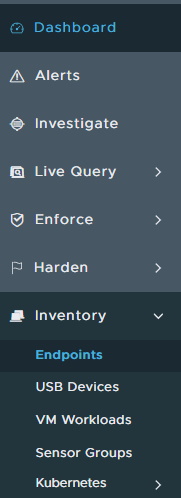 Note: The layout in the example may differ slightly from your environment.
 - In the All Sensors user interface (UI):
- Check the appropriate Device Name.
- Click Take Action.
- Click Assign policy.
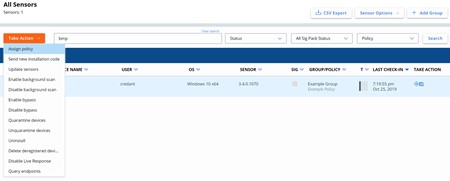 Note: The examples in the screenshot will differ in your environment.
 - Select the appropriate policy and then click Save.
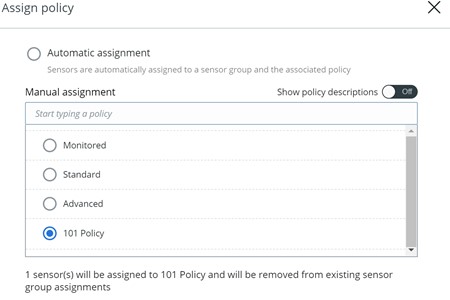

해당 제품
VMware Carbon Black문서 속성
문서 번호: 000125895
문서 유형: How To
마지막 수정 시간: 15 7월 2026
버전: 12
다른 Dell 사용자에게 질문에 대한 답변 찾기
지원 서비스
디바이스에 지원 서비스가 적용되는지 확인하십시오.