How to Disable System Integrity Protection for Dell Data Security Mac Products
요약: Learn how to temporarily disable System Integrity Protection (SIP) on your Mac for Dell Data Security and Dell Data Protection products.
이 문서는 다음에 적용됩니다.
이 문서는 다음에 적용되지 않습니다.
이 문서는 특정 제품과 관련이 없습니다.
모든 제품 버전이 이 문서에 나와 있는 것은 아닙니다.
지침
Note:
- As of February 2021, Dell Encryption Enterprise for Mac has reached End of Maintenance. This product and its articles are no longer updated by Dell.
- As of May 2022, Dell Endpoint Security Suite Enterprise has reached End of Maintenance. This product and its articles are no longer updated by Dell.
- As of May 2022, Dell Threat Defense has reached End of Maintenance. This product and its articles are no longer updated by Dell.
- For more information, reference Product Life Cycle (End of Support and End of Life) Policy for Dell Data Security. If you have any questions on alternative articles, either reach out to your sales team or contact endpointsecurity@dell.com.
- Reference Endpoint Security for additional information about current products.
This article provides information about how to manage System Integrity Protection (SIP).
Affected Products:
- Dell Data Protection Enterprise Edition for Mac
- Dell Encryption Enterprise Mac
- Dell Endpoint Security Suite Enterprise
- Dell Threat Defense
Affected Versions:
- 10.11.X (El Capitan) and Later
Affected Operating Systems:
- Mac
Apple introduced SIP in 10.11.X (El Capitan) to protect system processes, files, and folders from being modified or tampered with by other processes. For more information about System Integrity Protection, reference About System Integrity Protection on your Mac
Dell Data Security products may require SIP to be temporarily disabled to:
- Encrypt with Dell Volume Encryption (DVE)
- Automatically allow kernel extensions (KEXTs) in High Sierra (10.13.X) and later for:
- Dell Encryption Enterprise for Mac
- Dell Endpoint Security Suite Enterprise
- Dell Threat Defense
Note: It is not required to disable SIP if manually approving KEXTs. For more information, reference How to Allow Dell Data Security Kernel Extensions on macOS.
A Dell Data Security administrator may either Check SIP Status, temporarily Disable SIP, or Enable SIP. Click the appropriate option for more information.
Check SIP Status
- In the Apple Menu, select Go, and then click Utilities.
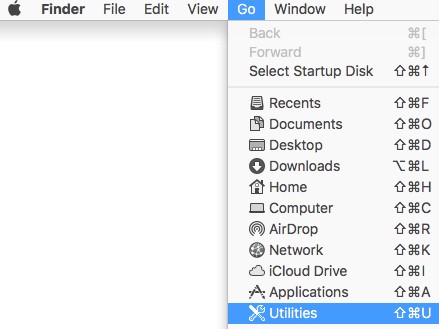
- Double-click Terminal.

- In Terminal, type the following command and then press Enter.
csrutil status
Disable SIP
- Shut down the targeted Mac operating system.
- Power on the Mac while holding down the Command + R keys to boot in enter recovery mode.
- In recovery mode, select Utilities, and then click Terminal.
- In Terminal, type the following command and then press Enter.
csrutil disable - Click the Apple icon and click Restart.
Enable SIP
- Shut down the targeted Mac operating system.
- Power on the Mac while holding down the Command + R keys to boot in enter recovery mode.
- In recovery mode, select Utilities, and then click Terminal.
- In Terminal, type the following command and then press Enter.
csrutil enable - Click the Apple icon and click Restart.
Note: SIP can be confirmed enabled using Terminal by typing the following command and then pressing Enter. This command is case-sensitive.
csrutil STATUS해당 제품
Dell Encryption문서 속성
문서 번호: 000126858
문서 유형: How To
마지막 수정 시간: 20 7월 2026
버전: 16
다른 Dell 사용자에게 질문에 대한 답변 찾기
지원 서비스
디바이스에 지원 서비스가 적용되는지 확인하십시오.