Dell Data Protection Virtual Edition Fails to Update with an SSL Error
요약: An error appears with the message "WGET error: Code 5, Description: SSL verification failure", when attempting to update Dell Data Protection | Virtual Edition.
이 문서는 다음에 적용됩니다.
이 문서는 다음에 적용되지 않습니다.
이 문서는 특정 제품과 관련이 없습니다.
모든 제품 버전이 이 문서에 나와 있는 것은 아닙니다.
증상
Affected Products:
- Dell Data Protection | Virtual Edition
Affected Versions:
- v9.10 and Earlier
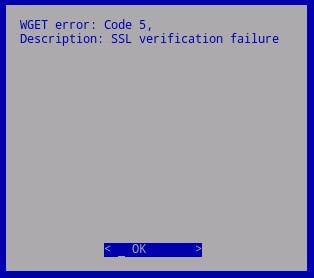
Due to a change in certificate handling, the industry deprecation of SHA1 certificates, Dell was required to update to SHA256 certificates on the servers hosting the Dell Data Protection | Virtual Edition updates. Certificates signed by these new authorities but not recognized by the operating system that lies underneath Dell Data Protection | Virtual Edition. The local certificate store that holds validated and trusted root authorities must be updated to support these new signing authorities.
Other changes to the underlying operating system’s package update repositories also require that these repositories be updated before the local certificate store can be updated.
원인
Not Applicable
해결
To update the certificate store:
- Log in to the Dell Enterprise Server Virtual administration console.
 Note:For information about enabling SSH, reference How to Enable SSH in Dell Security Management Server Virtual.
- The default credentials for Dell Data Protection Enterprise Server Virtual Edition are:
- Username:
ddpuser - Password:
ddpuser
- Username:
- An administrator can change the default password within the product’s virtual appliance menu.
- The default credentials for Dell Data Protection Enterprise Server Virtual Edition are:
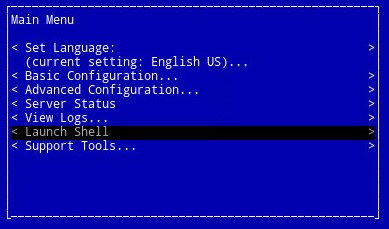
- From the Main Menu, select Launch Shell and then press Enter.
- Type
su ddpsupportand then press Enter.

- Type the password for
ddpsupportand then press Enter.
 Note:
Note:- The default credentials for Dell Data Protection Enterprise Server Virtual Edition are:
- Username:
ddpsupport - Password:
ddpsupport
- Username:
- An administrator can change the default password within the product’s virtual appliance menu.
- The default credentials for Dell Data Protection Enterprise Server Virtual Edition are:
- Rename the existing sources files by running the command:
sudo mv /etc/apt/sources.list /etc/apt/sources.list.bak
- Generate a new sources.list file and open it with the command:
sudo nano /etc/apt/sources.list
- Copy and paste the repositories below into the new file:
deb http://old-releases.ubuntu.com/ubuntu precise main restricted universe multiverse
deb-src http://old-releases.ubuntu.com/ubuntu precise main restricted universe multiverse
deb http://old-releases.ubuntu.com/ubuntu precise-updates main restricted universe multiverse
deb-src http://old-releases.ubuntu.com/ubuntu precise-updates main restricted universe multiverse
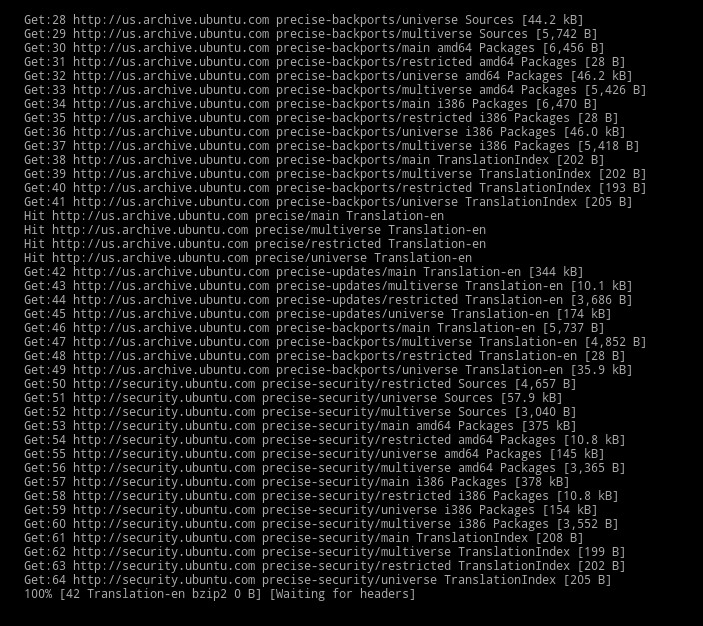
- The resulting output should look like:

- Save and close the file by holding Left CTRL and pressing X.
- A prompt appears to confirm the changes, press Y to confirm.

- Press Enter to confirm the file name.

- Update the operating system, and ensure that the latest certificates are present by typing running the following command.
sudo apt-get update && sudo apt-get upgrade -y && sudo apt-get install --only-upgrade ca-certificates -y
 Note: If an error occurs, type:
sudo apt-get updateand then press Enter.sudo apt-get install --only-upgrade ca-certificates and then press Enter
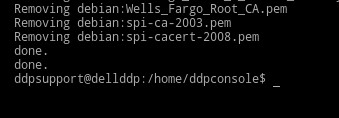
- Several lines of data appear, until done, is displayed twice, and the context to
ddpsupportis presented again.
- Type
exitand then press Enter to log out ofddpsupport.

- Type
exitand then press Enter to log out of the shell to the UI.

- The update now runs successfully.
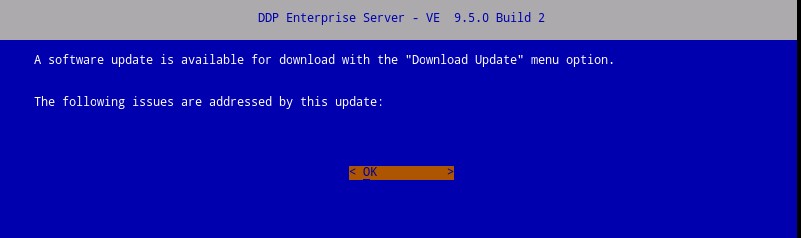 Note: For more information about the upgrade process, reference How to Upgrade Dell Security Management Server Virtual.
해당 제품
Dell Encryption문서 속성
문서 번호: 000130706
문서 유형: Solution
마지막 수정 시간: 01 7월 2026
버전: 13
다른 Dell 사용자에게 질문에 대한 답변 찾기
지원 서비스
디바이스에 지원 서비스가 적용되는지 확인하십시오.