How to Boot to an External Device Using USB Type-C Connection
요약: BIOS settings to select to boot to an external device using USB TYPE-C connection for XPS, Precision, and Latitude laptops.
이 문서는 다음에 적용됩니다.
이 문서는 다음에 적용되지 않습니다.
이 문서는 특정 제품과 관련이 없습니다.
모든 제품 버전이 이 문서에 나와 있는 것은 아닙니다.
증상
XPS, Precision, and Latitude may not be able to boot to externally connected USB Type-C devices. The computer may report a "Device not identified" error.
원인
The default specification bypasses the USB boot sequence to reduce the boot times in the default configuration. Due to this default configuration, the computer does not boot to the external device.
해결
Enable below two options to support boot from an external device.
- At boot, Press the F2 key or alternately press the F12 key then select the option to enter the BIOS setup.
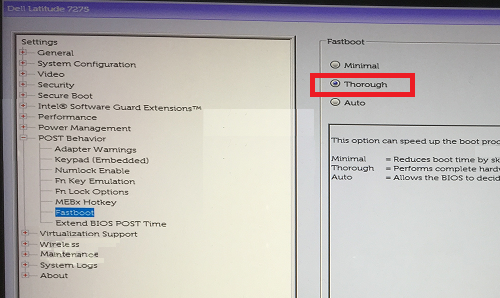
- In POST Behavior, select Fastboot then select the Thorough option.
- In System Configuration, select USB/Thunderbolt Configuration, then select Enable Thunderbolt Boot Support.
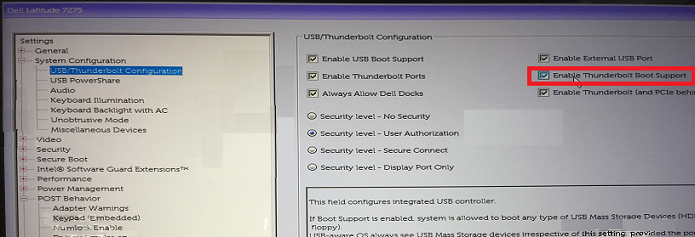
Note: Check to Enable USB Boot Support to recognize the USB boot device. - In the General Tab, select Advanced Boot Configuration, then check Enable Legacy Option ROMs and Enable UEFI Network Stack if not already checked.
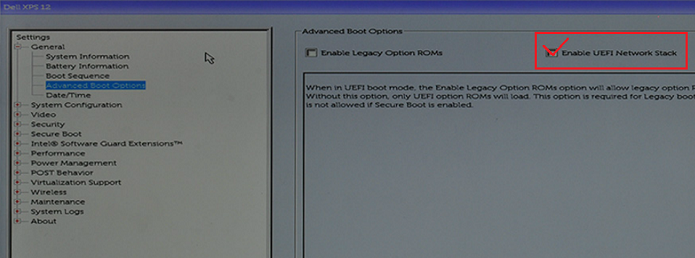
- Reboot the computer, the USB Type-C device should now appear in the boot options.
See these Dell Knowledge Base articles for related information:
해당 제품
Latitude 7275, Precision 3520, Precision 5520, Precision 3510, Precision 5510, XPS 12 9250문서 속성
문서 번호: 000131221
문서 유형: Solution
마지막 수정 시간: 20 4월 2026
버전: 13
다른 Dell 사용자에게 질문에 대한 답변 찾기
지원 서비스
디바이스에 지원 서비스가 적용되는지 확인하십시오.