How to Export Tech Support Report via Rocky Linux 9
요약: This article provides a step by step to collect Tech Support Report via Rocky Linux 9.
이 문서는 다음에 적용됩니다.
이 문서는 다음에 적용되지 않습니다.
이 문서는 특정 제품과 관련이 없습니다.
모든 제품 버전이 이 문서에 나와 있는 것은 아닙니다.
지침
Prerequisites.
- Rocky Linux 9 installed on the system.
- Internet connection to download the iDRAC Tools tool.
- Superuser privileges.
Step 1: Download and Unzip the iDRAC Tools Tool.
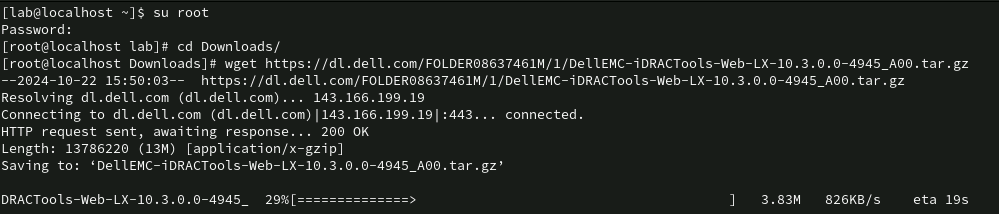
- Open the terminal and get superuser privileges by running the command
su root - Change to the "Downloads" directory using the command
cd Downloads/ - Download the iDRAC Tools using the
wget https://dl.dell.com/FOLDER08637461M/1/DellEMC-iDRACTools-Web-LX-10.3.0.0-4945_A00.tar.gz
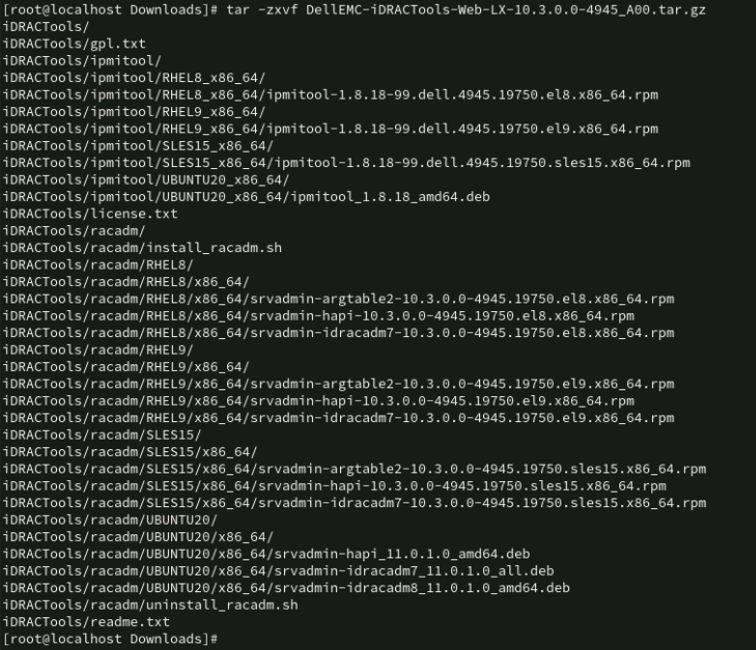
- Uncompress the contents using the
tar -zxvf DellEMC-iDRACTools-Web-LX-10.3.0.0-4945_A00.tar.gz
Step 2: Install the iDRAC Tools tool.
- Change to the iDRAC Tools directory using the
cd iDRACTools/racadm/RHEL9/x86_64/ - Install the packages using the command
rpm -ivh *.rpm

Step 3: Start Registry Collection.
- Open a new terminal, and gain superuser privileges by running the command
su root - Change to the iDRAC Tools directory using the
cd /opt/dell/srvadmin/sbin/ - Start the collection using the command
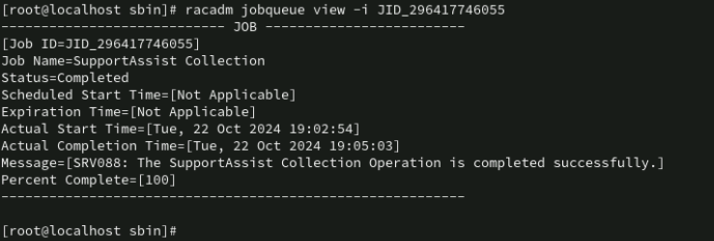
racadm techsupreport collect -t sysInfo,ttyloga Job ID will be generated, for example: JID_296417746055.
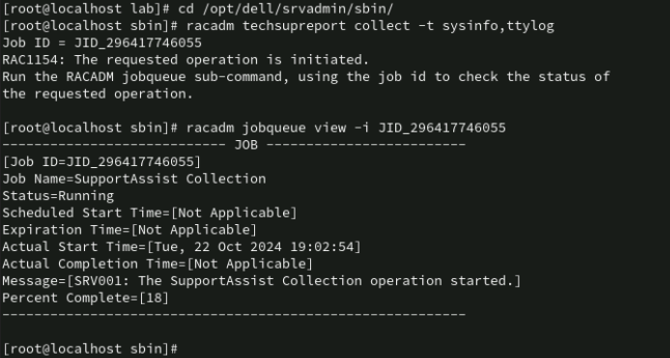
- Monitor the Job progress using the
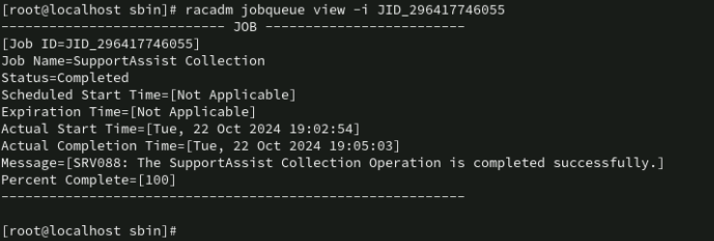
racadm jobqueue view -i <ID_do_Job>Replace<ID_do_Job>by the Job ID generated in the previous step, repeat the command until the Job Status shows the value "Completed".
Step 4: Export the iDRAC log
- Export the collection to the host using the
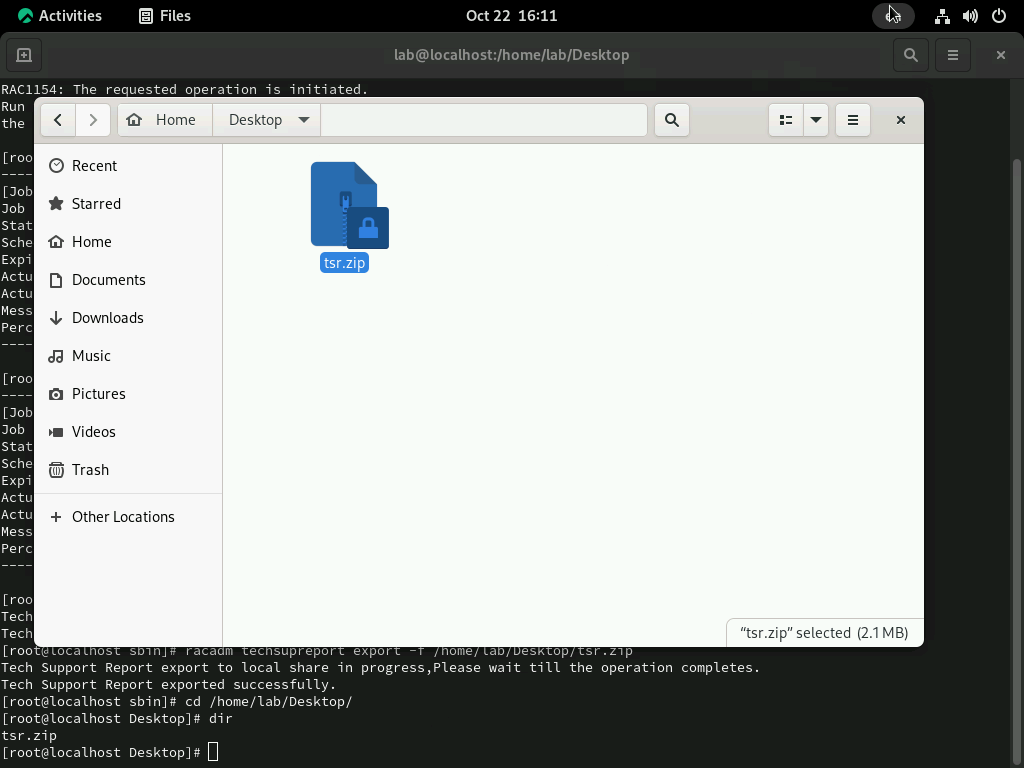
racadm techsupreport export -f /home/[nome_do_usuário]/Desktop/tsr.zip
- Enter the directory to check if the file was exported. Ready! You can now send the generated collection file to the technical support agent for analysis.

해당 제품
iDRAC8, iDRAC9제품
Red Hat Enterprise Linux Version 9문서 속성
문서 번호: 000242537
문서 유형: How To
마지막 수정 시간: 16 3월 2026
버전: 5
다른 Dell 사용자에게 질문에 대한 답변 찾기
지원 서비스
디바이스에 지원 서비스가 적용되는지 확인하십시오.