PowerProtect Data Manager: How to Deploy TSDM in VMware Cloud Foundation 9.1
요약: Broadcom support of Transparent Snapshot Data Mover (TSDM) was returned in VMware Cloud Foundation version 9.1. This changed with the VMware vCenter Lifecycle Manager (vLCM) components requiring usage of the Application Programming Interface (API). With PowerProtect Data Manager 20.1, there is a manual method of deploying TSDM in VMware Cloud Foundation. ...
이 문서는 다음에 적용됩니다.
이 문서는 다음에 적용되지 않습니다.
이 문서는 특정 제품과 관련이 없습니다.
모든 제품 버전이 이 문서에 나와 있는 것은 아닙니다.
지침
This article provides information about importing ESXi images with the TSDM component included, in VMware cloud foundation 9.1, and applies to the following scenarios:
VCF related steps for TSDM vSphere Installation Bundle (VIB) handling apply only if this is a VCF managed VCenter.
Specifically, it applies for the following use cases that are orchestrated directly from the VCF operations UI or from the SDDC manager UI:
- Create a new workload domain cluster or a new cluster in an existing workload domain.
- Deploy the TSDM component in an existing workload domain cluster
- Deploy the TSDM component in an existing management domain cluster
If the environment does not use VCF but uses VMware vSphere Foundation 9.1, follow KB article PowerProtect Data Manager: TSDM 20.1.0.0 Backups with vSphere 9.1 Require Manual Managing to deploy TSDM.
Create a new workload domain using a TSDM enabled ESXi Image:
Below are the steps for deploying TSDM in a new workload domain cluster.
- Build an ESXI 9.1 image that includes the TSDM component using vLCM. The Image with TSDM component should exists either in the vCenter of the Management domain or vCenter of the Workload domain.
- Import the image in VCF. This can be achieved either by VCF operations UI or the SDDC manager UI.
To import the image in VCF using VCF operations UI do the following:
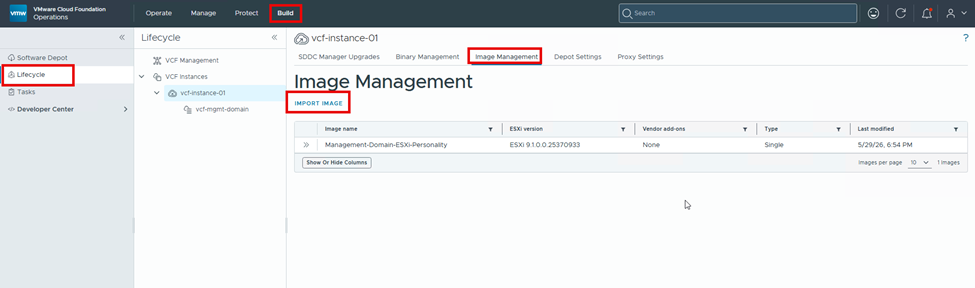
- Log in to the VCF Operations UI. Select the Build tab, then Lifecycle -> Image Management -> Import Image
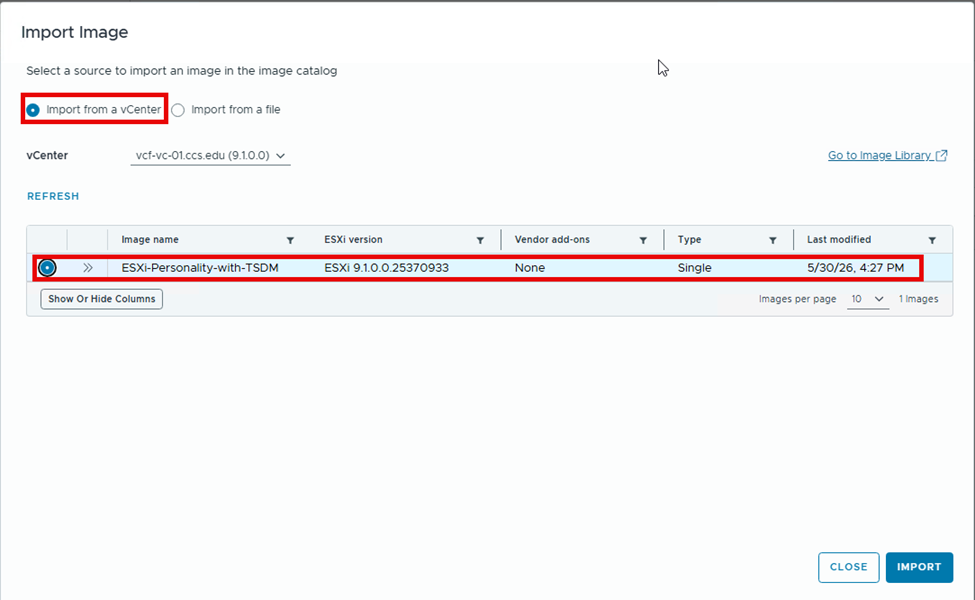
- Select the image to import. The image being selected below has TSDM component included:
- If using SDDC Manager UI, the Import steps look like this:
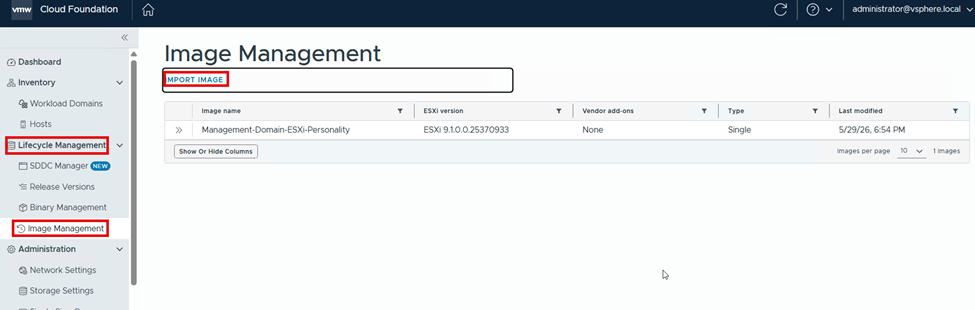
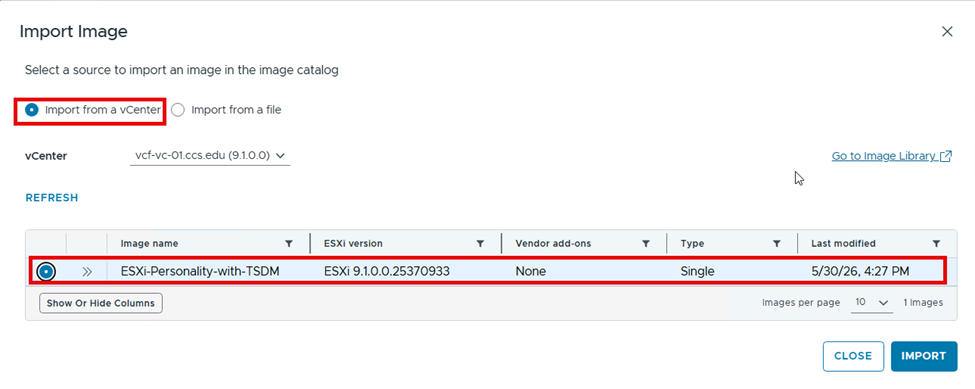
- In the above, the
ESXi-Personality-with-TSDMimage exists in the vSphere Lifecycle Manager (vLCM) of the vCenter servervcf-vc.ccs.edu. - Monitor the import progress from Tasks:

- Confirm the import is successful:

- Once Imported, the image appears in the VCF image library in the VCF operations UI:
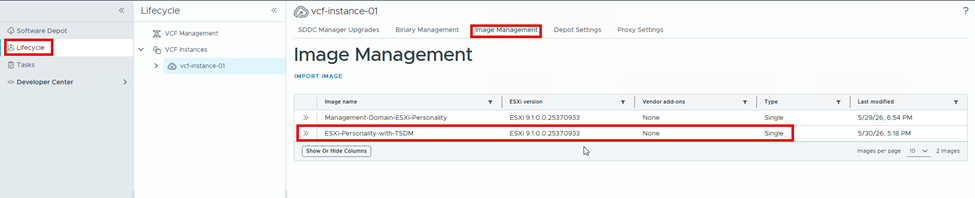
- When deploying new workload domain clusters, select this image in the wizard to create the Workload Domain, as shown below:
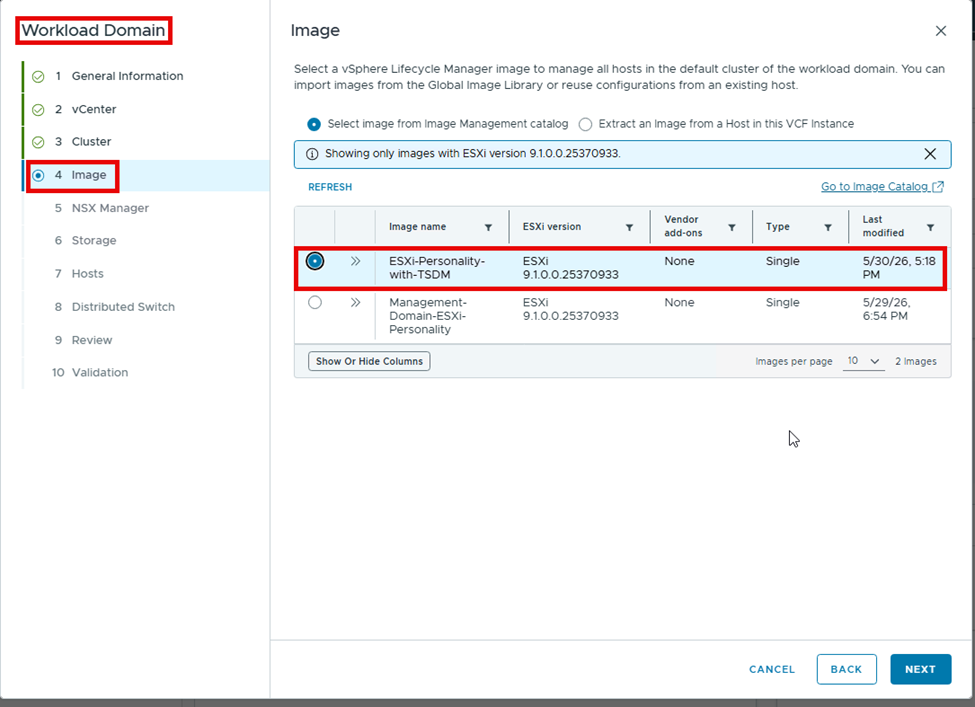 \
\
- The complete procedure to deploy a new Workload Domain cluster is not shown here. Refer to Broadcom documentation for the detailed procedure.
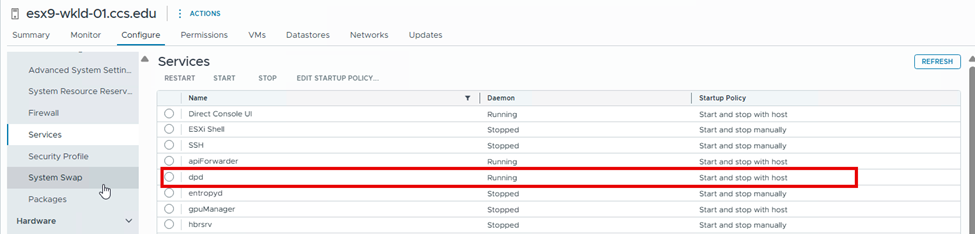
- After deployment of the new workload domain cluster, verify that
tsdmis installed and that the startup policy is set tostart and stop with host:
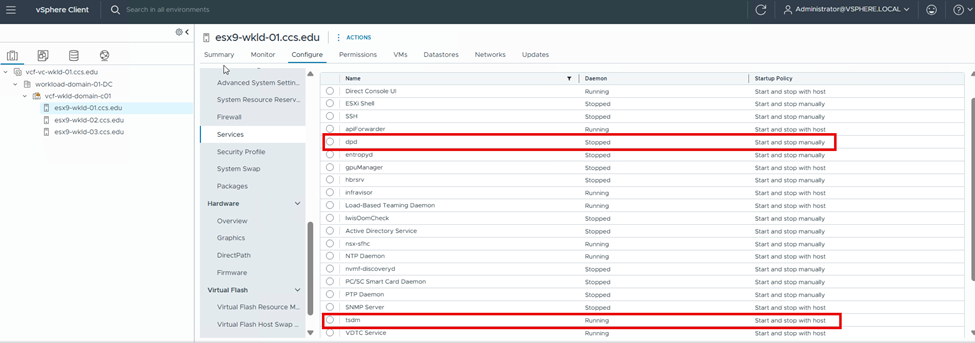
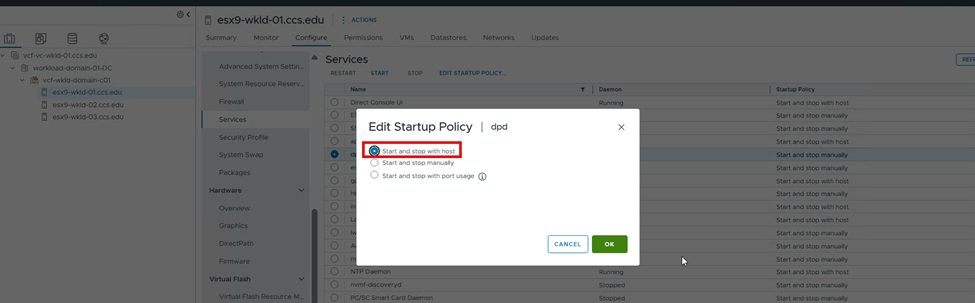
- Modify the startup policy for
dpdservice toStart and stop with hostand start thedpdservice:
Upgrade existing workload domain and Management Domain cluster: (For scenario 2,3 above)
To deploy TSDM in an existing workload domain cluster and management domain cluster, log in to the respective vCenter server UI and edit the image of the cluster to add the TSDM component. The detailed steps are documented in PowerProtect Data Manager: TSDM 20.1.0.0 Backups with vSphere 9.1 Require Manual Managing.
문서 속성
문서 번호: 000471999
문서 유형: How To
마지막 수정 시간: 09 9월 2026
버전: 2
다른 Dell 사용자에게 질문에 대한 답변 찾기
지원 서비스
디바이스에 지원 서비스가 적용되는지 확인하십시오.