How to Capture a HAR file for Dell Device Management Console
요약: Learn how to capture HAR files for troubleshooting Dell Device Management Console by following these instructions.
이 문서는 다음에 적용됩니다.
이 문서는 다음에 적용되지 않습니다.
이 문서는 특정 제품과 관련이 없습니다.
모든 제품 버전이 이 문서에 나와 있는 것은 아닙니다.
지침
How to capture a HAR file for Dell Device Management Console.
Affected Product:
- Dell Device Management Console
The process to capture a HAR file for Dell Device Management Console differs between Chromium Browsers (Google Chrome or Microsoft Edge) and Mozilla Firefox. Select the appropriate browser for more information.
Chromium Browsers (Google Chrome or Microsoft Edge)
- Go to Dell Device Management Console.
- Sign in with your account.
Note: To avoid capturing authentication information, do not start logging of the HAR file prior to authentication. Credentials may be in the log if HAR file logging is started first.
- Once authenticated into Dell Device Management Console, press F12 and then click Network
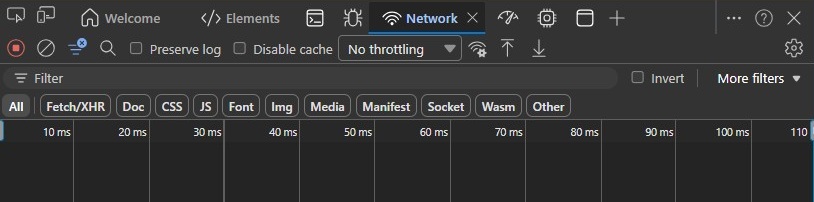
- Clear the log by clicking the Clear Network Log button or by pressing CTRL + L.

- Reproduce the issue. Once complete, click the Export HAR button.

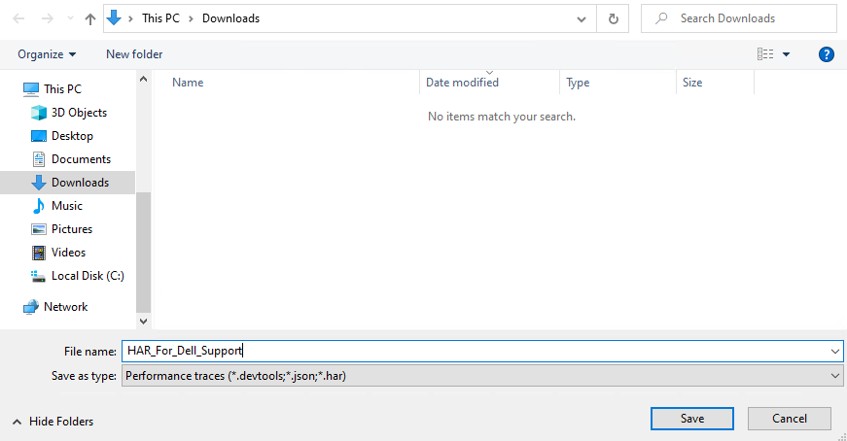
- Name and save the HAR file.
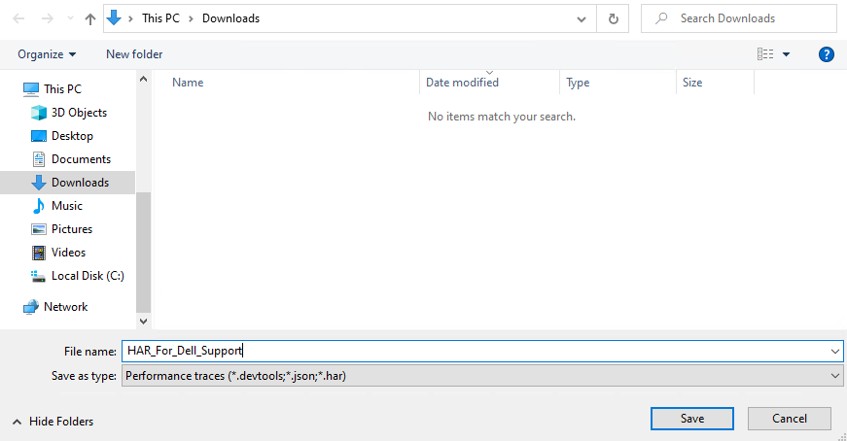
- Provide the Dell Support representative with access to the HAR file.
Mozilla Firefox
- Go to Dell Device Management Console.
- Sign in with your account.
Note: To avoid capturing authentication information, do not start logging of the HAR file prior to authentication. Credentials may be in the log if HAR file logging is started first.
- Once authenticated into Dell Device Management Console, press F12 and then click Network
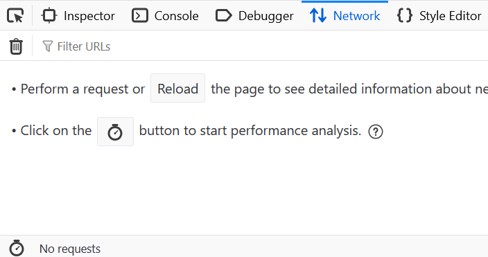
- Click the log by clicking the Clear button.

- Reproduce the issue. Once complete, click the gear icon and select Save All As HAR.
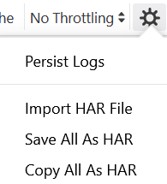
- Name and Save the HAR file.
해당 제품
Dell Device Management Console문서 속성
문서 번호: 000489533
문서 유형: How To
마지막 수정 시간: 15 7월 2026
버전: 1
다른 Dell 사용자에게 질문에 대한 답변 찾기
지원 서비스
디바이스에 지원 서비스가 적용되는지 확인하십시오.