PowerProtect DD: 시스템 암호 설정 및 변경 방법
Samenvatting: 이 문서에서는 DD(Data Domain) 시스템에서 암호문구를 설정하고 변경하는 단계에 대해 설명합니다.
Dit artikel is van toepassing op
Dit artikel is niet van toepassing op
Dit artikel is niet gebonden aan een specifiek product.
Niet alle productversies worden in dit artikel vermeld.
Instructies
시스템에서 데이터 암호화를 지원하거나 디지털 인증서를 요청하려면 시스템 암호를 설정해야 합니다.
참고: 암호문구는 안전한 곳에 기록해 두십시오. 비밀번호 문구를 복구할 수 없습니다.
기본적으로 시스템 암호 길이는 설정되어 있지 않습니다. 암호문구에 대해 최소 길이가 구성되어 있는지 확인하려면 다음을 수행합니다.
sysadmin@datadomain# system passphrase option show min-length
Option       Value
----------   ---------
min-length   (not set)
----------   ---------
명령줄에서 비밀번호 문구 설정(CLI):
sysadmin@datadomain# system passphrase set
Enter new passphrase:
Re-enter new passphrase:
Passphrases matched.
The passphrase is set.
DD 웹 인터페이스(GUI)에서 비밀번호 문구 설정:
AdministrationAccessAdministrator >> AccessSet > Passphrase를 선택합니다. 시스템 암호가 설정되지 않은 경우 Passphrase 영역에 Set Passphrase 버튼이 나타납니다. 암호문구가 구성된 경우 Change Passphrase 버튼이 나타나며, 사용자는 암호문구를 변경하는 방법만 사용할 수 있습니다.
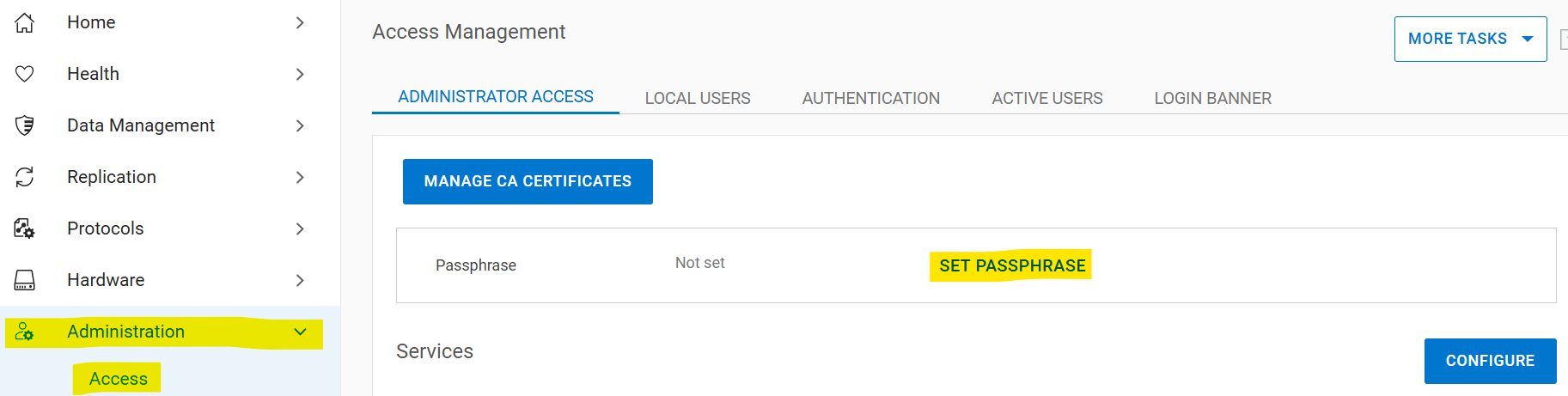
시스템 암호문구 변경
비밀번호 문구 변경을 위한 사전 요구 사항:
- 두 사용자 인증을 위해 보안 권한이 있는 계정이 있어야 합니다.
- 보안 권한 부여 정책 사용
- 파일 시스템 비활성화
보안 책임자가 없는 경우:
- 보안 책임자 생성
sysadmin@datadomain# user add secuser role security Enter new password: Re-enter new password: Passwords matched. User "secuser" added. - 보안 책임자로 로그인하고 보안 인증 정책이 활성화되어 있는지 확인합니다.
secuser@datadomain# authorization policy show Runtime authorization policy is disabled. - 권한 부여 정책이 비활성화된 경우 활성화합니다.
secusr@datadomain# authorization policy set security-officer enabled
Runtime authorization policy has been enabled.
CLI에서 다음을 수행합니다.
암호문구를 변경하려면 파일 시스템을 비활성화해야 합니다. 명령을 실행할 때 파일 시스템이 활성화되어 있으면 암호문구 변경에 실패합니다.sysadmin@datadomain# filesys disable
This action will disable the file system.
Applications may experience interruptions
while the file system is disabled.
Are you sure? (yes|no) [no]: yes
ok, proceeding.
Please wait........
The filesystem is now disabled.
sysadmin@datadomain# system passphrase change
This command requires authorization by a user having a 'security' role.
Please present credentials for such a user below.
Username: secuser
Password:
Enter current passphrase:
Enter new passphrase:
Re-enter new passphrase:
Passphrases matched.
The system passphrase has changed
sysadmin@datadomain# filesys enable
Please wait..........
The filesystem is now enabled.GUI에서 다음을 수행합니다.
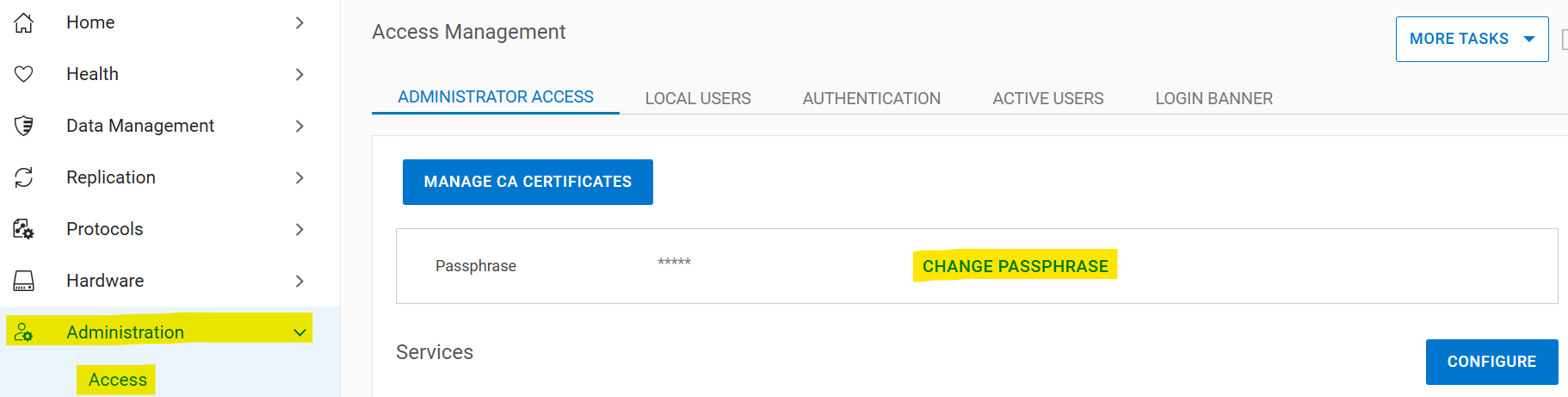
AdministrationAccessAdministrator >> AccessChange > Passphrase를 선택합니다.
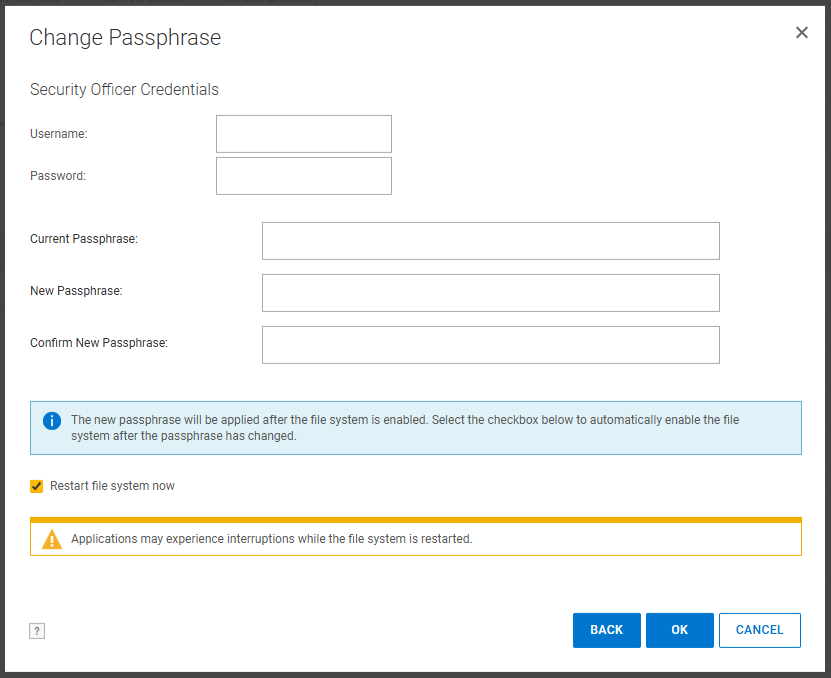
보안 책임자 자격 증명, 현재 비밀번호 문구 및 새 비밀번호 문구를 입력합니다. "Restart file system now" 확인란을 선택합니다.
이러한 단계를 수행한 후에도 비밀번호 문구 문제가 해결되지 않으면 Dell 지원에 문의하십시오.
Extra informatie
이 콘텐츠는 다음과 같은 여러 언어로 번역되어 있습니다.
| https://downloads.dell.com/TranslatedPDF/PT-BR_KB535800.pdf |
| https://downloads.dell.com/TranslatedPDF/ZH-CN_KB535800.pdf |
| https://downloads.dell.com/TranslatedPDF/ES_KB535800.pdf |
| https://downloads.dell.com/TranslatedPDF/DE_KB535800.pdf |
| https://downloads.dell.com/TranslatedPDF/FR_KB535800.pdf |
| https://downloads.dell.com/TranslatedPDF/IT_KB535800.pdf |
| https://downloads.dell.com/TranslatedPDF/JA_KB535800.pdf |
| https://downloads.dell.com/TranslatedPDF/NL_KB535800.pdf |
| https://downloads.dell.com/TranslatedPDF/KO_KB535800.pdf |
| https://downloads.dell.com/TranslatedPDF/RU_KB535800.pdf |
| https://downloads.dell.com/TranslatedPDF/PT_KB535800.pdf |
| https://downloads.dell.com/TranslatedPDF/SV_KB535800.pdf |
Getroffen producten
Data DomainProducten
Data Domain, DD OS 6.2, DD OS, DD OS 6.0, DD OS 6.1Artikeleigenschappen
Artikelnummer: 000019730
Artikeltype: How To
Laatst aangepast: 12 jan. 2026
Versie: 5
Vind antwoorden op uw vragen via andere Dell gebruikers
Support Services
Controleer of uw apparaat wordt gedekt door Support Services.