我該如何識別 Dell Encryption External Media 的版本?
Samenvatting: 瞭解如何識別 Dell Encryption External Media 和 Dell Data Protection External Media Edition 的版本。
Dit artikel is van toepassing op
Dit artikel is niet van toepassing op
Dit artikel is niet gebonden aan een specifiek product.
Niet alle productversies worden in dit artikel vermeld.
Instructies
註:
- 截至 2021 年 2 月,Mac 版 Dell Encryption Enterprise 已達到維護結束的期限。Dell 已不再更新此產品及其文章。如需更多資訊,請參閱 Dell Data Security 的產品生命週期 (支援結束及壽命結束) 政策。如果您對其他文章有任何問題,請聯絡您的銷售團隊或聯絡 endpointsecurity@dell.com。
- 請參考端點安全性,以取得有關目前產品的其他資訊。
請務必掌握用於保護外部儲存裝置的 Dell Encryption External Media (先前稱為 Dell Data Protection | External Media Edition)。
- 識別已知問題。
- 判斷 UI 差異。
- 瞭解工作流程變更。
- 確認系統需求。
受影響的產品:
- Dell Encryption External Media
- Dell Data Protection | External Media Edition
受影響的作業系統:
- Windows
- Mac
Windows 和 Mac 二進位檔案會新增至受 Dell Encryption External Media 保護的任何外部儲存裝置。若要判斷版本,請按一下適當的平台標籤以取得更多資訊。
Windows
- 登入 Windows 電腦。
- 前往受保護媒體的位置。
- 以滑鼠右鍵按一下
AccessEncryptedFiles.exe。按一下右鍵後,選取 內容。
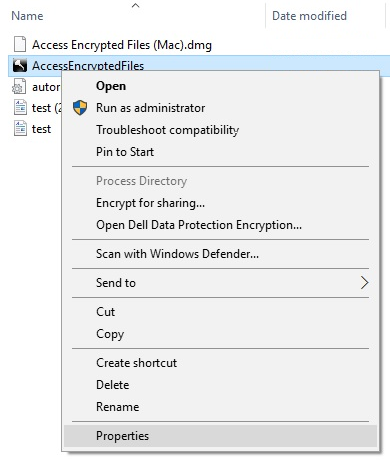
- 按一下詳細資料標籤。

- 記下產品版本。
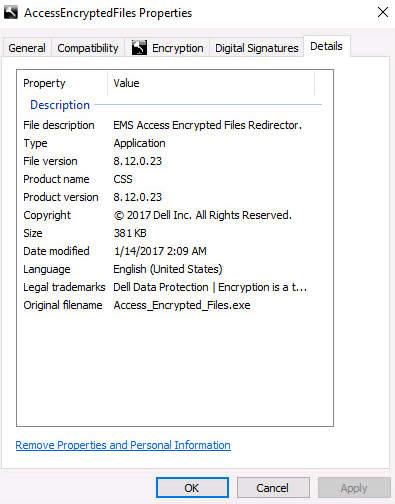 註:
註:- 您的用戶端產品版本可能會與上述螢幕擷取畫面不同。
- 如需有關哪些 Windows 作業系統與 Dell Encryption External Media 相容的資訊,請參閱:
Mac
- 登入 Mac 電腦。
- 前往受保護媒體的位置。
- 按兩下
AccessEncryptedFiles.dmg。這會掛載磁碟映像。
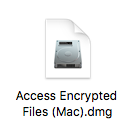
如果裝置已透過 EMS 服務進行驗證,AccessEncryptedFiles.dmg 會隱藏。若要解決此問題,請重新掛接外部媒體,然後取消認證要求提示。 - 以滑鼠右鍵按一下 AccessEncryptionExternalMedia,然後選取取得資訊。
 產品舊版顯示 AccessDellExternalMediaShield 而非 AccessEncryptionExternaledia。
 - 展開一般,然後記錄版本。在範例中,版本是 8.17.0。
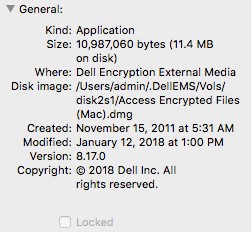 註:
註:- 您的用戶端版本可能會與上述螢幕擷取畫面不同。
- 如需有關哪些 Windows 作業系統與 Dell Encryption External Media 相容的資訊,請參閱:
Extra informatie
Video's
Getroffen producten
Dell EncryptionArtikeleigenschappen
Artikelnummer: 000124924
Artikeltype: How To
Laatst aangepast: 05 aug. 2026
Versie: 18
Vind antwoorden op uw vragen via andere Dell gebruikers
Support Services
Controleer of uw apparaat wordt gedekt door Support Services.