PowerEdge: How to resolve SSL Certificate Replacement Issues in iDRAC9
Samenvatting: The SSL certificate is valid, but the process to replace the existing certificate cannot be completed or with error.
Dit artikel is van toepassing op
Dit artikel is niet van toepassing op
Dit artikel is niet gebonden aan een specifiek product.
Niet alle productversies worden in dit artikel vermeld.
Instructies
When the SSL certificate expiration banner appears on the iDRAC9 Dashboard, the installed certificate is nearing or has reached the end of its validity period. Replace the certificate with a newly issued, valid SSL/TLS certificate to ensure continued secure communication and compliance with organizational security policies.
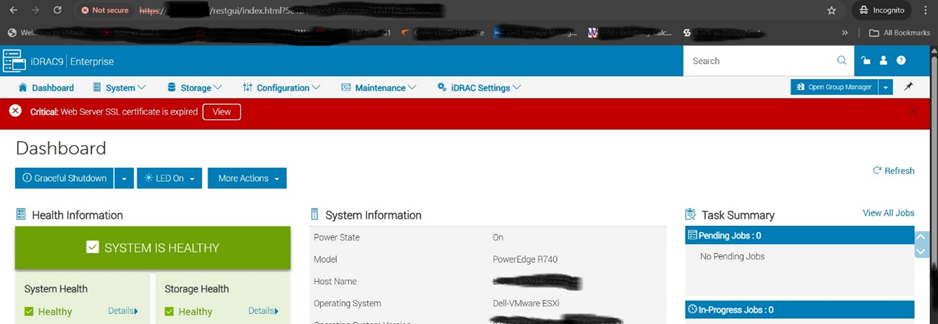
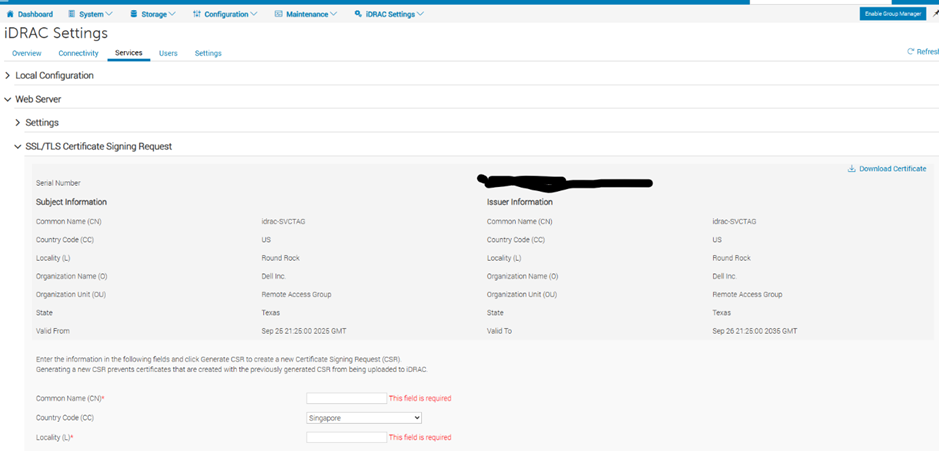
Generate a Certificate Signing Request (CSR)
A Certificate Signing Request (CSR) is a prerequisite for obtaining a valid SSL/TLS certificate from a trusted Certificate Authority (CA). The CSR contains encoded information about the server and organization that the CA uses to issue the certificate.
Note: iDRAC accepts only X509 Base 64 encoded web server certificates. Ensure the CA provides the signed certificate in this format.
- Log in to the iDRAC9 web interface.
- From the main Dashboard, click iDRAC Settings.
- Select Services.
- Under the SSL/TLS section, select Certificate Signing Request.
- Enter the required information, including the appropriate key size (for example, 2048-bit RSA).
- Click Generate to create the CSR.
- Click Download to save the CSR file.
Store the CSR file securely. Submit this file to the Certificate Authority for signing.
Upload the Signed SSL/TLS Certificate
After the Certificate Authority processes the CSR and issues the signed certificate, upload it to iDRAC9 to replace the expiring certificate and restore trusted HTTPS access.
- Obtain the signed certificate file from the Certificate Authority. Also obtain any intermediate or root CA certificates if required.
- Log in to the iDRAC9 web interface.
- Navigate to iDRAC Settings and then Services and then Web Server.
- Select Upload SSL/TLS Certificate.
- Browse and select the signed certificate file provided by the CA.
- If applicable, also upload the CA intermediate chain certificate.
- Confirm the upload and allow iDRAC to apply the new certificate.
- Refresh the browser session and verify that the certificate details reflect the new validity period and issuer.
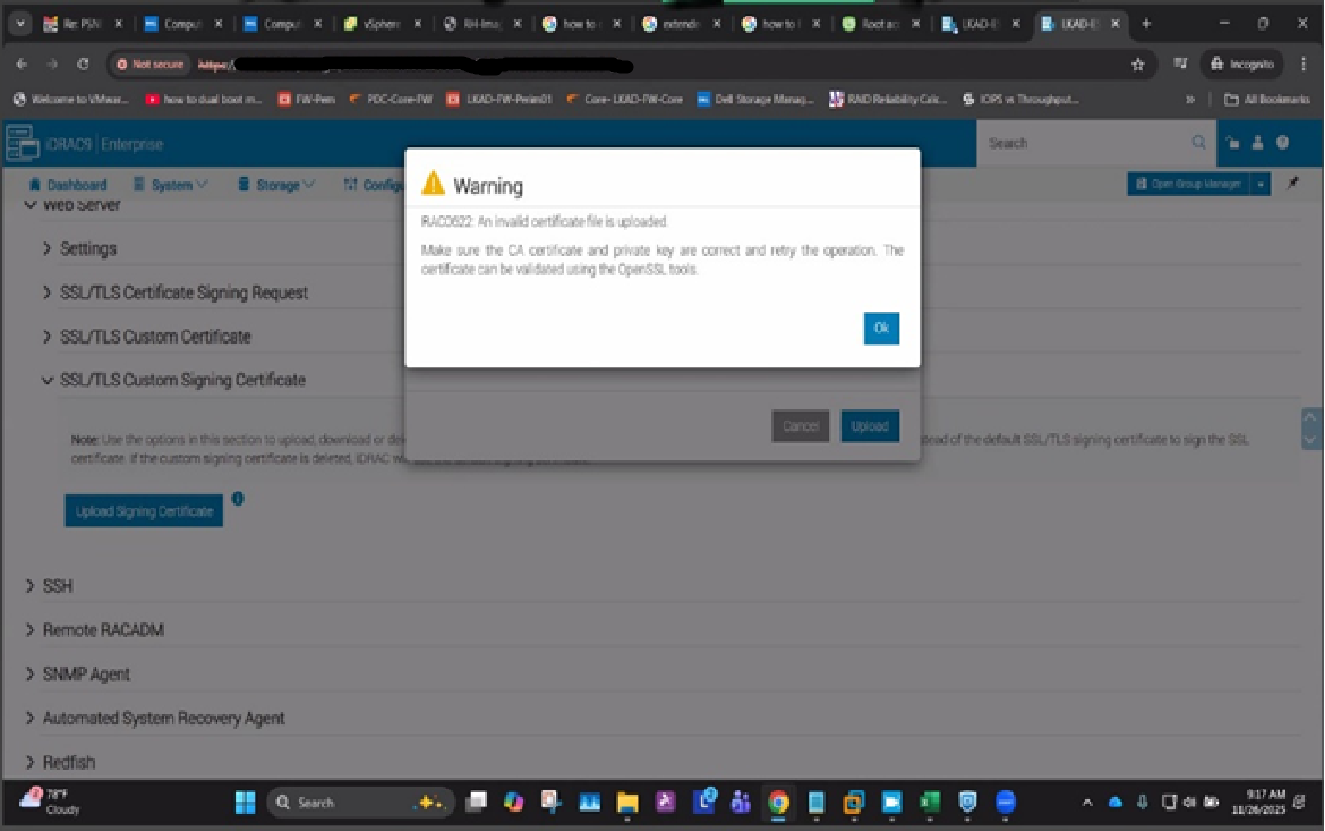
Note: The upload process may fail if the certificate or its associated files do not meet the required format (X509 Base 64 encoded) or specification.
Verify the Certificate with RACADM
Use the racadm command-line interface to review the installed SSL certificate. This verifies that the new certificate was applied correctly and helps identify any errors introduced during replacement.
Run the following command to view the installed certificate details:
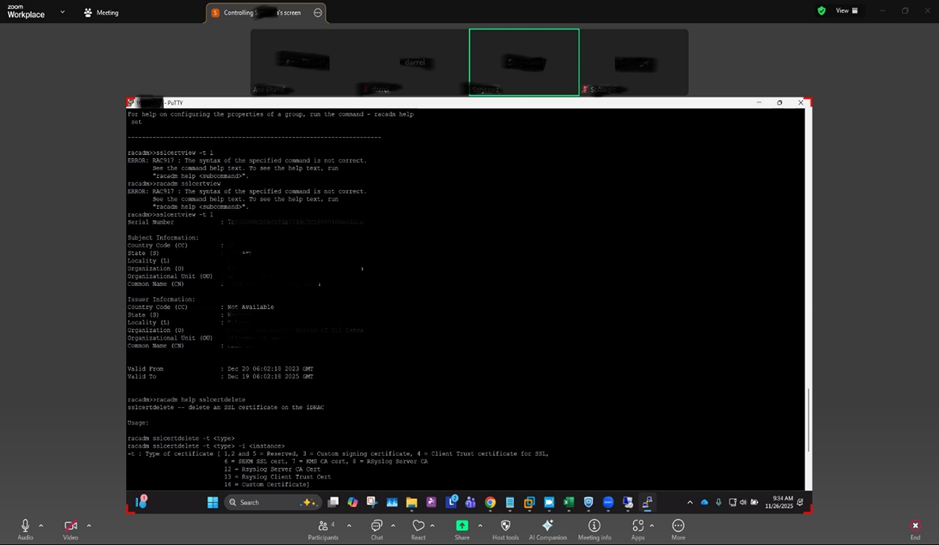
racadm sslcertview -t 1
Confirm that the certificate details, including the issuer and validity period, match the newly issued SSL certificate from the CA.
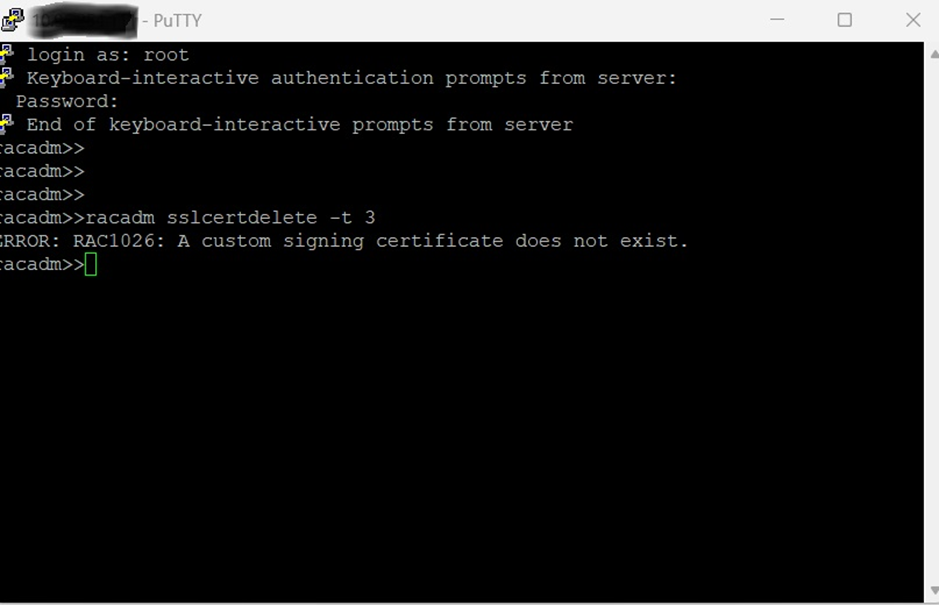
Reset SSL Configuration (Fallback)
If errors during certificate deletion or upload prevent successful replacement, use the racadm sslresetcfg command to reset the SSL configuration to factory defaults. This command removes all custom SSL certificates and restores the default self-signed certificate generated by iDRAC.
Caution: Running
sslresetcfg removes all custom SSL certificates and restores the default self-signed certificate. The iDRAC web server restarts automatically after this command runs. Wait approximately 5 minutes before reconnecting. Perform this reset during a maintenance window.
Recommended Procedure
- Attempt standard removal first. Run the following command to delete the old certificate:
racadm sslcertdelete -t 1
- Upload the new certificate using the iDRAC web interface or
racadmcommands. - If errors persist, run the SSL reset command:
racadm sslresetcfg
- Verify the reset. After the iDRAC web server restarts, confirm that iDRAC has reverted to the default self-signed certificate by running:
racadm sslcertview -t 1
Verify that the certificate details reflect the default configuration. - Reload the new certificate. Generate a new CSR if required, then upload the signed SSL certificate from the Certificate Authority.
Best Practices
- Test certificates in a staging environment before applying them in production.
- Maintain a record of CSR and private key files for verification.
- Use strong encryption standards (RSA 2048-bit or higher, SHA-256).
- Replace certificates proactively before expiration to avoid downtime.
- Use trusted Certificate Authorities when issuing certificates.
- Document any SSL reset actions for audit and compliance purposes.
- After a reset, upload the new certificate promptly to minimize exposure to the default self-signed certificate.
Getroffen producten
iDRAC9Artikeleigenschappen
Artikelnummer: 000404229
Artikeltype: How To
Laatst aangepast: 01 sep. 2026
Versie: 4
Vind antwoorden op uw vragen via andere Dell gebruikers
Support Services
Controleer of uw apparaat wordt gedekt door Support Services.