Windows Server: PowerShell을 사용하여 Update Services를 설치하는 방법
Samenvatting: 이 문서는 Windows PowerShell을 사용하여 WSUS(Windows Server Update Services) 역할을 설치하는 방법에 대해 설명합니다. 이 가이드에서는 PowerShell을 사용하여 WSUS 역할을 추가하는 방법에 대해 자세히 설명하며, 업데이트 제어 및 동기화 설정을 위한 Get-WsusUpdate와 같은 설치 및 관리 cmdlet을 다룹니다. ...
Dit artikel is van toepassing op
Dit artikel is niet van toepassing op
Dit artikel is niet gebonden aan een specifiek product.
Niet alle productversies worden in dit artikel vermeld.
Instructies
- 다음을
Start PowerShell을 클릭하여 Windows PowerShell을 시작합니다. - WSUS 역할을 설치하려면 다음 명령을 실행합니다
Install-WindowsFeature UpdateServices
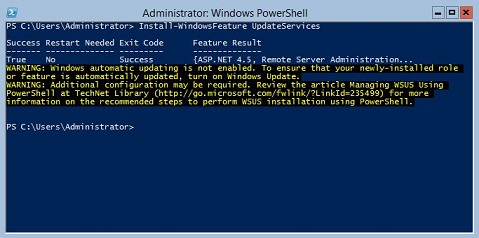
추가 정보:
다음 WSUS 역할 서비스는 Windows PowerShell을 사용하여 설치할 수 있습니다.
- WID(Windows Internal Database)
- WSUS 서비스
- 데이터베이스
WID 데이터베이스 및 WSUS 서비스 역할 서비스는 Install-WindowsFeature UpdateSevices cmdlet을 실행한 후 설치됩니다.
Windows Server Core를 실행하는 서버에서 WSUS 역할을 관리하는 데 사용할 수 있는 Windows PowerShell cmdlet은 다음과 같습니다.
지정된 클라이언트 컴퓨터를 지정된 대상 그룹에 추가합니다.
Add-WsusComputer
클라이언트에 적용할 업데이트를 승인합니다.
Approve-WsusUpdate
배포를 위한 업데이트를 거부합니다.
Deny-WsusUpdate
시스템에서 사용할 수 있는 모든 WSUS 분류 목록을 가져옵니다.
Get-WsusClassification
클라이언트 컴퓨터를 나타내는 WSUS 컴퓨터 개체를 가져옵니다.
Get-WsusComputer
범주별로 WSUS에서 사용할 수 있는 모든 제품 목록을 가져옵니다.
Get-WsusProduct
WSUS 업데이트 서버 개체의 값을 가져옵니다.
Get-WsusServer
업데이트에 대한 세부 정보가 포함된 WSUS 업데이트 개체를 가져옵니다.
Get-WsusUpdate
지정된 WSUS 서버에서 정리 프로세스를 수행합니다.
Invoke-WsusServerCleanup
WSUS가 동기화하는 업데이트의 분류를 사용할지 또는 사용하지 않을지를 설정합니다.
Set-WsusClassification
To 동기화할 업데이트의 범주를 나타내는 제품을 사용할 수 있는지 여부를 설정합니다.
Set-WsusProduct
WSUS) 서버가 Microsoft 업데이트 또는 업스트림 서버 및 업스트림 서버 속성에서 동기화되는지 여부를 설정합니다.
Set-WsusServerSynchronizationGetroffen producten
Microsoft Windows 2012 Server, Microsoft Windows 2012 Server R2Producten
C Series, HS Series, Modular Infrastructure, Rack Servers, Tower Servers, XE Servers, XR Servers, OEM Server Solutions, Microsoft Windows Server 2016, Microsoft Windows Server 2019, Microsoft Windows Server 2022, Microsoft Windows Server 2025Artikeleigenschappen
Artikelnummer: 000121387
Artikeltype: How To
Laatst aangepast: 05 sep. 2025
Versie: 8
Vind antwoorden op uw vragen via andere Dell gebruikers
Support Services
Controleer of uw apparaat wordt gedekt door Support Services.