如何在 Dell Security Management Server 管理主控台中管理多重因素驗證
Samenvatting: Dell Security Management Server 可設定為需要雙因素驗證 (2FA) 才能登入管理主控台。
Dit artikel is van toepassing op
Dit artikel is niet van toepassing op
Dit artikel is niet gebonden aan een specifiek product.
Niet alle productversies worden in dit artikel vermeld.
Instructies
受影響的產品:
- Dell Security Management Server
- Dell Security Management Server Virtual
受影響的版本:
- v11.4.0 及更新版本
可在 使用者群組 或 個別使用者 層級管理多因素驗證。如需詳細資訊,請選擇以下適當的章節。
使用者群組
- 使用具有帳戶系統管理員角色的帳戶登入 Dell Data Security 管理主控台。如需詳細資訊,請參閱「如何存取 Dell Data Security Server Administration Console」。
注意:如需管理員角色的詳細資訊,請參閱手冊與文件中「AdminHelp - Security Management Server PDF」的「系統管理員角色」一節。
- 從左側功能表窗格中展開填入標籤,然後按一下使用者群組。
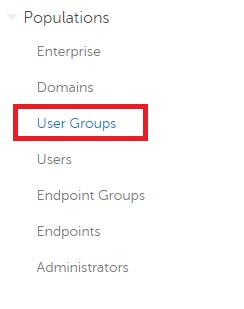
圖 1:使用者群組
- 從清單中選取一個要編輯的使用者群組 。
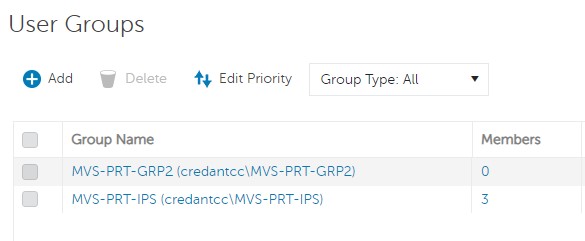
圖 2:選取使用者群組
注意:此清單中的群組位置是決定群組優先順序的原因。如需詳細資訊,請參閱手冊與文件中「AdminHelp - Security Management Server PDF」的「編輯使用者群組優先順序」一節。
- 選取管理員標籤。

圖 3:管理員標籤
- 從 MFA 組態:
- 選取啟用。
- 選取電子郵件或 Google Authenticator。
- 按一下更新按鈕。
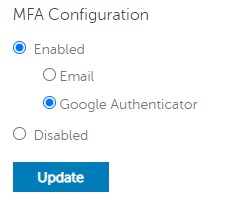
圖 4:MFA 組態
個別使用者
- 使用具有帳戶系統管理員角色的帳戶登入 Dell Data Security 管理主控台。如需詳細資訊,請參閱「如何存取 Dell Data Security Server Administration Console」。
注意:如需管理員角色的詳細資訊,請參閱手冊與文件中「AdminHelp - Security Management Server PDF」的「系統管理員角色」一節。
- 從左側功能表窗格中展開填入標籤,然後按一下使用者。
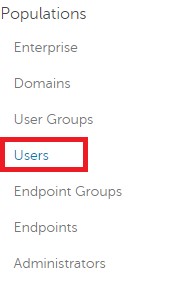
圖 5:使用者
- 從清單中選取一個要編輯的使用者。
- 選取管理員標籤。

圖 6:管理員標籤
- 從 MFA 組態:
- 選取啟用。
- 選取電子郵件、Google Authenticator 或從使用者群組繼承的組態。
- 按一下更新按鈕。
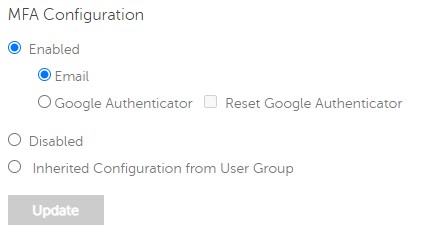
圖 7:MFA 組態
如要聯絡支援部門,請參閱 Dell Data Security 國際支援電話號碼。
請前往 TechDirect,以線上產生技術支援要求。
如需更多深入見解與資源,請加入 Dell 安全性社群論壇。
Getroffen producten
Dell EncryptionArtikeleigenschappen
Artikelnummer: 000200440
Artikeltype: How To
Laatst aangepast: 22 nov. 2023
Versie: 6
Vind antwoorden op uw vragen via andere Dell gebruikers
Support Services
Controleer of uw apparaat wordt gedekt door Support Services.