NetWorker: Recovery from Block Based Backup
Samenvatting: How to start Image Recovery of a Windows Drive from Block-Based Backup (BBB).
Dit artikel is van toepassing op
Dit artikel is niet van toepassing op
Dit artikel is niet gebonden aan een specifiek product.
Niet alle productversies worden in dit artikel vermeld.
Instructies
Recovery Steps
- Log in to the NetWorker Management Console (NMC).
- Click the Recover tab.
- Click Recover -> New Recover.
- The Recover Configuration Wizard is launched.
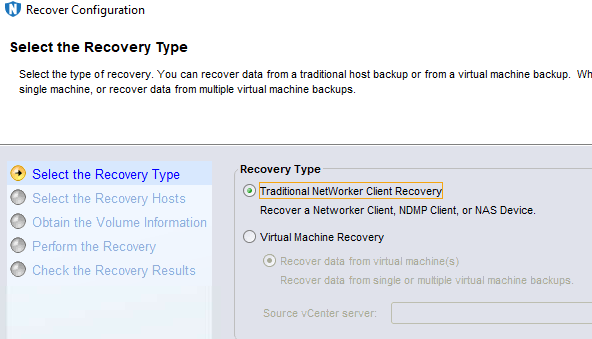
- Select Traditional NetWorker Client Recovery.
- Select Source and Destination server and select Block-Based Backup.
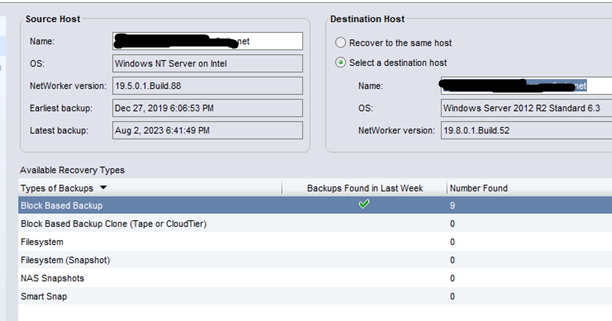
NOTE: The Available Recovery Types window lists if Block-Based Backups are available for the client selected.
- Select the Image Level Recovery option, then select a volume to restore.
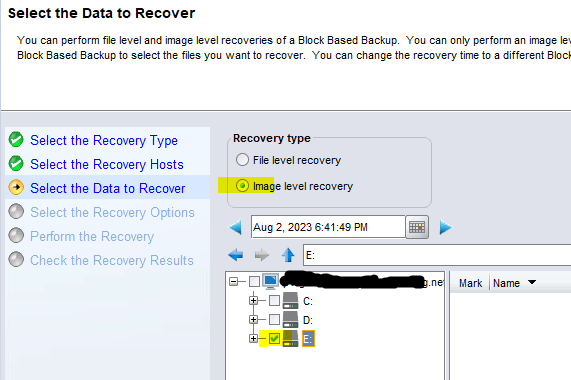
- Now we have below two options,
- Original Path: Choose this if we a drive is created on the Destination server with the same name and size as of source folder. In this demonstration, it is the E drive.
- New Destination Path: Choose this if you want to restore to a different directory than the source.
NOTE: In both cases, the requirement is that the Destination drive size should be equal to or more than the Volume size of the Source. This can be checked on the Source server.
- Go to the next window and start recovery.
What happens when restore is started:
Once the restore is initiated, a share is created from the Data Domain and mapped to the Destination client. It is created as a volume and take the drive letter (G:\ in below example). This mount can be seen at below location on Target client.
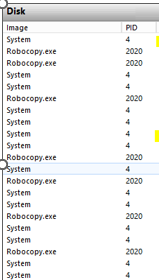
The robocopy operation starts and copies data from the volume mounted on Data Domain (G:\ in this case) to the Target volume (E:\ that we selected).
The mounted drive is visible from Windows File Explorer.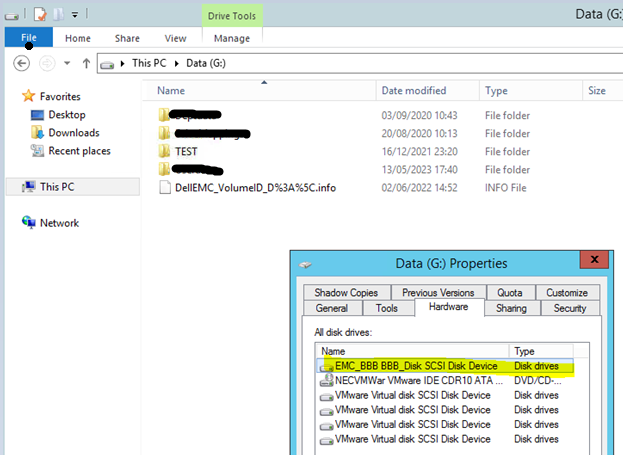
Monitoring of this Restore:
This restore session is only visible in nsrwatch and the Recover Menu, but it does not show progress bytes. It is always at 0.
So below are possible ways to know that the restore is working and the data is moving.
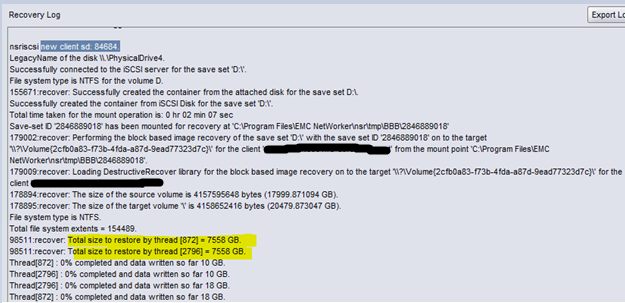
- From the Recovery window, open the recover job details and in the logs we see below two streams. The entire volume is split in two streams for recovery.
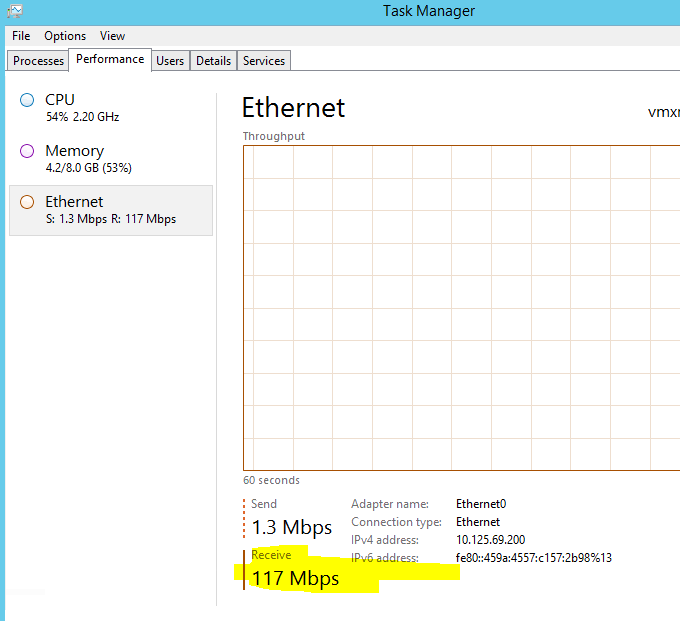
- From Task Manager on the Destination server. Click the network adapter from the Performance tab. The network throughput is seen:
- Resource Monitor on Target client
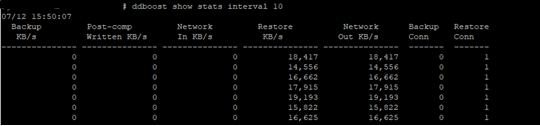
- Monitor it from Data Domain using
ddboost show stats interval 10. The Restore column and Network out column shows that data is being transferred out of this Data Domain. This DD was used as device to perform this recovery.
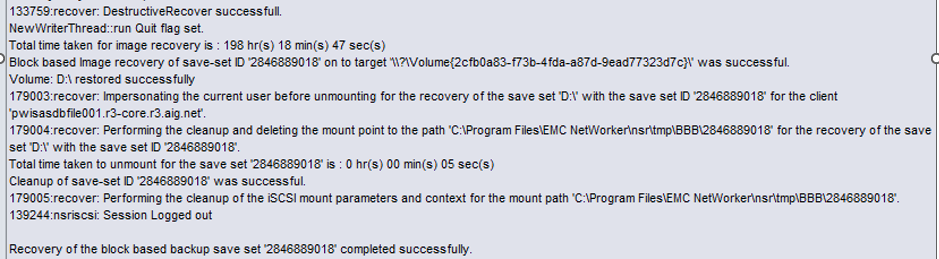
- After recovery is completed, below are logs shown in recovery job details in Recovery Tab in NMC UI.
Getroffen producten
NetWorker FamilyArtikeleigenschappen
Artikelnummer: 000216410
Artikeltype: How To
Laatst aangepast: 22 jan. 2026
Versie: 2
Vind antwoorden op uw vragen via andere Dell gebruikers
Support Services
Controleer of uw apparaat wordt gedekt door Support Services.