Windows Olay Günlüklerini Dışa Aktarma
Resumo: Windows 11 veya Windows 10'da Olay Görüntüleyicisi günlüklerini dışa aktarmayı öğrenin. Bu kılavuzda, Olay Görüntüleyicisi kullanılarak günlüklerin nasıl kaydedileceği açıklanmaktadır.
Este artigo aplica-se a
Este artigo não se aplica a
Este artigo não está vinculado a nenhum produto específico.
Nem todas as versões do produto estão identificadas neste artigo.
Instruções
- Windows tuşuna basın.
- Şunu yazın:
Event Viewertıklayın ve listeden Olay Görüntüleyicisi'ni seçin. - Sol bölmeden dışa aktarılacak günlük türünü seçin.
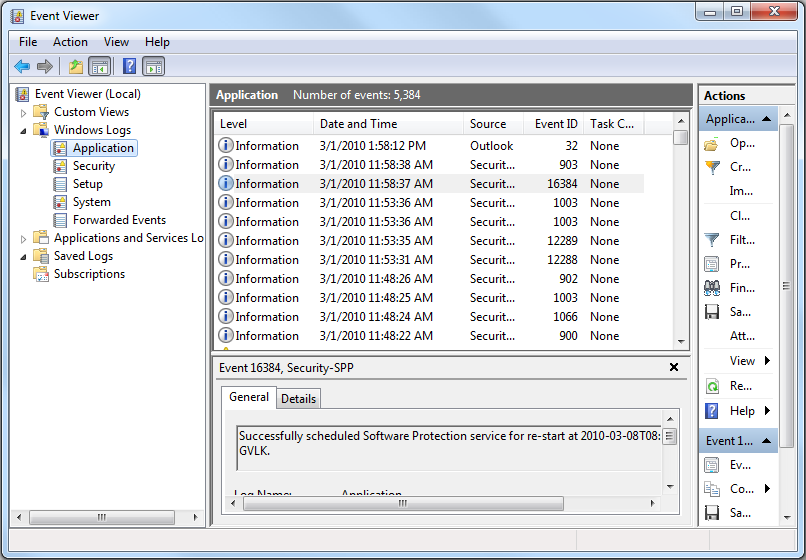
- Action ve ardından Save All Events As öğesine tıklayarak günlüğü kaydedin.
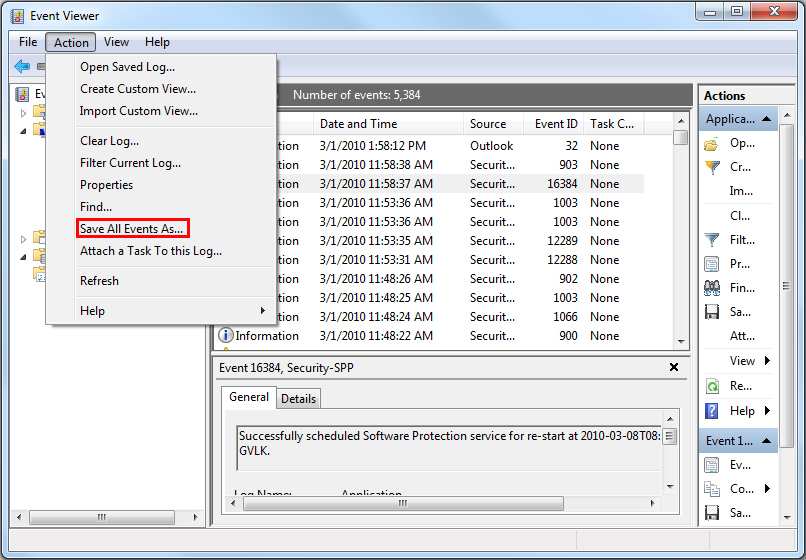
Olay Günlüklerini
Dell dizüstü bilgisayarlara yönelik BIOS olay günlükleri hakkında bilgi için bkz. Dell Dizüstü Bilgisayarlarda BIOS Olay Günlükleri ve Tanılama Günlüğü.
Mais informações
Önerilen Makaleler
Bu konuyla ilgili ilginizi çekebilecek bazı önerilen makaleleri burada bulabilirsiniz.
Produtos afetados
Alienware, Dell All-in-One, Dell Pro All-in-One, Dell Pro Max Micro, Dell Pro Max Slim, Dell Pro Max Tower, Dell Pro Micro, Dell Pro Slim, Dell Pro Tower, Dell Slim, Dell Tower, Inspiron, Legacy Desktop Models, OptiPlex, Vostro, XPS, G Series
, G Series, Alienware, Dell Plus, Dell Pro, Dell Pro Max, Dell Pro Plus, Dell Pro Premium, Inspiron, Latitude, Dell Pro Rugged, Vostro, XPS, Legacy Laptop Models, Fixed Workstations, Mobile Workstations, Dell Pro Max Micro XE FCM2250, Dell Pro Max Slim XE FCS1250, Dell Pro Max Tower T2 XE FCT2250, Dell Pro Max 16 XE MC16250, Dell Pro Micro Plus XE QBM1250, Dell Pro Slim Plus XE5 QBS1250, Dell Pro Tower Plus XE5 QBT1250
...
Propriedades do artigo
Número do artigo: 000124382
Tipo de artigo: How To
Último modificado: 19 abr. 2026
Versão: 9
Encontre as respostas de outros usuários da Dell para suas perguntas.
Serviços de suporte
Verifique se o dispositivo está coberto pelos serviços de suporte.