Como inicializar em um dispositivo externo usando a conexão USB Tipo C
Resumo: Configurações do BIOS a serem selecionadas para inicializar em um dispositivo externo usando a conexão USB Tipo C para notebooks XPS, Precision e Latitude.
Este artigo aplica-se a
Este artigo não se aplica a
Este artigo não está vinculado a nenhum produto específico.
Nem todas as versões do produto estão identificadas neste artigo.
Sintomas
XPS, Precision e Latitude podem não conseguir inicializar em dispositivos USB Type-C conectados externamente. O computador pode relatar um erro "Dispositivo não identificado".
Causa
A especificação padrão ignora a sequência de inicialização USB para reduzir os tempos de inicialização na configuração padrão. Devido a essa configuração padrão, o computador não inicializa no dispositivo externo.
Resolução
Habilite as duas opções abaixo para oferecer suporte à inicialização a partir de um dispositivo externo.
- Na inicialização, pressione a tecla F2 ou, alternadamente, pressione a tecla F12 e selecione a opção para entrar na configuração do BIOS.
- Em POST Behavior, selecione Fastboot e, em seguida, selecione a opção Thusit .
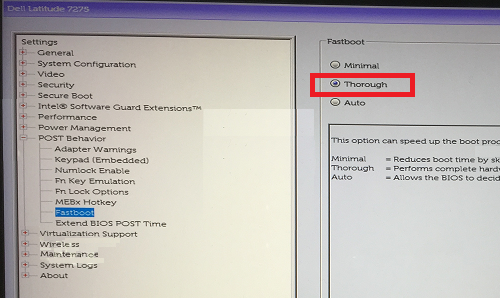
- Em System Configuration, selecione USB/Thunderbolt Configuration e, em seguida, selecione Enable Thunderbolt Boot Support.
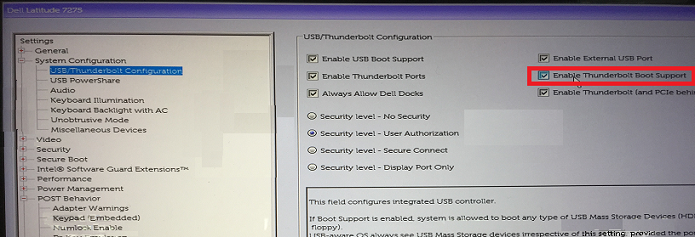
Nota: Marque para Enable USB Boot Support para reconhecer o dispositivo de inicialização USB. - Na guia General , selecione Advanced Boot Configuration e, em seguida, marque Enable Legacy Option ROMs e Enable UEFI Network Stack , se ainda não estiver marcado.
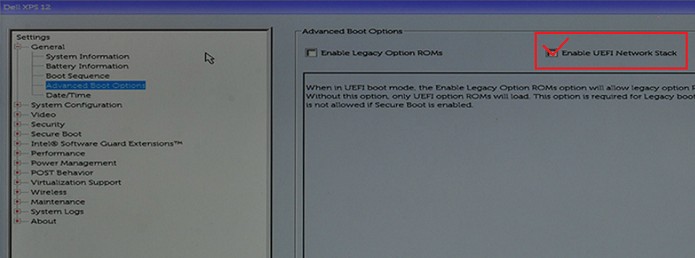
- Reinicialize o computador. Agora, o dispositivo USB Type-C deve aparecer nas opções de inicialização.
Consulte estes artigos da base de conhecimento Dell para obter informações relacionadas:
Mais informações
Artigos recomendados
Aqui estão alguns artigos recomendados relacionados a este tópico que podem ser de seu interesse.
Produtos afetados
Latitude 7275, Precision 3520, Precision 5520, Precision 3510, Precision 5510, XPS 12 9250Propriedades do artigo
Número do artigo: 000131221
Tipo de artigo: Solution
Último modificado: 20 abr. 2026
Versão: 13
Encontre as respostas de outros usuários da Dell para suas perguntas.
Serviços de suporte
Verifique se o dispositivo está coberto pelos serviços de suporte.