How to Check for Policy Updates for Dell Data Security
Сводка: Learn how to check for policy updates for Dell Data Security or Dell Data Protection software by following these instructions.
Данная статья применяется к
Данная статья не применяется к
Эта статья не привязана к какому-либо конкретному продукту.
В этой статье указаны не все версии продуктов.
Инструкции
Note:
- As of February 2021, Dell Encryption Enterprise for Mac has reached End of Maintenance. This product and its articles are no longer updated by Dell.
- As of May 2022, Dell Endpoint Security Suite Enterprise has reached End of Maintenance. This product and its articles are no longer updated by Dell.
- As of January 2019, Dell Endpoint Security Suite Pro has reached End of Maintenance. This product and its articles are no longer updated by Dell.
- For more information, reference Product Life Cycle (End of Support and End of Life) Policy for Dell Data Security. If you have any questions on alternative articles, either reach out to your sales team or contact endpointsecurity@dell.com.
- Reference Endpoint Security for additional information about current products.
This article covers how to check for policy updates with Dell Data Security (formerly Dell Data Protection).
Affected Products:
- Dell Encryption Enterprise
- Dell Data Protection Enterprise Edition
- Dell Encryption Enterprise for Mac
- Dell Data Protection Enterprise Edition for Mac
- Dell Encryption Enterprise Self-Encrypting Drive Manager
- Dell Data Protection Self-Encrypting Drive Manager
- Dell Encryption External Media
- Dell Data Protection External Media Edition
- Dell BitLocker Manager
- Dell Data Protection BitLocker Manager
- Dell Endpoint Security Suite Pro
- Dell Data Protection Endpoint Security Suite
- Dell Endpoint Security Suite Enterprise
- Dell Data Protection Endpoint Security Suite Enterprise
- Dell Full Disk Encryption
Affected Operating Systems:
- Windows
- Mac
Checking for policy updates differs based on the operating system for the product that is in use. Click Windows or Mac for more information.
Windows
Policy updates differ between:
- Shield
- Dell Encryption Enterprise
- Dell Data Protection Enterprise Edition
- Dell Encryption External Media
- Dell Data Protection External Media Edition
- Encryption Management Agent (EMAgent)
- Dell Encryption Enterprise Self-Encrypting Drive Manager
- Dell Data Protection Self-Encrypting Drive Manager
- Dell BitLocker Manager
- Dell Data Protection BitLocker Manager
- Dell Endpoint Security Suite Pro
- Dell Data Protection Endpoint Security Suite
- Dell Endpoint Security Suite Enterprise
- Dell Data Protection Endpoint Security Suite Enterprise
- Dell Full Disk Encryption
Click Shield or EMAgent for more information.
Shield
Policy updates can be checked using the UI or the Registry. Select the appropriate option for more information.
UI
Note: This option is only available if the endpoint policies include Display Local Encryption Processing Control set to True.
- Log in to the Windows computer.
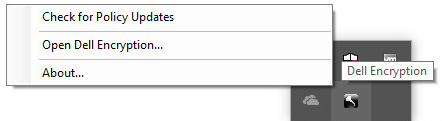
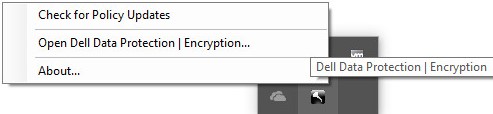
- In the Windows System Tray, right-click the Dell Encryption (formerly Dell Data Protection | Encryption) icon and then select Check for Policy Updates.
The following example image shows the Dell Encryption icon for versions 8.15.0 and later.
The following example image shows the Dell Data Protection | Encryption icon for version 8.0.0 through version 8.13.0.
 Note: To prevent performance issues, Check for Policy Updates communication is restricted to one minute.
Registry
- Right-click the Windows Start menu and then click Run.

- In the Run user interface (UI), type regedit and then press OK. This opens the Registry Editor.

- In the Registry Editor, go to
HKEY_LOCAL_MACHINE\Software\Credant\CMGShield\Notify. - Right-click the Notify folder, select New, and then click DWORD (32-bit) Value.
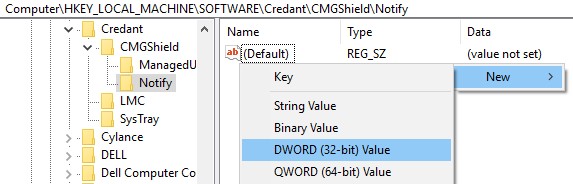
- Name the DWORD PingProxy.

- Double-click PingProxy.

- Populate Value data with 1 and then click OK.
 Note: Once the endpoint has queried the server, PingProxy Value data reverts to 0.
EMAgent
- Log in to the Windows computer.
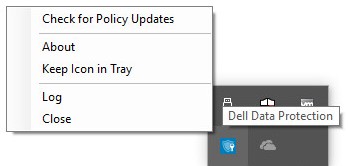
- In the Windows System Tray, right-click the Dell Data Security (formerly Dell Data Protection) icon and then select Check for Policy Updates.
The following example image shows the Dell Data Security icon for versions 8.15.0 and later.

The following example image shows the Dell Data Protection icon for version 8.0.1 through version 8.13.0.
Mac
- Log in to the Mac computer.
- Click System Preferences.

- Double-click Dell Encryption Enterprise (formerly Dell Data Protection).
The following example image shows the Dell Encryption Enterprise icon for versions 8.15.0 and later.

The following example image shows the Dell Data Protection icon for version 8.0.0 through version 8.13.2.

- Click Policies.

- Click the refresh button near the bottom of the window.
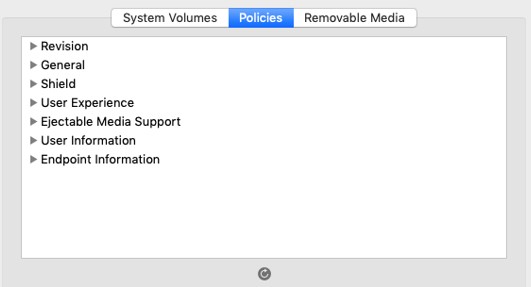 Note: To prevent performance issues, Check for Policy Updates communication is restricted to one minute.
Свойства статьи
Номер статьи: 000126722
Тип статьи: How To
Последнее изменение: 13 июл. 2026
Версия: 11
Получите ответы на свои вопросы от других пользователей Dell
Услуги технической поддержки
Проверьте, распространяются ли на ваше устройство услуги технической поддержки.