VirtualBox Fails to Mount USB Devices When Dell Encryption Enterprise is Installed
Сводка: When Dell Encryption Enterprise (formerly Dell Data Protection | Enterprise Edition) is Installed VirtualBox Fails to Mount USB Devices.
Данная статья применяется к
Данная статья не применяется к
Эта статья не привязана к какому-либо конкретному продукту.
В этой статье указаны не все версии продуктов.
Симптомы
Affected Products:
- Dell Encryption Enterprise
- Dell Data Protection | Enterprise Edition
Affected Versions:
- v11.0 and Earlier
Installing Dell Encryption Enterprise on the same base operating system as VirtualBox, causes VirtualBox to fail to mount the USB devices onto its Virtual Machines.
Причина
When Dell Encryption Enterprise is installed on an endpoint, a specific filter driver is added to the computer to manage the USB devices. This filter driver causes VirtualBox to fail to mount the USB devices with an error like the below one:

Разрешение
If not using Dell Encryption External Media to encrypt the USB devices, it is possible to manually remove the added filter driver from the registry following the steps below:
- Login into the endpoint with an administrative account
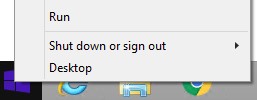
- Right-click the Windows start menu and then click Run.
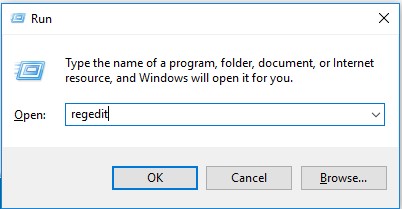
- In the Run UI, type regedit and then press OK. This opens the Registry Editor.
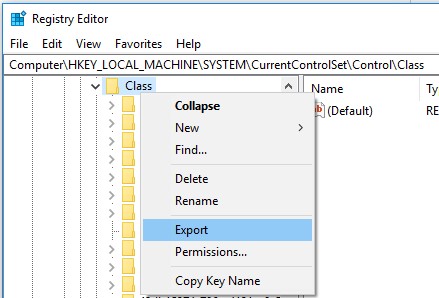
- Expand the path
HKLM\system\currentcontrolset\control\classand export a backup.
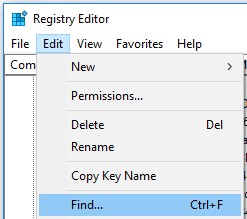
- Search for all the entries of
CmgPCSinHKLM\system\currentcontrolset\control\class: Edit-> Find.
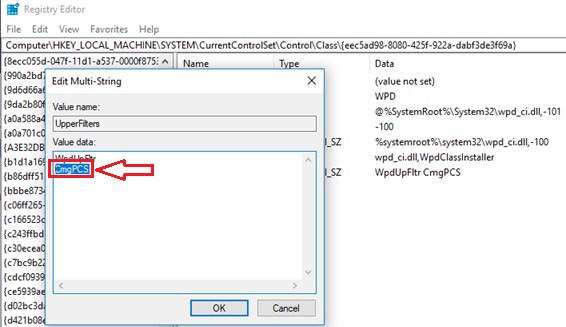
- Delete all the
CmgPCSentries from UpperFilters and LowerFilters registry values.Warning: DO NOT DELETE THE WHOLE UpperFilters and LowerFilters KEYs as this results in an unusable computer at reboot and it is not possible to recover it.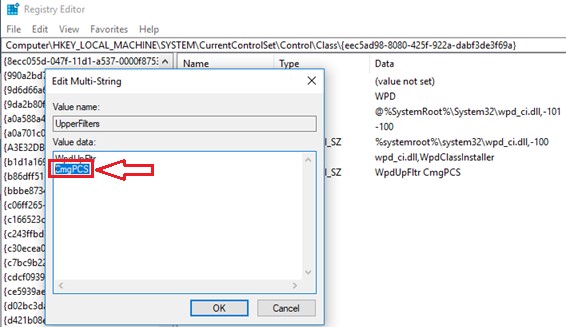
- Download
Sysinternals Autoruns64from Microsoft https://docs.microsoft.com/en-us/sysinternals/downloads/.
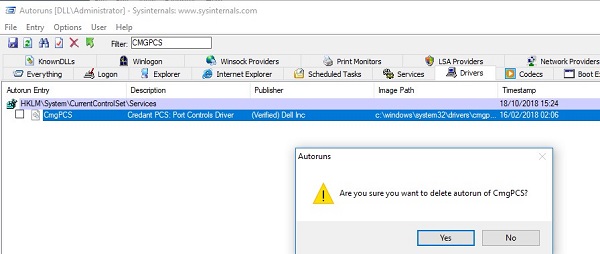
- Open
Autoruns64> Drivers and look forCmgPCSand delete the entry.
- Reboot the endpoint.
Затронутые продукты
Dell EncryptionСвойства статьи
Номер статьи: 000129605
Тип статьи: Solution
Последнее изменение: 29 Jun 2026
Версия: 12
Получите ответы на свои вопросы от других пользователей Dell
Услуги технической поддержки
Проверьте, распространяются ли на ваше устройство услуги технической поддержки.