NetWorker: How To Identify Binary Version Details
Сводка: This KB gives a general overview of how to identify NetWorker binary or executable version details for both Linux and Windows NetWorker hosts. This information can be useful in confirming if the correct version is in use or when comparing default vs. debug files. ...
Данная статья применяется к
Данная статья не применяется к
Эта статья не привязана к какому-либо конкретному продукту.
В этой статье указаны не все версии продуктов.
Инструкции
This KB gives a general overview of how to identify NetWorker binary or executable version details for both Linux and Windows NetWorker hosts. This information can be useful in confirming if the correct version is in use or when comparing default vs. debug files.
Linux:
- On Linux based NetWorker hosts, confirm the install path:
find / -name binary_name
Or:
which PROCESS_NAME
- Use the strings command against the binary file:
strings /path/to/binary | grep -i "@(#)"
Example:
nve:~ # strings /usr/sbin/nsrexecd | grep -i "@(#)"
@(#) Product:      NetWorker
@(#) Release:      19.12.0.0.Build.21
@(#) Build number: 21
@(#) Build date:   Sat Dec 21 17:59:07 2024
@(#) Build arch.:  linux86w
@(#) Build info:   DBG=0,OPT=-O2 -fno-strict-aliasing
NOTE: For full details remove the
| grep -i "@(#)" from the command.
Windows:
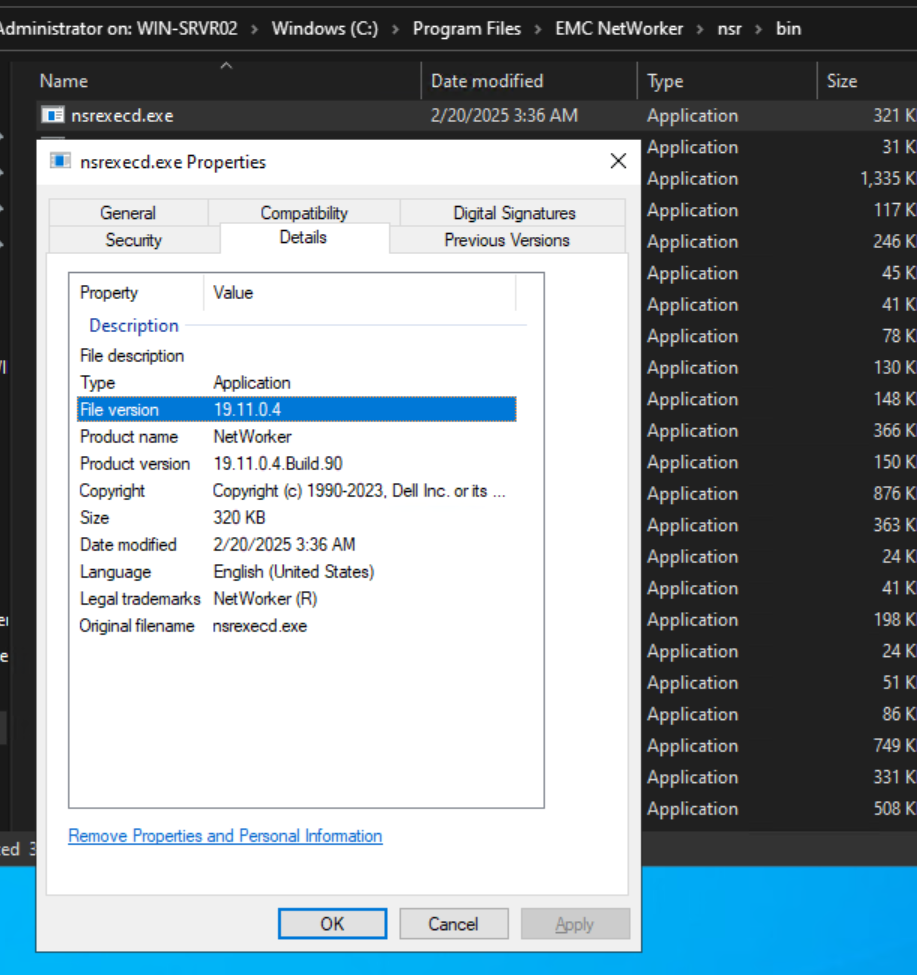
- Open Windows File Explorer and go to the NetWorker install path.
- Go to the NetWorker bin directory, e.g:
..\Program Files\EMC NetWorker\nsr\bin - Open the file properties of the executable in question, and select the Details tab:
Дополнительная информация
Затронутые продукты
NetWorkerПродукты
NetWorkerСвойства статьи
Номер статьи: 000158059
Тип статьи: How To
Последнее изменение: 09 Jun 2025
Версия: 6
Получите ответы на свои вопросы от других пользователей Dell
Услуги технической поддержки
Проверьте, распространяются ли на ваше устройство услуги технической поддержки.