ME4: ME484 JBOD connected host stuck at “Initializing Firmware Interfaces…”
Сводка: This article should be followed even if the ME484 is connected as an expansion to a main array (ME4012/ME4024/ME4084) and is used as a JBOD by connecting directly to host.
Симптомы
 Warning: Once the steps have been followed, the data cannot be recovered. Ensure that a data backup has been done before proceeding.
The error message shows as below and this issue is also know as "Bad offset in primary extended partition".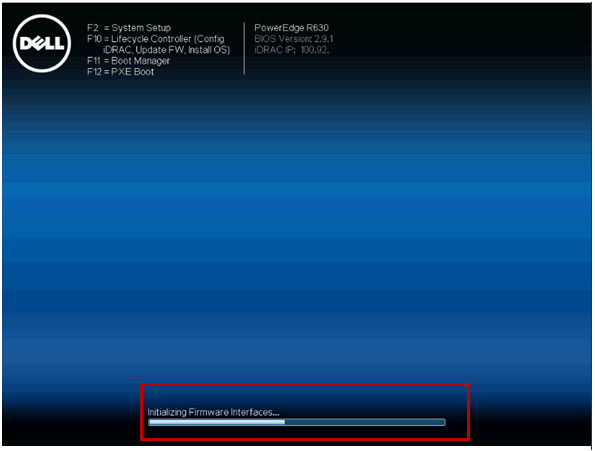
Table of Contents
-
Requirements
-
Linux Based
2.1 Determine which disks have the issue
2.2 Steps to correct issue -
Windows Based
3.1 Determine which disks have the issue
3.2 Steps to correct issue
Причина
1. Requirements
The below requirements are needed to investigate the issue.
Permission levels:
- Linux: Root level access
- Windows: Administrator level access in PowerShell
MPIO
Having MPIO installed on new systems will help reduce the number of reported issues. Both OSes will need to be booted. This will require booting up the server without the storage attached.Once at the login screen, cable the ME484 hot. This will cause some pathing issues in various OSes, but all we need is 1 path. Once the storage is correctly connected, log into the host,verify you can see the drives from the OS.
Windows
Please check disk management or storage spaces disk pool and Get-PhysicalDisk in PowerShell would work as well. Use Powertools SDK command shmcli list drives -a=X -enc=Y,with x+y variables filled out the return should show OS listings for each drive.
Linux
This is covered in the below steps.Alternatively, you can use SHMCLI commands in Linux for this as well. Use Powertools SDK command shmcli list drives -a=X -enc=Y,with x+y variables filled out the return should show OS listings for each drive.
Разрешение
2. Linux based
2.1 Determine which disks have the issue
- Login as root or use sudo for the below commands.
- Find the /dev/sdX address of the drive or drives in the ME484 according the OS.
-
Enter the command "lsblk" . This command will return a list of the block drivers presented. We should now be able to easily identify the drives in question. Usually the Operating System and the PERC disks will be listed first. You can also compare the shmcli output from above,below example shows our drives start with sdd.
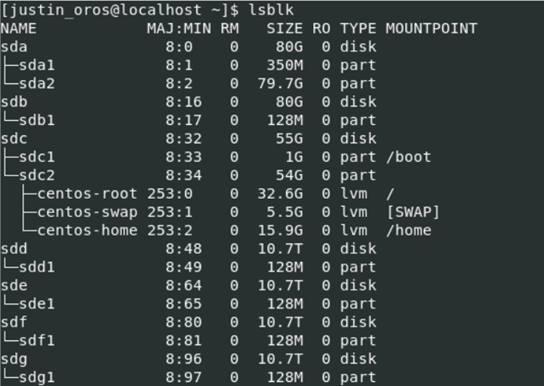
- Now we have a list of all the sdX drives. If you added a drive recently and reboots worked before, you only need to test the new drive sdX for the issue. We now need to test all the sdX devices listed with the following command "fdisk /dev/sdX" , "X" is the code for the drives from the above list.
e.g.[xxx]$ fdisk /dev/sdd
Welcome to fdisk (util-linux 2.32).
Changes will remain in memory only, until you decide to write them.
Be careful before using the write command.
The size of this disk is 3.7 TiB (4000787030016 bytes). DOS partition table format cannot be used on drives for volumes larger than 2199023255040 bytes for 512-byte sectors. Use GUID partition table format (GPT).
- We can see on the last line that it sees a "Bad offset in primary extended partition.", this is the meta data from ME40xx, and/or other sources, that prevents the server from booting.We can get more information about the issue partition by using "p" @ "Command (m for help):", it shows partition information.
Command (m for help): p
Disk /dev/sdd: 3.7 TiB, 4000787030016 bytes, 7814037168 sectors
Units: sectors of 1 * 512 = 512 bytes
Sector size (logical/physical): 512 bytes / 512 bytes
I/O size (minimum/optimal): 512 bytes / 512 bytes
Disklabel type: dos
Disk identifier: 0x00000000
Device Boot Start End Sectors Size Id Type /dev/sdd1 0 4294967294 4294967295 2T 5 Extended
- We can now see from the bottom line that there is an "Extended" partition on the disk, if you find a disk with this same information, you have found the issue on this disk, press "q" to end the fdisk tool.
Command (m for help):q
You will need to now repeat the process for all the other disks until we find all instances. Once all instances are found you can move on to "Steps to correct the issue".
2.2 Steps to correct issue
- Take the list of drives from the above steps.
- For each item in the list, we will need to do the following steps for all drives above.
- Run the command "$ sudo fdisk /dev/sdX", sdX is the drive from the list.
- At the fdisk prompt select "d" to delete the partition.
Command (m for help):d
- Then select "w" to write/save the changes.
Command (m for help):w
- Once complete you can check all the disks to make sure they are correct by running command "fdisk /dev/sdX".
- You should be able to reboot the server to test boot.
 Note: Do not forget ME484 will take extra time to boot due to initialization of all the disks.
3. Windows Based
3.1 Determine which disks have the issue
- Open PowerShell as Administrator and type in the below command:
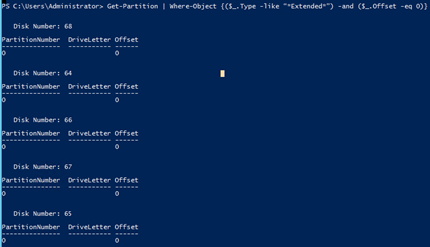
Get-Partition | Where-Object {($_.Type -like "*Extended*") -and ($_.Offset -eq 0)}
If the output is too long, you can output the command results to a file.
Example:Get-Partition | Where-Object {($_.Type -like "*Extended*") -and ($_.Offset -eq 0)} >> c:\badOffset.txt
- This will list all the drives that have a BAD OFFSET.
- Once you have a list of the disks with the issue,continue to the next section.
3.2 Steps to correct issue
- Open Disk Management and find the Disk(s) listed from the output.
- Online and Initialize all drives in the list.If the drive is already online and/or initialized,stop and have analyst investigate issue.
- Once the drives are initialized you can verify the steps worked by rerunning the command:
Get-Partition | Where-Object {($_.Type -like "*Extended*") -and ($_.Offset -eq 0)}
- You should be able to reboot the server to test boot.
 NOTE: Do not forget ME484 will take extra time to boot due to initialization of all the disks.