Dell Azure Stack HCI Tam Yakınsanmış Ağ Yapılandırması
Summary: Bu makalede, Dell Technologies Solutions Microsoft Azure Stack HCI küme ana bilgisayarı için tamamen yakınsanmış bir ağın nasıl yapılandırılacağına ilişkin bir örnek verilmiştir. Bu makaledeki bilgiler, https://infohub.delltechnologies.com/en-us/l/e2e-deployment-and-operations-guide-with-scalable-networking-windows-1/fully-converged-network-configuration-38/2/ adresinde bulunan "Tam yakınsanmış ağ yapılandırması için dağıtım talimatları" belgesinden alınmıştır. ...
Instructions
Aşağıdaki tüm adımlar PowerShell kullanılarak çalıştırılır. Küme yönetimi ve depolama ağ trafiği aynı Anahtar Yerleşik Ekibini (SET) kullanır. Üç ağ, üç ayrı sanal bağdaştırıcı üzerinde çalışır. SET anahtarının, VLAN'ların ve sanal adaptörlerin yapılandırması aşağıda verilmiştir.
Aşağıdaki PowerShell komutlarını sarmayın, aksi takdirde komut dosyasının büyük bölümlerini PowerShell penceresine kopyaladıktan sonra başarısız olurlar. Aşağıdaki yapılandırma komut dosyası tüm küme düğümlerinde çalıştırılmalıdır.
Aşağıdaki resimde, Yönetim ve Depolama ağı iletişimi için SET kullanan yapılandırılmış bir Azure Stack HCI yakınsanmış ağının donanım diyagramı gösterilmektedir:
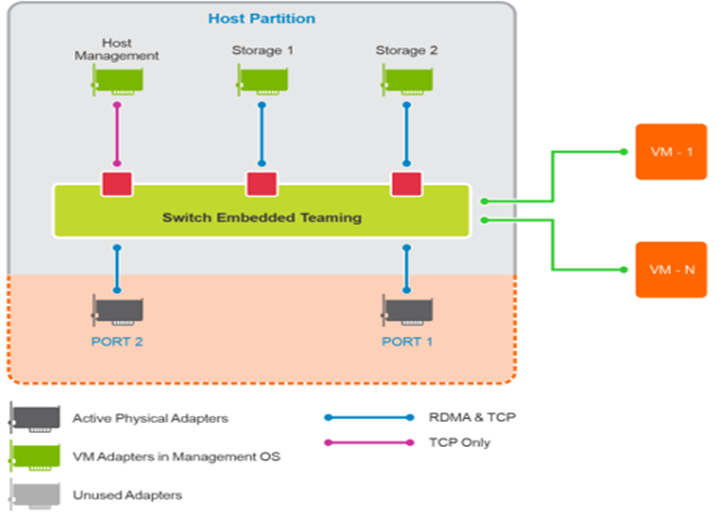
Şekil 1: Azure Stack HCI'da
tamamen yakınsanmış bir ağın diyagramıAşağıdaki betik adımları bir yönetici PowerShell isteminde çalıştırılmalıdır:
$ErrorActionPreference = 'Stop'
#region Variables for the scenario
# You must specify 2 or 4 network adapter port names
$netAdapterName = @('SLOT 4 PORT 1','SLOT 4 PORT 2')
$switchName = 'S2DSwitch'
# Management Adapter Parameters
$managementAdapterName = 'Management'
# VLAN ID for host management traffic; if no VLAN is preferred set this to 0
$managementVlanId = 102

# Management Gateway address
$managementGateway = '10.0.0.1'

# DNS server address
$managementDns = '10.0.0.19'

# Set this to a string 'DHCP' for a dynamic IP address
$managementIPAddress = '10.0.0.51'

# Management address prefix (24 translates to subnet mask 255.255.255.0)
$managementAddressPrefix = 24

# Storage Adapter Parameters
$storageAdapterPrefix = 'Storage'

# You must specify 1 or 2 or 4 VLANIDs
# You can use 0 as the value if you don't want to use VLANs for storage traffic
$storageVlanId = @(103,104)

# You must specify 2 or 4 IP Addresses
# DHCP as a value is accepted if you want dynamically assigned IP addresses
$storageIPAddress = @('171.16.101.51','172.16.102.51')

# You can specify 1 or 2 or 4 prefix length values
$StorageAddressPrefix = @(24)

#endregion

## Create a VM switch for management and Storage traffic
$null = New-VMSwitch -Name $switchName -AllowManagementOS 0 -NetAdapterName $netAdapterName -Verbose

## Add VM Network Adapters and configure VLANs and IP addresses as needed
### Management Adapter
$managementAdapter = Add-VMNetworkAdapter -SwitchName $SwitchName -ManagementOS -Passthru -Name $managementAdapterName -Verbose

if ($managementVlanId -and ($managementVlanId -ne 0))
{
Set-VMNetworkAdapterVlan -VMNetworkAdapter $managementAdapter -Access -VlanId $managementVlanId -Verbose
Start-Sleep -Seconds 5
}
if ($ManagementIPAddress -ne 'DHCP')
{
$null = New-NetIPAddress -InterfaceAlias "vEthernet ($managementAdapterName)" -IPAddress $managementIPAddress -DefaultGateway $managementGateway -PrefixLength $managementAddressPrefix -Verbose
Set-DnsClientServerAddress -InterfaceAlias "vEthernet ($managementAdapterName)" -ServerAddresses $managementDns -Verbose
}

### Storage Adapters
for ($i = 0; $i -lt $netAdapterName.Count; $i++)
{
$storageAdapterName = "${storageAdapterPrefix}$($i+1)"
# if there is a single VLAN for storage use the first and only element
if ($storageVlanId.Count -eq 1)
{
$storageVlan = $storageVlanId[0]
}
else
{
# else use the right index to get the VLAN ID
$storageVlan = $storageVlanId[$i]
}

# Check if only one prefix is provided
if ($StorageAddressPrefix.Count -eq 1)
{
$StoragePrefix = $StorageAddressPrefix[0]
}
else
{
# if more than one, use the right index to get the address prefix
$StoragePrefix = $StorageAddressPrefix[$i]
}
$storageAdapter = Add-VMNetworkAdapter -SwitchName $SwitchName -ManagementOS -Passthru -Name $storageAdapterName -Verbose

 if ($storageVlan -and ($storageVlan -ne 0))
{
# Set VM Network adapter VLAN only if the VLAN ID specified is other than 0
Set-VMNetworkAdapterVlan -VMNetworkAdapter $storageAdapter -Access -VlanId $storageVlan -Verbose
Start-Sleep -Seconds 5
}
if ($StorageIPAddress[$i] -ne 'DHCP')
{
$null = New-NetIPAddress -InterfaceAlias "vEthernet ($storageAdapterName)" -IPAddress $StorageIPAddress[$i] -PrefixLength $StoragePrefix -Verbose
}
## Set VMnetwork adapter to Physical adapter mapping
Set-VMNetworkAdapterTeamMapping -VMNetworkAdapterName $storageAdapterName -ManagementOS -PhysicalNetAdapterName $netAdapterName[$i]
}