Instructions
メモ: この記事の保守または更新は行われなくなりました。
メモ: Dell PairのDellサポートは、2026年3月26日に終了します。
概要 ソフトウェア要件 Dell Pairのインストール Dell Pairの機能 サポートされているプラットフォームおよび周辺機器類 トラブルシューティング 追加情報
Dell Pairは、特定のDellプラットフォームで使用可能なソフトウェア ユーティリティーで、Dell Bluetoothデバイスとのペアリングをサポートします。(例:ワイヤレス マウス、キーボード、ヘッドセットなどのBluetoothデバイス)。Dell Pairが有効になっている場合、ユーティリティーのユーザー インターフェイス(UI)で、DellコンピューターのBluetooth検出範囲内にあるDell Bluetoothデバイスとのペアリングが自動的に要求されるようになります。
Dell Pairアプリケーションには、次の要件があります。
Windows 11
Windows 10(バージョン10.0.19041以降)
Bluetoothバージョン5.0以降
Bluetoothが有効になっている
Dell Pairアプリケーションはダウンロードできなくなりました。Windows 10バージョン1803以降のバージョンとWindows 11には、同様の機能を持つSwiftペアが含まれています。
Dell Pairアプリケーションに関するすべてのサポート ドキュメントは、次のDellサポート サイトで入手できます。
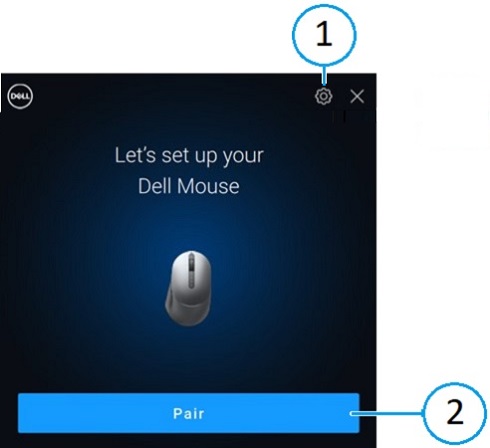
Dell Pair通知が自動的に表示されます。これは、Dell Pairによる検出をサポートするBluetoothデバイスがオンになっていて、Dellコンピューターの検出範囲内にある場合に表示されます。
1 Dell Pairの設定
2 Bluetoothを使用したペアリングの開始
UIが表示されたら、[ペアリング]をクリックして、Dell BluetoothデバイスとDellコンピューターをペアリングします。
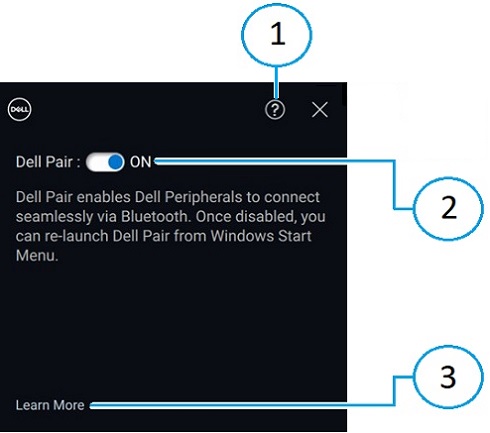
スタート メニューからDell Pairアプリケーションのユーザー インターフェイスを開きます。
Dell Pairのユーザー インターフェイスから、Dell Pairの設定を変更します。スイッチをオンまたはオフの位置にスライドさせて、Dell Pairアプリケーションを有効または無効にします。
1 ソフトウェア バージョン情報
2 Dell Pairの有効化または無効化
3 もっと詳しく知る
メモ :アプリケーションが無効になったら、Windowsのスタート メニューからDell Pairを再起動します。
Dell Pairソフトウェアは、次のコンピューターにプリインストールされています。
レガシー モデル
Inspiron
Vostro
XPS
Latitude
Dell Precision
13 5320
3440
13 9315
3330
3480
13 5330
5320
13 9315 2-in-1
3340
3490
14 5420
5620
13 Plus 9320
3440
3570
14 5425
5625
13 9340
3450
3571
14 5430
5630
14 9350
3540
3580
14 5435
5635
14 9440
3550
3581
16 5620
5640
15 9520
5320
3590
14 5440
7620
15 9530
5330
3591
14 5445
16 9640
5340
5470
16 5625
17 9720
5350
5480
16 5630
17 9730
5430
5490
16 5635
5431
5570
14 5640
5440
5690
14 5645
5450
5770
14 Plus 7420
5455
7670
14 7430 2-in-1
5530
7680
14 Plus 7430
5531
7770
14 7435 2-in-1
5540
7780
14 Plus 7440
5550
14 7440 2-in-1
7320
14 7445 2-in-1
7330
16 Plus 7620
7350
16 Plus 7630
7350(取り外し可能)
16 Plus 7640
7420
16 7630 2-in-1
7430
16 7635 2-in-1
7450
16 7640 2-in-1
7455
7530
7650
9330
9430
9440 2-in-1
9450 2-in-1
現行モデル
Dell Pro
Dell Plus
Dell Pro Premium
Dell Pro Plus
Dell Pro Rugged
PC14255
DB16250
PA13250
PB13250
RA13250
PC16255
DB16255
PA14250
PB13255
RB14250
PB14250
PB14255
PB16250
PB16255
メモ :届いたコンピューターにDell Pairが搭載されていませんでしたか? その場合は、次のサポート サイト ページのサービス マニュアルで、インストール要件と最新のサポート モデルを確認してください。
サポート対象周辺機器類
Dell Proコンパクト サイレント マウス(MS355):または、Dellサイレント マウス
Dell Pro Plusワイヤレス アクティブ ノイズ キャンセリング(ANC)ヘッドセット(WL5024):または、Dell ProワイヤレスANCヘッドセット
Dell Pro Plusワイヤレス スピーカーフォンSL525
Dell Pro Compact Silent Keyboard and Mouse (KM555):または、Dell Silent Keyboard and Mouse
Dell Proプレミアム ワイヤレスANCヘッドセットWL7024:または、Dell PremierワイヤレスANCヘッドセット
Dell Bluetoothトラベル マウス(MS700)
Dell Proワイヤレス ヘッドセットWL3024:または、Dellワイヤレス ヘッドセット
Dell Proプレミアム コラボレーション キーボードおよびマウスKM900:
Dell Proプレミアム コラボレーション キーボードKB900
Dell Pro PlusイヤホンEB525
Dell Proプレミアム マウスMS900
問題
可能な対策
Dell Bluetoothデバイスの電源を初めてオンにした時に、Dell Pair通知が開かない
Windows 10(バージョン19041)は、Dell Pairをサポートする最も古いバージョンです
Bluetoothバージョン5.0以降が必要です
Dellコンピューターでは、Bluetoothがサポートされています。Bluetoothは、Windowsの設定でオンになっています
Dell Bluetoothデバイスは、Dell Pairによる検出をサポートしています
Dell Bluetoothデバイスがコンピューターの検出範囲の近くに配置されています
DellコンピューターとDell Bluetoothデバイスの両方に、動作に十分なバッテリー残量があることを確認します
Dell Bluetoothデバイスに最新のファームウェアが搭載されています
DellコンピューターのBluetoothコントローラーはインテル製です
Dell Bluetoothデバイスの電源を切って再投入します
Dell Pairがペアリング エラーを報告します。
Dell BluetoothデバイスをDellコンピューターに近づけ、ペアリング モードにすると、Dell Pair UIがペアリングを支援します
ペアリング エラーのユーザー インターフェイス(UI)が自動的に解除されるまで待ちます
Dell BluetoothデバイスをDell PCから遠ざける(例:40 cm(15.75インチ)を超える距離まで)
Dell BluetoothデバイスをDellコンピューターの近くにゆっくりと戻します
Dell Bluetoothデバイスがペアリング モードになっていることを確認しますペアリングLEDが点滅し始めるのを確認します
Bluetoothトラブルシューティングのサポート
お使いのコンピューターで使用されている Bluetooth デバイスの使用方法と問題のトラブルシューティング方法について説明します。トラブルシューティングの手順、ハウツー ガイド、関連するサポート ビデオに関する情報を参照してサポートを受けてください。
『Dell Pair User Guide』については、Dell Pairのマニュアル ページ を参照してください。[マニュアルおよび文書 ]セクションにあるユーザー ガイドの右側にある[PDFの表示 ]をタッチまたはクリックします。
Etkilenen Ürünler
Dell 16 Plus DB16250, Dell 16 Plus DB16255, Dell Pro 5 Earbuds EB525, Dell Pro Premium Collaboration Keyboard KB900, Dell Pro 5 Silent Compact Keyboard and Mouse KM555, Dell Pro Premium Collaboration Keyboard and Mouse KM900
, Dell Pro Premium Mouse MS900, Dell Pair, Dell Pro 13 Premium PA13250, Dell Pro 14 Premium PA14250, Dell Pro 13 Plus PB13250, Dell Pro 13 Plus PB13255, Dell Pro 14 Plus PB14250, Dell Pro 14 Plus PB14255, Dell Pro 16 Plus PB16250, Dell Pro 16 Plus PB16255, Dell Pro 14 PC14255, Dell Pro 16 PC16255, Dell Pro Rugged 13 RA13250, Dell Pro Rugged 14 RB14250, Dell Pro 5 Wireless Speakerphone SL525, Dell Pro 3 Wired Speakerphone SP325, Dell Pro Wireless Headset WL3024, Dell Pro Plus Wireless ANC Headset WL5024, Dell Pro Premium Wireless ANC Headset WL7024, Inspiron 13 5320, Inspiron 13 5330, Inspiron 14 5420, Inspiron 14 5425, Inspiron 14 5430, Inspiron 14 5435, Inspiron 14 5440, Inspiron 14 5445, Inspiron 14 Plus 7420, Inspiron 14 7430 2-in-1, Inspiron 14 Plus 7430, Inspiron 14 7440 2-in-1, Inspiron 14 Plus 7440, Inspiron 14 7445 2-in-1, Inspiron 16 5620, Inspiron 16 5625, Inspiron 16 5630, Inspiron 16 5635, Inspiron 16 5640, Inspiron 16 5645, Inspiron 16 Plus 7620, Inspiron 16 7630 2-in-1, Inspiron 16 Plus 7630, Inspiron 16 7635 2-in-1, Inspiron 16 7640 2-in-1, Inspiron 16 Plus 7640, Latitude 3330, Latitude 3340, Latitude 5320, Latitude 5330, Latitude 5340, Latitude 5350, Latitude 7320, Latitude 7330, Latitude 7340, Latitude 7350, Latitude 7350 Detachable, Latitude 9330, Latitude 3440, Latitude 3450, Latitude 5431, Latitude 5440, Latitude 5450, Latitude 5455, Latitude 7420, Latitude 7430, Latitude 7450, Latitude 7455, Latitude 9430, Latitude 9440 2-in-1, Latitude 9450 2-in-1, Latitude 3540, Latitude 5530, Latitude 5531, Latitude 5540, Latitude 5550, Latitude 7530, Latitude 7650, Latitude 5430, Precision 3480, Precision 3490, Precision 5470, Precision 5480, Precision 5490, Precision 3570, Precision 3571, Precision 3580, Precision 3581, Precision 3590, Mobile Precision 3591, Mobile Precision 5690, Precision 7680, Precision 5770, Precision 7770, Precision 7780, Vostro 5320, Vostro 14 3440, Vostro 5620, Vostro 5625, Vostro 16 5630, Vostro 16 5635, Vostro 16 5640, Vostro 7620, XPS 13 9315 2-in-1, XPS 13 9315, XPS 13 9340, XPS 13 9350, XPS 15 9520, XPS 15 9530, XPS 16 9640, XPS 17 9720, XPS 17 9730
...
Daha Fazlasını Görüntüle
about warranties
Daha Az Öğeyi Görüntüle
about warranties
Ürünler
Dell Pair