Dell Pair란 무엇입니까?

Summary: 다음 문서에서는 Dell Pair 소프트웨어에 대한 정보를 제공합니다. 이 소프트웨어를 사용하면 Dell Bluetooth 디바이스를 Dell 컴퓨터에 쉽게 연결할 수 있습니다.

Bu makale şunlar için geçerlidir: Bu makale şunlar için geçerli değildir: Bu makale, belirli bir ürüne bağlı değildir. Bu makalede tüm ürün sürümleri tanımlanmamıştır.

Instructions

참고: 이 문서는 더 이상 유지 관리되거나 업데이트되지 않습니다.
참고: Dell Pair에 대한 Dell 지원이 2026년 3월 26일에 종료됩니다.

목차:

  1. 소개
  2. 소프트웨어 요구 사항
  3. Dell Pair 설치
  4. Dell Pair 기능
  5. 지원되는 플랫폼 및 주변 기기
  6. 문제 해결
  7. 추가 정보


소개


Dell Pair는 특정 Dell 플랫폼에서 사용할 수 있는 소프트웨어 유틸리티이며 Dell Bluetooth 디바이스와의 페어링을 지원합니다. (예: 무선 마우스, 키보드 또는 헤드셋과 같은 Bluetooth 디바이스) Dell Pair가 활성화되면 유틸리티 UI(User Interface)가 Dell 컴퓨터의 Bluetooth 감지 범위 내에 있는 모든 Dell Bluetooth 디바이스와 페어링하라는 메시지를 자동으로 표시합니다.


소프트웨어 요구 사항


Dell Pair 애플리케이션에는 다음과 같은 요구 사항이 있습니다.

  • Windows 11
  • Windows 10(버전 10.0.19041 이상)
  • Bluetooth 버전 5.0 이상
  • Bluetooth가 활성화됨


Dell Pair 설치


Dell Pair 애플리케이션은 더 이상 다운로드할 수 없습니다. Windows 10 버전 1803 이상 버전 및 Windows 11 유사한 기능을 가진 Swift Pair가 포함되어 있습니다.

Dell Pair 애플리케이션에 대한 모든 지원 문서는 다음 Dell 지원 사이트에서 찾을 수 있습니다.


Dell Pair 기능


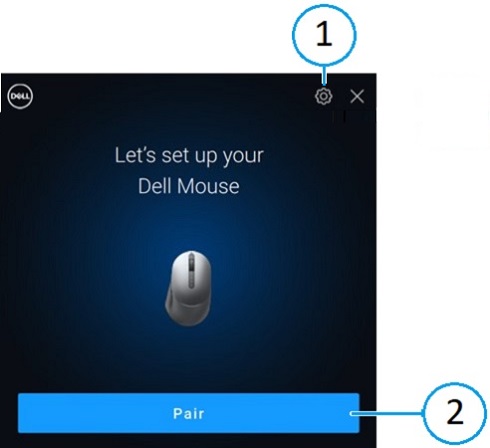
Dell Pair 알림이 자동으로 표시됩니다. 이 알림은 Dell Pair 감지를 지원하는 Bluetooth 디바이스가 켜져 있고 Dell 컴퓨터의 감지 범위 내에 있을 때 나타납니다.

Dell Pair 사용자 인터페이스

1 Dell Pair 설정 2 Bluetooth를 사용하여 페어링 시작


UI가 나타나면 페어링을 클릭하여 Dell Bluetooth 디바이스를 Dell 컴퓨터와 페어링합니다.

시작 메뉴에서 Dell Pair 애플리케이션의 사용자 인터페이스를 엽니다.

  • 시작 메뉴
    • Dell Technologies

      • Dell Pair

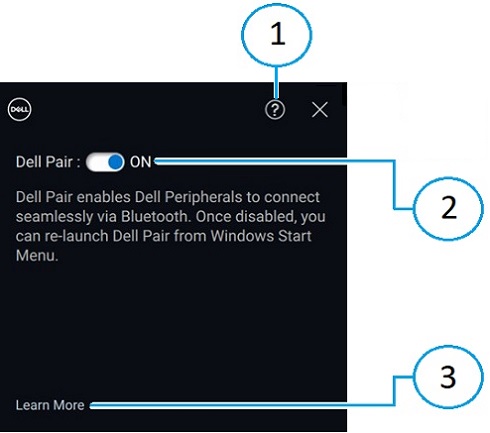
Dell Pair 사용자 인터페이스에서 Dell Pair 설정을 변경합니다. 스위치를 ON 또는 OFF 위치로 밀어 Dell Pair 애플리케이션을 활성화 또는 비활성화합니다.

Dell Pair 설정

1 소프트웨어 버전 정보 2 Dell Pair 활성화 또는 비활성화
3 추가 정보    


참고: 애플리케이션이 비활성화되면 Windows 시작 메뉴에서 Dell Pair를 다시 실행합니다.


지원되는 플랫폼 및 주변 기기


Dell Pair 소프트웨어는 다음 컴퓨터에 사전 설치되어 제공됩니다.

레거시 모델
Inspiron Vostro XPS Latitude Precision
13 5320 3440 13 9315 3330 3480
13 5330 5320 13 9315 2-in-1 3340 3490
14 5420 5620 13 Plus 9320 3440 3570
14 5425 5625 13 9340 3450 3571
14 5430 5630 14 9350 3540 3580
14 5435 5635 14 9440 3550 3581
16 5620 5640 15 9520 5320 3590
14 5440 7620 15 9530 5330 3591
14 5445   16 9640 5340 5470
16 5625   17 9720 5350 5480
16 5630    17 9730 5430 5490
16 5635     5431 5570
14 5640     5440 5690
14 5645     5450 5770
14 Plus 7420     5455 7670
14 7430 2-in-1     5530 7680
14 Plus 7430     5531 7770
14 7435 2-in-1     5540 7780
14 Plus 7440     5550  
14 7440 2-in-1     7320  
14 7445 2-in-1     7330  
16 Plus 7620     7350  
16 Plus 7630     7350 분리형  
16 Plus 7640     7420  
16 7630 2-in-1     7430  
16 7635 2-in-1     7450  
16 7640 2-in-1     7455  
      7530  
      7650  
      9330  
      9430  
      9440 2-in-1  
      9450 2-in-1  
현재 모델
Dell Pro Dell Plus Dell Pro Premium Dell Pro Plus Dell Pro Rugged
PC14255 DB16250 PA13250 PB13250 RA13250
PC16255 DB16255 PA14250 PB13255 RB14250
      PB14250  
      PB14255  
       PB16250  
       PB16255  


참고: 컴퓨터가 Dell Pair 없이 도착했습니까? 그렇다면 다음 지원 사이트 페이지의 서비스 설명서에서 설치 요구 사항과 최신 지원 모델을 확인하십시오.


지원되는 주변 기기
Dell Pro 컴팩트 사일런트 마우스(MS355): Dell 사일런트 마우스 Dell Pro Plus 무선 ANC(Active Noise Cancelling) 헤드셋(WL5024): 또는 Dell Pro 무선 ANC 헤드셋 Dell Pro Plus 무선 스피커폰 SL525
Dell Pro 컴팩트 사일런트 키보드 및 마우스(KM555): Dell 사일런트 키보드 및 마우스 Dell Pro Premium 무선 ANC 헤드셋 WL7024: 또는 Dell Premier 무선 ANC 헤드셋  
Dell Bluetooth 트래블 마우스(MS700) Dell Pro 무선 헤드셋 WL3024: Dell 무선 헤드셋  
Dell Pro 프리미엄 협업용 키보드 및 마우스 KM900:
  • Dell Pro Premium 협업용 키보드 KB900
Dell Pro Plus 이어버드 EB525   
Dell Pro 프리미엄 마우스 MS900    


문제 해결


문제 가능한 해결 방법
Dell Bluetooth 디바이스를 처음 켤 때 Dell Pair 알림이 열리지 않습니다.
  • Windows 10(버전 19041)은 Dell Pair를 지원하는 가장 오래된 버전입니다.
  • Bluetooth 버전 5.0 이상이 필요합니다.
  • Bluetooth는 Dell 컴퓨터에서 지원됩니다. 이 기능은 Windows 설정에서 사용하도록 설정되어 있습니다.
  • Dell Bluetooth 디바이스는 Dell Pair에 의한 감지를 지원합니다.
  • Dell Bluetooth 디바이스가 컴퓨터의 감지 범위 근처에 있습니다.
  • Dell 컴퓨터와 Dell Bluetooth 디바이스의 배터리가 모두 작동하기에 충분한지 확인합니다.
  • Dell Bluetooth 디바이스에 최신 펌웨어가 설치되어 있습니다.
  • Dell 컴퓨터의 Bluetooth 컨트롤러는 인텔 제품입니다.
  • Dell Bluetooth 디바이스의 전원을 껐다가 켭니다.
Dell Pair가 페어링 오류를 보고합니다.
  1. Dell Bluetooth 디바이스가 Dell 컴퓨터 근처에 있고 페어링 모드에 있는 경우 Dell 페어링 UI가 페어링을 지원합니다.
  2. 페어링 오류 UI(User Interface)가 자동으로 해제될 때까지 기다립니다.
  3. Dell Bluetooth 디바이스를 Dell 컴퓨터에서 멀리 옮깁니다(예: 40cm(15.75인치) 이상 거리까지).
  4. Dell Bluetooth 디바이스를 Dell 컴퓨터 근처로 천천히 가져옵니다.
  5. Dell Bluetooth 디바이스가 페어링 모드에 있는지 확인합니다. 페어링 LED가 깜박이기 시작하는지 확인합니다.

Additional Information

Bluetooth 문제 해결 지원

컴퓨터에서 사용 중인 Bluetooth 디바이스의 사용 및 문제 해결 방법에 대해 알아봅니다. 문제 해결 단계, 사용 방법 가이드 및 관련 지원 비디오에 대한 정보를 확인하여 도움을 받으십시오.

Dell Pair 사용자 가이드를 보려면 Dell Pair 설명서 페이지로 이동하십시오. Manuals and Documents 섹션에 있는 사용자 가이드 오른쪽에서 View PDF를 터치하거나 클릭합니다.

Etkilenen Ürünler

Dell 16 Plus DB16250, Dell 16 Plus DB16255, Dell Pro Plus Earbuds EB525, Dell Pro Premium Collaboration Keyboard KB900, Dell Pro Compact Silent Keyboard and Mouse - KM555, Dell Pro Premium Collaboration Keyboard and Mouse KM900 , Dell Pro Premium Mouse MS900, Dell Pair, Dell Pro 13 Premium PA13250, Dell Pro 14 Premium PA14250, Dell Pro 13 Plus PB13250, Dell Pro 13 Plus PB13255, Dell Pro 14 Plus PB14250, Dell Pro 14 Plus PB14255, Dell Pro 16 Plus PB16250, Dell Pro 16 Plus PB16255, Dell Pro 14 PC14255, Dell Pro 16 PC16255, Dell Pro Rugged 13 RA13250, Dell Pro Rugged 14 RB14250, Dell Pro Plus Wireless Speakerphone SL525, Dell Pro Wired Speakerphone SP325, Dell Pro Wireless Headset WL3024, Dell Pro Plus Wireless ANC Headset WL5024, Dell Pro Premium Wireless ANC Headset WL7024, Inspiron 13 5320, Inspiron 13 5330, Inspiron 14 5420, Inspiron 14 5425, Inspiron 14 5430, Inspiron 14 5435, Inspiron 14 5440, Inspiron 14 5445, Inspiron 14 Plus 7420, Inspiron 14 7430 2-in-1, Inspiron 14 Plus 7430, Inspiron 14 7440 2-in-1, Inspiron 14 Plus 7440, Inspiron 14 7445 2-in-1, Inspiron 16 5620, Inspiron 16 5625, Inspiron 16 5630, Inspiron 16 5635, Inspiron 16 5640, Inspiron 16 5645, Inspiron 16 Plus 7620, Inspiron 16 7630 2-in-1, Inspiron 16 Plus 7630, Inspiron 16 7635 2-in-1, Inspiron 16 7640 2-in-1, Inspiron 16 Plus 7640, Latitude 3330, Latitude 3340, Latitude 5320, Latitude 5330, Latitude 5340, Latitude 5350, Latitude 7320, Latitude 7330, Latitude 7340, Latitude 7350, Latitude 7350 Detachable, Latitude 9330, Latitude 3440, Latitude 3450, Latitude 5431, Latitude 5440, Latitude 5450, Latitude 5455, Latitude 7420, Latitude 7430, Latitude 7450, Latitude 7455, Latitude 9430, Latitude 9440 2-in-1, Latitude 9450 2-in-1, Latitude 3540, Latitude 5530, Latitude 5531, Latitude 5540, Latitude 5550, Latitude 7530, Latitude 7650, Latitude 5430, Precision 3480, Precision 3490, Precision 5470, Precision 5480, Precision 5490, Precision 3570, Precision 3571, Precision 3580, Precision 3581, Precision 3590, Mobile Precision 3591, Mobile Precision 5690, Precision 7680, Precision 5770, Precision 7770, Precision 7780, Vostro 5320, Vostro 14 3440, Vostro 5620, Vostro 5625, Vostro 16 5630, Vostro 16 5635, Vostro 16 5640, Vostro 7620, XPS 13 9315 2-in-1, XPS 13 9315, XPS 13 9340, XPS 13 9350, XPS 15 9520, XPS 15 9530, XPS 16 9640, XPS 17 9720, XPS 17 9730 ...

Ürünler

Dell Pair
Makale Özellikleri
Article Number: 000201693
Article Type: How To
Son Değiştirme: 06 Tem 2026
Version:  25
Sorularınıza diğer Dell kullanıcılarından yanıtlar bulun
Destek Hizmetleri
Aygıtınızın Destek Hizmetleri kapsamında olup olmadığını kontrol edin.