Che cos'è Dell Pair?
Summary: L'articolo seguente fornisce informazioni su software Dell Pair. Questo software semplifica la connessione dei dispositivi Bluetooth Dell al computer Dell.
Instructions
Sommario:
- Introduzione
- Requisiti software
- Installazione di Dell Pair
- Funzioni di Dell Pair
- Piattaforme e periferiche supportate
- Risoluzione dei problemi
- Additional Information
Introduzione
Dell Pair è un utilità software disponibile su alcune piattaforme Dell e supporta l'associazione a dispositivi Bluetooth Dell. (ad esempio, dispositivi Bluetooth come mouse, tastiera o cuffie senza fili). Quando l'utilità Dell Pair è abilitata, l'interfaccia utente delle utilità richiede automaticamente l'associazione a qualsiasi dispositivo Bluetooth Dell all'interno dell'intervallo di rilevamento Bluetooth del computer Dell.
Requisiti software
L'applicazione Dell Pair presenta i seguenti requisiti:
- Windows 11
- Windows 10 (10.0.19041 e versioni successive)
- Bluetooth 5.0 e versioni successive
- Il Bluetooth è abilitato
Installazione di Dell Pair
L'applicazione Dell Pair non è più disponibile per il download. Windows 10 versione 1803 e versioni successive e Windows 11 includono Swift Pair con funzionalità simili:

Tutta la documentazione di supporto per l'applicazione Dell Pair è disponibile sul sito del Supporto Dell:
Funzioni di Dell Pair
La notifica di Dell Pair viene visualizzata automaticamente. Ciò accade quando un dispositivo Bluetooth che supporta il rilevamento da parte di Dell Pair è acceso e rientra nell'intervallo di rilevamento del computer Dell.
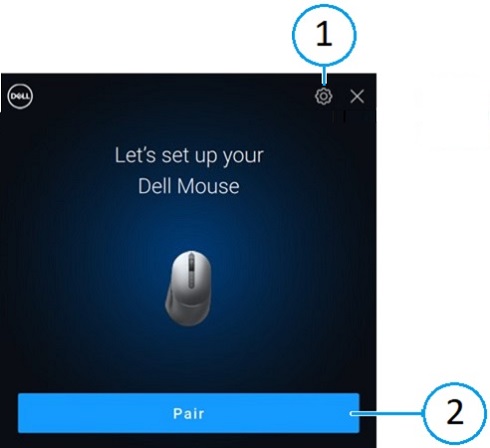
| 1 | Impostazioni di Dell Pair | 2 | Avviare l'associazione tramite Bluetooth |
Quando viene visualizzata l'interfaccia utente, cliccare su Pair per associare il dispositivo Bluetooth Dell al computer Dell.
Aprire l'interfaccia utente dell'applicazione Dell Pair dal menu Start:
- Menu Start
-
Dell
-
Dell Pair
-
-
Dall'interfaccia utente di Dell Pair, modificare l'impostazione di Dell Pair. Per abilitare o disabilitare l'applicazione Dell Pair, far scorrere l'interruttore in posizione ON o OFF.
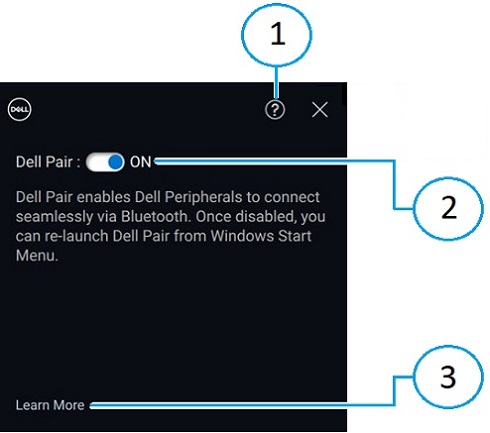
| 1 | Informazioni sulla versione del software | 2 | Abilita o disabilita Dell Pair |
| 3 | Learn More |
Piattaforme e periferiche supportate
Il software Dell Pair era preinstallato sui seguenti computer:
| Inspiron | Vostro | XPS | Latitude | Precision |
|---|---|---|---|---|
| 13 5320 | 3440 | 13 9315 | 3330 | 3480 |
| 13 5330 | 5320 | 13 9315 2-in-1 | 3340 | 3490 |
| 14 5420 | 5620 | 13 Plus 9320 | 3440 | 3570 |
| 14 5425 | 5625 | 13 9340 | 3450 | 3571 |
| 14 5430 | 5630 | 14 9350 | 3540 | 3580 |
| 14 5435 | 5635 | 14 9440 | 3550 | 3581 |
| 16 5620 | 5640 | 15 9520 | 5320 | 3590 |
| 14 5440 | 7620 | 15 9530 | 5330 | 3591 |
| 14 5445 | 16 9640 | 5340 | 5470 | |
| 16 5625 | 17 9720 | 5350 | 5480 | |
| 16 5630 | 17 9730 | 5430 | 5490 | |
| 16 5635 | 5431 | 5570 | ||
| 14 5640 | 5440 | 5690 | ||
| 14 5645 | 5450 | 5770 | ||
| 14 Plus 7420 | 5455 | 7670 | ||
| 14 7430 2-in-1 | 5530 | 7680 | ||
| 14 Plus 7430 | 5531 | 7770 | ||
| 14 7435 2-in-1 | 5540 | 7780 | ||
| 14 Plus 7440 | 5550 | |||
| 14 7440 2-in-1 | 7320 | |||
| 14 7445 2-in-1 | 7330 | |||
| 16 Plus 7620 | 7350 | |||
| 16 Plus 7630 | 7350 Detachable | |||
| 16 Plus 7640 | 7420 | |||
| 16 7630 2-in-1 | 7430 | |||
| 16 7635 2-in-1 | 7450 | |||
| 16 7640 2-in-1 | 7455 | |||
| 7530 | ||||
| 7650 | ||||
| 9330 | ||||
| 9430 | ||||
| 9440 2-in-1 | ||||
| 9450 2-in-1 |
| Dell Pro | Dell Plus | Dell Pro Premium | Dell Pro Plus | Dell Pro Rugged |
|---|---|---|---|---|
| PC14255 | DB16250 | PA13250 | PB13250 | RA13250 |
| PC16255 | DB16255 | PA14250 | PB13255 | RB14250 |
| PB14250 | ||||
| PB14255 | ||||
| PB16250 | ||||
| PB16255 |
| Periferiche supportate | ||
|---|---|---|
| Mouse silenzioso compatto Dell Pro (MS355): in alternativa, mouse silenzioso Dell | Cuffie senza fili con cancellazione attiva del rumore (ANC) Dell Pro Plus (WL5024): in alternativa, cuffie senza fili Dell Pro con cancellazione attiva del rumore (ANC) | Vivavoce senza fili Dell Pro Plus SL525 |
| Tastiera e mouse silenziosi Dell Pro Compact (KM555): in alternativa, tastiera e mouse silenziosi Dell | Cuffie senza fili Dell Pro Premium ANC WL7024: in alternativa, cuffie senza fili Dell Premier ANC | |
| Mouse Bluetooth da viaggio Dell (MS700) | Cuffie senza fili Dell Pro WL3024: in alternativa, cuffie senza fili Dell | |
Tastiera e mouse per la collaborazione Dell Pro Premium KM900:
|
Auricolari Dell Pro Plus EB525 | |
| Dell Pro Premium Mouse MS900 | ||
Risoluzione dei problemi
| Problemi | Possibili soluzioni |
|---|---|
| La notifica di Dell Pair non appare quando un dispositivo Bluetooth Dell viene attivato per la prima volta |
|
| Dell Pair segnala un errore di associazione. |
|
Additional Information
Supporto per la risoluzione dei problemi con Bluetooth
Informazioni su come utilizzare e risolvere i problemi relativi ai dispositivi Bluetooth utilizzati con il computer. Ottieni informazioni sulla procedura di risoluzione dei problemi, guide pratiche e video di supporto pertinenti.
Per la guida utente di Dell Pair, accedere alla pagina dei manuali di Dell Pair. Toccare o cliccare su Visualizza il PDF a destra della guida utente nella sezione Manuali e documentazione.