如何安装 Dell Endpoint Security Suite Enterprise for Linux
摘要: 了解如何按照以下说明通过终端命令行界面 (CLI) 安装 Dell Data Security Endpoint Security Suite Enterprise for Linux。
本文适用于
本文不适用于
本文并非针对某种特定的产品。
本文并非包含所有产品版本。
说明
使用命令行完成 Dell Data Security Endpoint Security Suite Enterprise for Linux 的安装过程。
提醒:有关产品系统要求的详细信息(包括支持的 Linux 版本),请参阅 Dell Endpoint Security Suite Enterprise 系统要求。
- 打开终端。

- 在 终端中,键入以下命令,然后按 Enter 键。
sudo tar –xvf '/FilePathA/DellESSE.tar.gz' –C /FilePathB 提醒:
提醒:- 在上面的示例中:
FilePathA是 TAR 文件所在的路径。FilePathA示例 =/home/admin/Desktop/Downloads/
FilePathB是 TAR 文件解压缩到的路径。FilePathB示例 =/home/admin/Desktop/ESSE
- 命令区分大小写。
- 示例路径在您的环境中可能会有所不同。
- 在上面的示例中:
- 在运行对话框中键入
sudo 'filepath/install.sh'从解压的安装程序包进入 终端 ,然后按 Enter 键。

- 填充正在使用的帐户的密码,然后按 Enter 键。

- 填充 Dell Security Management Server 的 IP 或 DNS,然后按 Enter 键。

- 填充 Dell Security Management Server 的核心服务器服务的端口,然后按 Enter 键。
 提醒:默认情况下,核心服务器服务在 8888 上运行。
 - 当系统提示您安装 DellESSE 软件包及其依赖项时,按 Y 键,然后按 Enter 键。
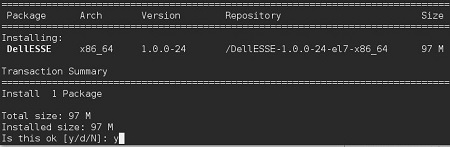
- 如果系统提示您批准指纹,请按 Y 键。否则,请转至步骤 9。

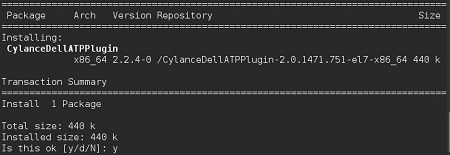
- 按 Y 键安装 CylanceDellATPplugin 软件包,然后按 Enter 键。
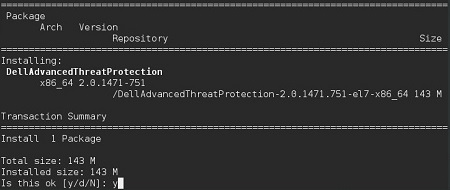
- 按 Y 键安装 DellAdvancedThreatProtection 软件包,然后按 Enter 键。
- 安装完成后,键入以下命令,然后按 Enter 键。
exit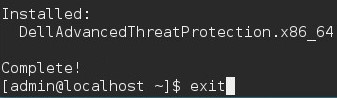
要联系支持部门,请参阅 Dell Data Security 国际支持电话号码。
转至 TechDirect,在线生成技术支持请求。
要获得更多见解和资源,请加入戴尔安全社区论坛。
其他信息
视频
受影响的产品
Dell Endpoint Security Suite Enterprise文章属性
文章编号: 000124563
文章类型: How To
上次修改时间: 13 5月 2026
版本: 14
从其他戴尔用户那里查找问题的答案
支持服务
检查您的设备是否在支持服务涵盖的范围内。