有关详细信息,请参阅如何在 Dell Security Management Server Virtual 中启用 SSH。
摘要: 了解有关如何在 Dell Security Management Server Virtual 中创建 Secure Shell (SSH) 用户的分步说明。
本文适用于
本文不适用于
本文并非针对某种特定的产品。
本文并非包含所有产品版本。
说明
本文介绍如何在 Dell Security Management Server Virtual(以前称为 Dell Data Protection | Virtual Edition)中启用 Secure Shell (SSH) 用户。
受影响的产品:
- Dell Security Management Server Virtual
- Dell Data Protection | Virtual Edition
受影响的版本:
- v8.2.0 及更高版本
受影响的操作系统:
- Linux
为 Dell Security Management Server Virtual 启用 SSH 用户的过程因 v9.11.0 和更高版本 以及 v8.2.0 到 9.10.1 而异。单击相应的版本以了解更多信息。有关版本信息,请参阅如何确定 Dell Data Security 服务器的版本。
v9.11.0 及更高版本
- 使用默认管理员 (ddguser) 凭据登录虚拟设备。
delluser凭据
 注:
注:- 虚拟设备的默认凭据为:
- 用户名:
delluser - 密码:
delluser
- 用户名:
- 管理员可以更改产品的虚拟设备菜单中的默认密码。
- 虚拟设备的默认凭据为:
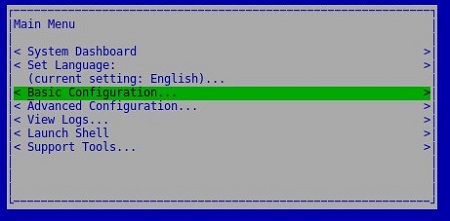
- 从主菜单中,选择 Basic Configuration,然后按 Enter 键。
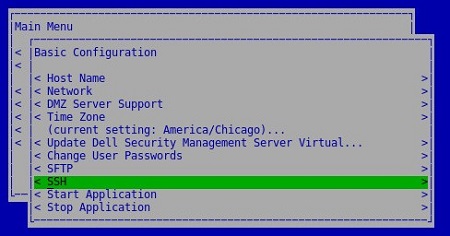
- 选择 SSH,然后按 Enter 键。
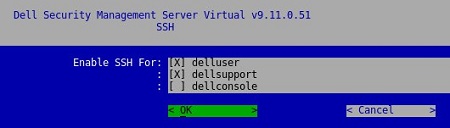
- 按空格键启用
delluser,dellsupport或dellconsole。选中所有需要的帐户后,选择 OK,然后按 Enter 键。
v8.2.0 至 v9.10.1
- 使用默认管理员 (ddguser) 凭据登录虚拟设备。
ddpuser凭据
 注:
注:- 虚拟设备的默认凭据为:
- 用户名:
ddpuser - 密码:
ddpuser
- 用户名:
- 管理员可以更改产品的虚拟设备菜单中的默认密码。
- 虚拟设备的默认凭据为:
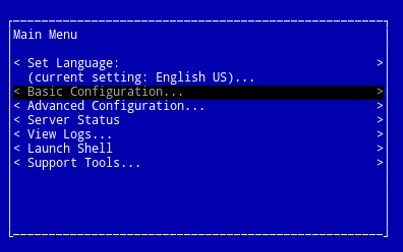
- 从主菜单中,选择 Basic Configuration,然后按 Enter 键。
- 选择 SSH 设置,然后按 Enter 键。
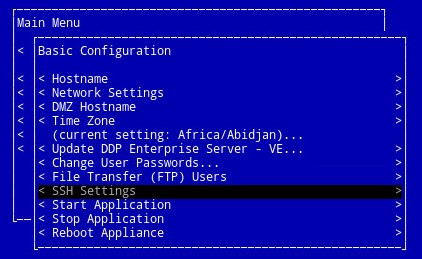
- 按空格键启用
ddpuser,ddpsupport或ddpconsole。选中所有需要的帐户后,选择 OK,然后按 Enter 键。

其他信息
视频
受影响的产品
Dell Encryption文章属性
文章编号: 000124760
文章类型: How To
上次修改时间: 10 8月 2026
版本: 15
从其他戴尔用户那里查找问题的答案
支持服务
检查您的设备是否在支持服务涵盖的范围内。