如何卸载 Dell Data Protection Cloud Edition
摘要: 按照这些适用于 Windows 或 Mac 的分步说明了解如何卸载 Dell Data Protection Cloud Edition。
本文适用于
本文不适用于
本文并非针对某种特定的产品。
本文并非包含所有产品版本。
说明
提醒:
- 自 2018 年 5 月起,Dell Data Protection | Cloud Edition 已停售。戴尔不再更新本产品及其文章。有关详细信息,请参阅 Dell Data Security 产品生命周期(结束支持和停售)政策。如果您对其他文章有任何疑问,请联系您的销售团队或联系 endpointsecurity@dell.com。
- 请参阅端点安全性,了解有关当前产品的其他信息。
Dell Data Protection |可以从端点卸载 Cloud Edition,以便:
- 修复许可差异
- 对产品进行故障处理
- 解决操作系统不兼容性
受影响的产品:
- Dell Data Protection | Cloud Edition
受影响的版本:
- 1.0
受影响的操作系统:
- Windows
- Mac
Windows 和 Mac 的卸载过程不同。单击相应的操作系统,查看卸载 Dell Data Protection | Cloud Edition 的步骤。
Windows
提醒:在执行这些步骤之前,必须先下载 Dell Data Protection | Cloud Edition 安装程序。
- 右键单击 Windows 的“开始”菜单,然后单击运行。
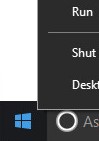
- 在“运行”UI中,键入
appwiz.cpl然后按 OK。这将打开 “程序和功能”。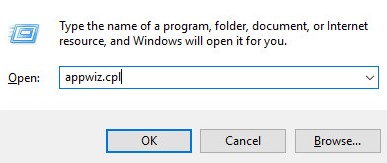
- 双击 Dell Data Protection | Cloud Edition。
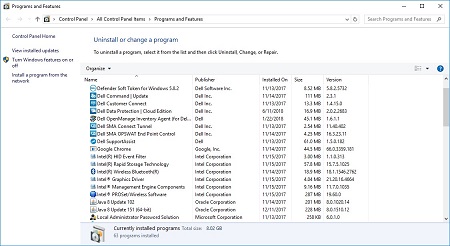
- 单击 Next 以继续。
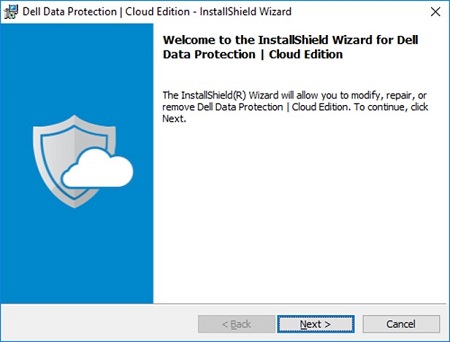
- 选择 Remove,然后单击 Next。
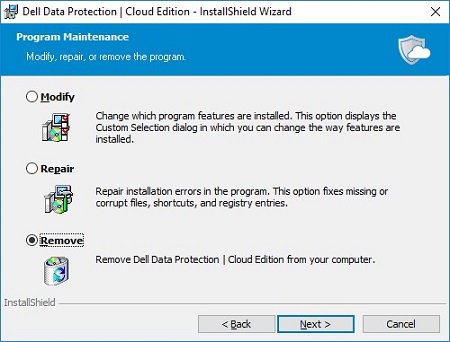
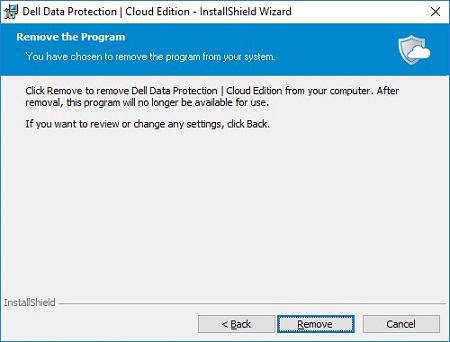
- 单击移除。
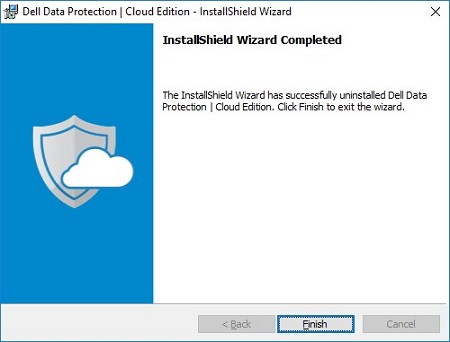
- 删除后,单击 Finish 关闭 UI。
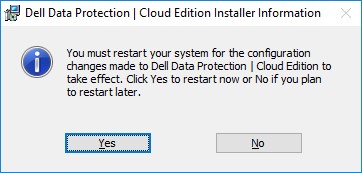
- 单击 Yes 重新启动计算机。
Mac
- 找到桌面上的 DDP Cloud Edition 图标。
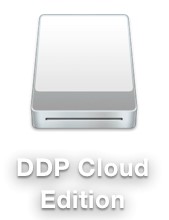
- 将 DDP Cloud Edition 图标拖到 Trash 图标。

其他信息
视频
受影响的产品
Dell Data Guardian文章属性
文章编号: 000126851
文章类型: How To
上次修改时间: 13 2月 2025
版本: 10
从其他戴尔用户那里查找问题的答案
支持服务
检查您的设备是否在支持服务涵盖的范围内。