如何还原 Alienware AW768 或 AW568 键盘的出厂默认设置
摘要: 了解如何还原 Alienware AW768 或 AW568 键盘的出厂默认设置。
本文适用于
本文不适用于
本文并非针对某种特定的产品。
本文并非包含所有产品版本。
说明
按照下述步骤将 Dell Alienware AW768 或 AW568 键盘还原为出厂默认设置。
- 单击 开始 ,然后打开 Alienware Command Center 应用程序。
- 在 “主页 ”选项卡下,单击 “编辑 ”图标(图 1)。
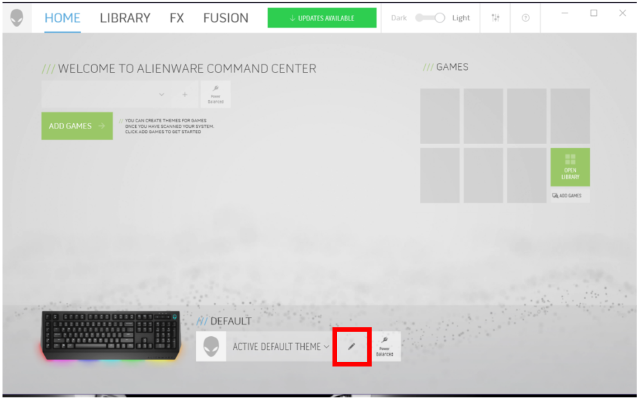
图 1:Alienware Command Center - 编辑键盘设置 - 单击 Settings (图 2)。
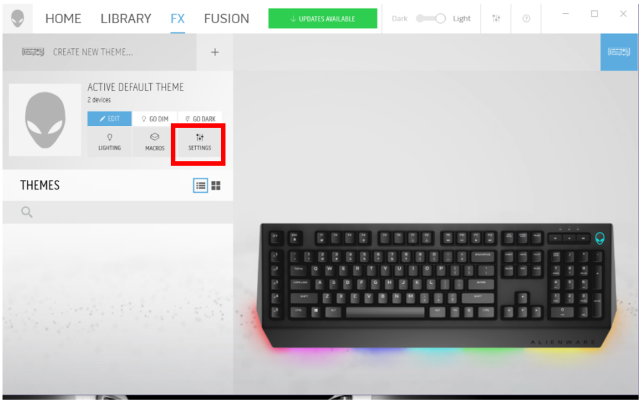
图 2:Alienware Command Center - 编辑键盘设置 - 在 “Edit Device Settings”下,选择键盘(图 3)。
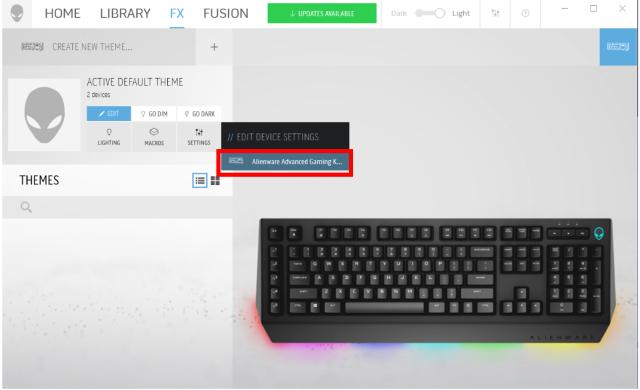
图 3:Alienware Command Center - 选择键盘 - 在 Settings 菜单下,单击 Update 选项卡(图 4)。
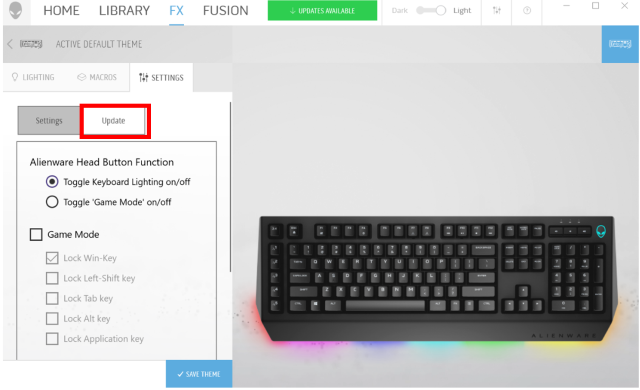
图 4:Alienware Command Center - 更新键盘设置 - 在 “Update ”菜单下,单击 “Restore Factory Defaults ”按钮(图 5)。
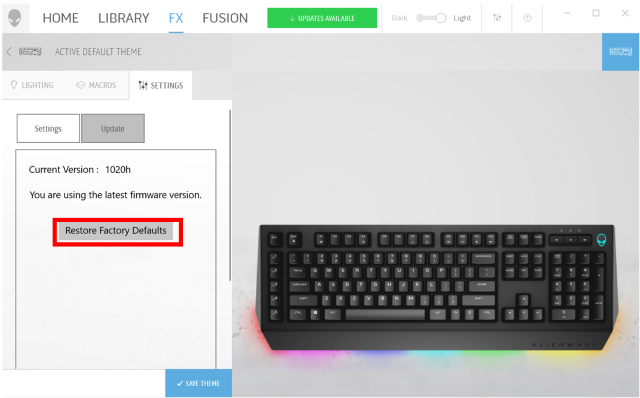
图 5:Alienware Command Center - 还原出厂默认设置 - 单击 OK 进行确认(图 6)。
提醒:还原为出厂默认设置会删除您可能已保存的所有宏、主题或自定义设置。
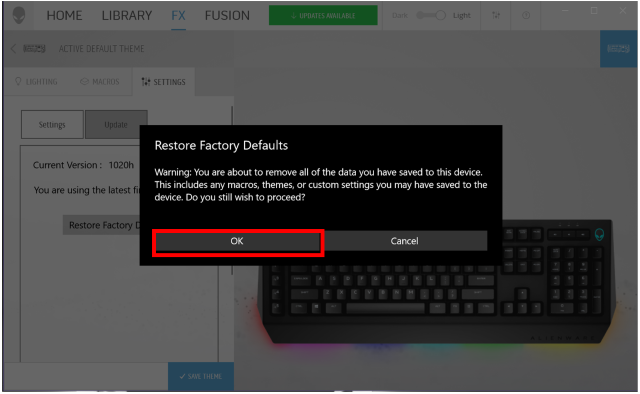
图 6:Alienware Command Center - 确认以还原出厂默认设置 - 断开键盘与计算机的连接。
- 5 秒钟后,将键盘连接到计算机,然后单击 OK 以完成还原过程(图 7)。
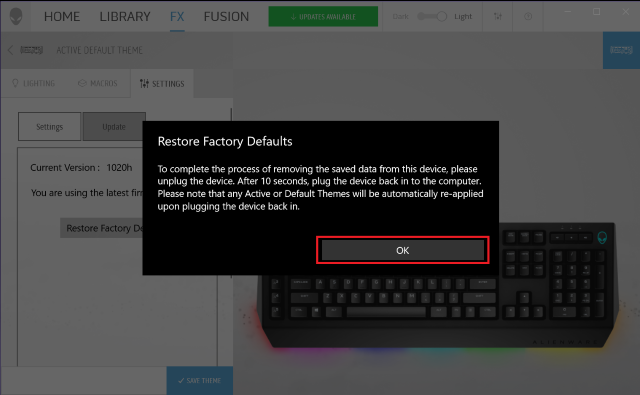
图 7:Alienware Command Center - 确认以还原出厂默认设置
受影响的产品
Alienware Advanced Gaming Keyboard – AW568, Alienware Pro Gaming Keyboard – AW768文章属性
文章编号: 000144774
文章类型: How To
上次修改时间: 02 5月 2026
版本: 6
从其他戴尔用户那里查找问题的答案
支持服务
检查您的设备是否在支持服务涵盖的范围内。