NetWorker: How To Identify Binary Version Details
摘要: This KB gives a general overview of how to identify NetWorker binary or executable version details for both Linux and Windows NetWorker hosts. This information can be useful in confirming if the correct version is in use or when comparing default vs. debug files. ...
本文适用于
本文不适用于
本文并非针对某种特定的产品。
本文并非包含所有产品版本。
说明
This KB gives a general overview of how to identify NetWorker binary or executable version details for both Linux and Windows NetWorker hosts. This information can be useful in confirming if the correct version is in use or when comparing default vs. debug files.
Linux:
- On Linux based NetWorker hosts, confirm the install path:
find / -name binary_name
Or:
which PROCESS_NAME
- Use the strings command against the binary file:
strings /path/to/binary | grep -i "@(#)"
Example:
nve:~ # strings /usr/sbin/nsrexecd | grep -i "@(#)"
@(#) Product:      NetWorker
@(#) Release:      19.12.0.0.Build.21
@(#) Build number: 21
@(#) Build date:   Sat Dec 21 17:59:07 2024
@(#) Build arch.:  linux86w
@(#) Build info:   DBG=0,OPT=-O2 -fno-strict-aliasing
NOTE: For full details remove the
| grep -i "@(#)" from the command.
Windows:
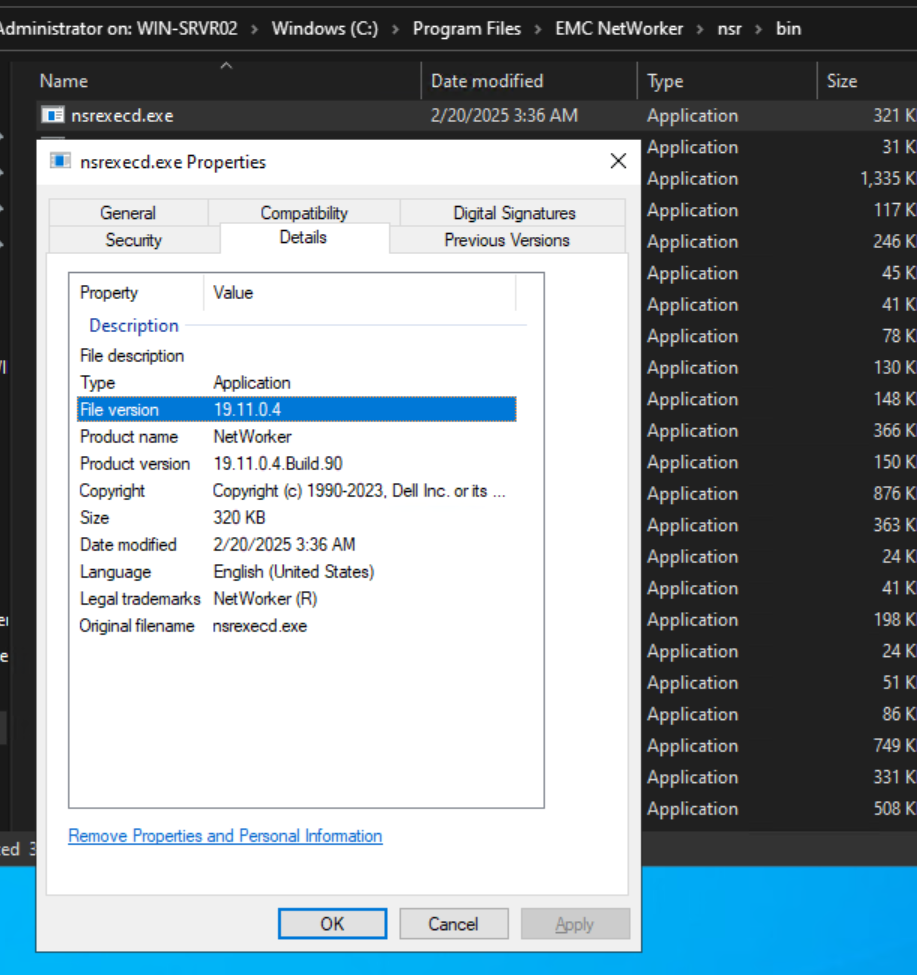
- Open Windows File Explorer and go to the NetWorker install path.
- Go to the NetWorker bin directory, e.g:
..\Program Files\EMC NetWorker\nsr\bin - Open the file properties of the executable in question, and select the Details tab:
其他信息
受影响的产品
NetWorker产品
NetWorker文章属性
文章编号: 000158059
文章类型: How To
上次修改时间: 09 6月 2025
版本: 6
从其他戴尔用户那里查找问题的答案
支持服务
检查您的设备是否在支持服务涵盖的范围内。