Dell Networking SmartFabric OS10:密码恢复
摘要: 在某些情况下,用户可能会忘记 OS10 用户“admin”和 Linux 用户“linuxadmin”的密码,这会导致用户无法登录 OS10。
本文适用于
本文不适用于
本文并非针对某种特定的产品。
本文并非包含所有产品版本。
说明
如果本地管理员未设置任何其他系统管理用户(OS10 和 Linux 用户),则必须尝试密码恢复才能访问。
必须为密码恢复作安排维护时段,因为在活动期间必须多次重新启动交换机(三次或更多次)。
OS10 用户指南在“OS10 故障处理”下提供了解决这种情况的类似过程。如果忘记了 OS10 用户 (admin) 和 Linux 管理员 (linuxadmin) 密码,则必须先从 GRUB 恢复 linux 管理员密码。
然后,linuxadmin 可以从 Linux 内核恢复 OS10 用户 (admin) 密码。
如果只忘记了 OS10 用户 (admin) 密码,则作会更简单,因为不需要控制台。使用 linuxadmin 通过 SSH 或 Telnet 登录到 Linux 内核,然后重置管理员用户密码。
步骤 1 连接到串行控制台端口。
设置串行设置 115200 波特率、8 个数据位和无奇偶校验。
关闭交换机电源,然后再打开交换机电源,以重新启动交换机。
步骤 2在获得以下输出时按 E 以打开 OS10 GRUB 编辑器菜单:
必须为密码恢复作安排维护时段,因为在活动期间必须多次重新启动交换机(三次或更多次)。
OS10 用户指南在“OS10 故障处理”下提供了解决这种情况的类似过程。如果忘记了 OS10 用户 (admin) 和 Linux 管理员 (linuxadmin) 密码,则必须先从 GRUB 恢复 linux 管理员密码。
然后,linuxadmin 可以从 Linux 内核恢复 OS10 用户 (admin) 密码。
如果只忘记了 OS10 用户 (admin) 密码,则作会更简单,因为不需要控制台。使用 linuxadmin 通过 SSH 或 Telnet 登录到 Linux 内核,然后重置管理员用户密码。
提醒:在本指南中,我们将 10.5.4.0 和 10.5.0.6 版本下的作作为演示,在您的案例中,请与客户一起检查正在运行的版本。
由于在密码恢复期间需要多次(三次或更多次)重新启动交换机, 因此您必须 应用维护窗口来执行以下作。
由于在密码恢复期间需要多次(三次或更多次)重新启动交换机, 因此您必须 应用维护窗口来执行以下作。
提醒:必须通过控制台连接来执行此过程。
步骤 1 连接到串行控制台端口。
设置串行设置 115200 波特率、8 个数据位和无奇偶校验。
关闭交换机电源,然后再打开交换机电源,以重新启动交换机。
步骤 2在获得以下输出时按 E 以打开 OS10 GRUB 编辑器菜单:
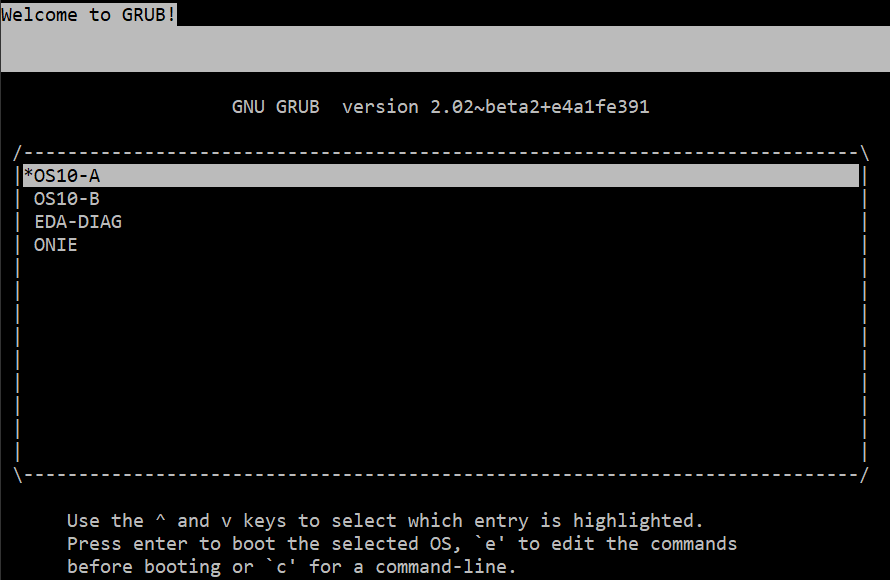
提醒:对于不同的版本,您可能会获得不同的 GRUB 编辑器菜单。
如果是较新的版本,例如 10.5.2.x 或更高版本,则会看到以下内容。
如果是较新的版本,例如 10.5.2.x 或更高版本,则会看到以下内容。
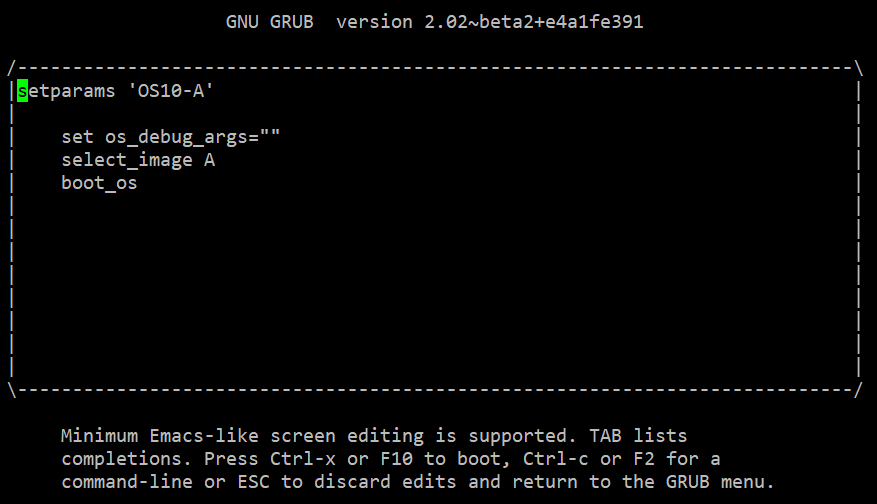
如果是较旧版本,例如 10.5.0.x 或更低版本,则会看到以下内容。
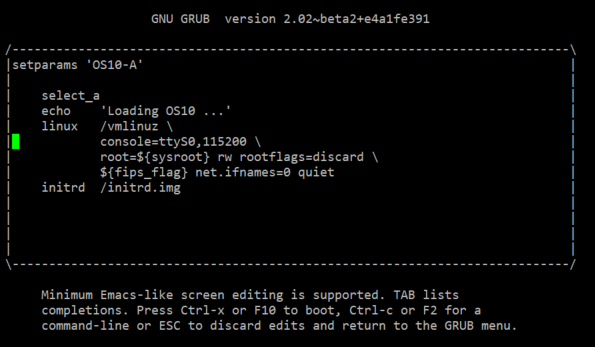
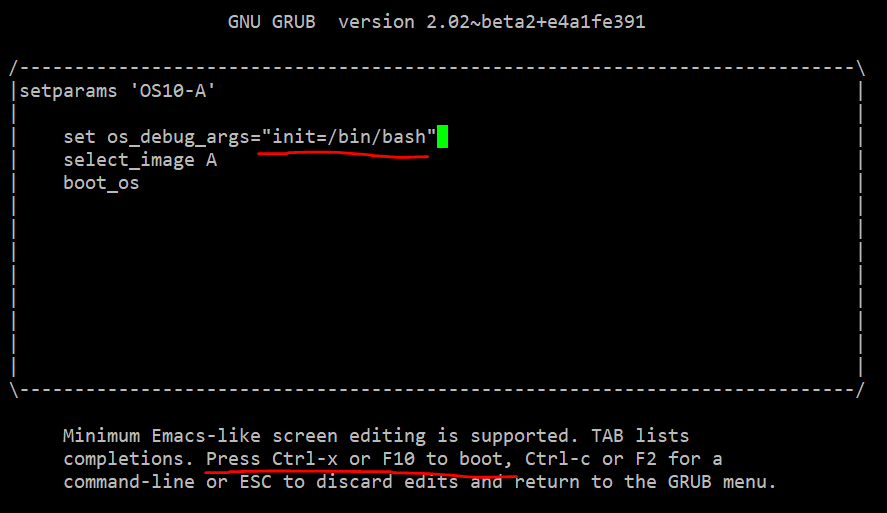
步骤 3 进行以下更改以设置引导行为:
如果是较新的版本,例如 10.5.2.x 或更高版本,请使用箭头键移至具有 set os_debug_args=,然后添加 init=/bin/bash 到最后。
如果是较旧版本,例如 10.5.0.x 或更低版本,请使用箭头键移动到以“linux”开头的行末尾,然后添加 init=/bin/bash 在行的末尾。
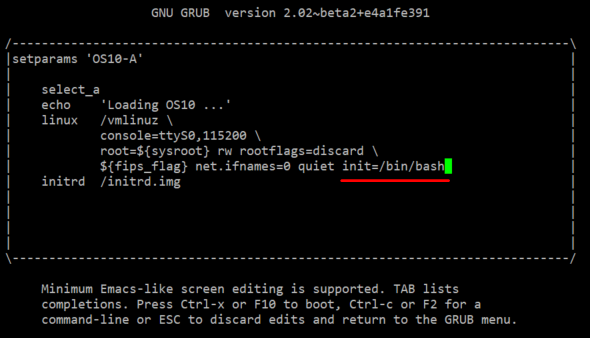
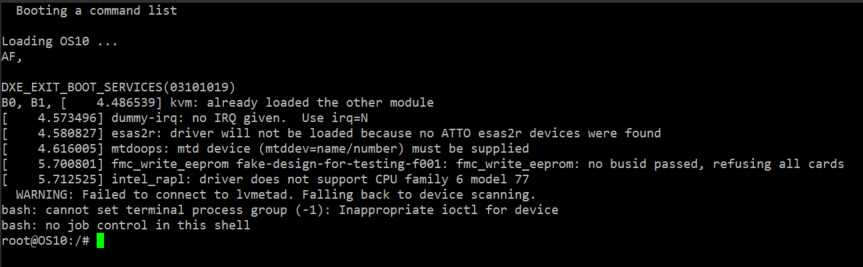
通过按 Ctrl + x 或 Alt + 0 (0 是数字零)重新启动交换机。系统在没有密码 的情况下启动至 root shell(OS10 linux 内核)。
如果是较新的版本,例如 10.5.2.x 或更高版本:
Booting a command list
Loading OS10 ...
AF,
DXE_EXIT_BOOT_SERVICES(03101019)
B0, B1, [    1.193068] intel_rapl: driver does not support CPU family 6 model 77
bash: cannot set terminal process group (-1): Inappropriate ioctl for device
bash: no job control in this shell
root@OS10:/#
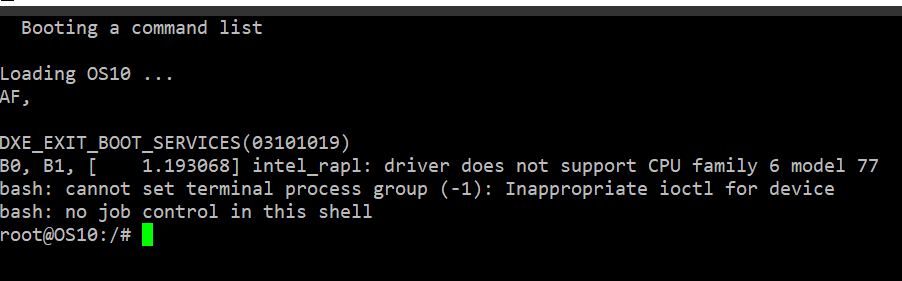
如果是较旧版本,例如 10.5.0.x 或更低版本:
步骤 4 检查 Linux 用户“linuxadmin”状态:
root@OS10:/#
root@OS10:/# cat /etc/passwd | grep linuxadmin
linuxadmin:x:1000:1000:,,,:/home/linuxadmin:/bin/bash      ------// if there's NO "/bin/bash", reset it with below command,
root@OS10:/#
root@OS10:/# usermod -s /bin/bash linuxadmin      ------// reset the login shell mode,
usermod: no changes      ------// it's already correct, so no changes,
root@OS10:/#
检查 Linux 用户“linuxadmin”是否已锁定,如果已锁定则将其解锁。
root@OS10:/#
root@OS10:/# passwd -S linuxadmin
linuxadmin L 07/22/2022 0 99999 7 -1      ------// 'L' means user locked,
root@OS10:/#
root@OS10:/# passwd -u linuxadmin       ------// unlock the user,
passwd: password expiry information changed.
root@OS10:/#
root@OS10:/# passwd -S linuxadmin      ------// check again, it's correct user status,
linuxadmin P 07/22/2022 0 99999 7 -1
root@OS10:/#
步骤 5:重置 Linux 用户“linuxadmin”的密码。
root@OS10:/#
root@OS10:/# passwd linuxadmin      ------// reset user "linuxadmin" password,
New password: <reset password with the user name : linuxadmin>
Retype new password: <retype new password : linuxadmin>
passwd: password updated successfully
root@OS10:/#
root@OS10:/# sync      ------// synchronize system to save the new password,
root@OS10:/#
After password recovery done, please remember to reset the linuxadmin password manually
in running-configurations later as below :
OS10(config)# system-user linuxadmin password [retype your new password]
OS10(config)# exit
OS10# write memory
OS10#

Another preferred method is to use script as below :
Notes : the script will also update the new linuxadmin password in "startup.xml".

If the OS10 version is 10.5.1.0, then run the following command.
root@OS10: /# sed -ibak '31,41s/^/#/g' /opt/dell/os10/
bin/recover_linuxadmin_password.sh

Configure the password by using the script command :
root@OS10:/# /opt/dell/os10/bin/recover_linuxadmin_password.sh [plainpassword]
Notes: Enter the linuxadmin password in plain text.
For example :
root@OS10:/# /opt/dell/os10/bin/recover_linuxadmin_password.sh P@ssw0rd123!
root@OS10:/#
root@OS10:/# sync      ------// synchronize system to save the new password,
root@OS10:/#
步骤 6:再次强制重新启动系统。
root@OS10:/#
root@OS10:/# reboot -f       ------// force switch to reboot,
Rebooting.
[  417.428659] reboot: Restarting system
15, 00068001, 19, 00068000,
BIOS Boot Selector for S4100
Version 3.33.0.1-12
...<output omitted>...

Then try login with Linux user "linuxadmin" and new password "linuxadmin" as below.
OS10 login: linuxadmin
Password: linuxadmin
Linux OS10 4.19.208 #1d SMP Debian 4.19.208-1 x86_64
...<output omitted>...
linuxadmin@OS10:~$
   ------// login to the kernel shell mode directly, password recovered successfully to the default (the same as user name),
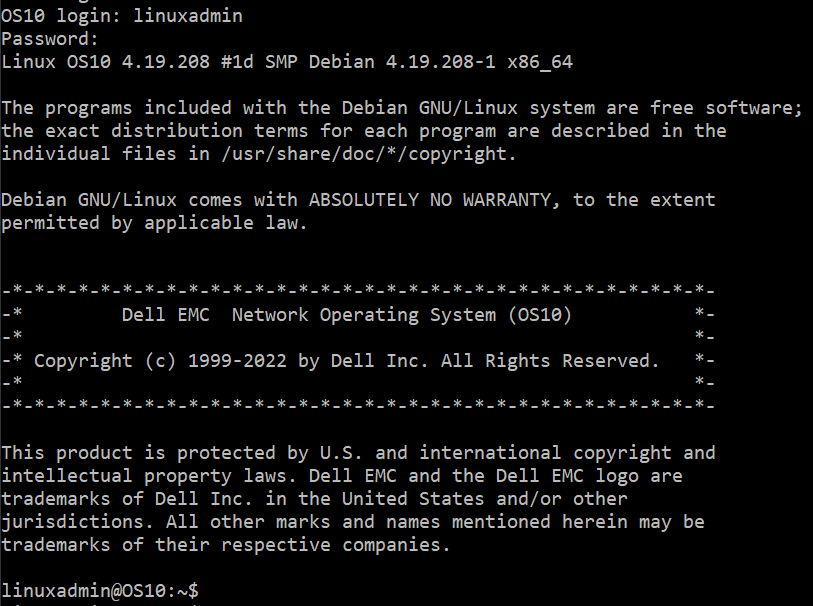
使用用户“linuxadmin”成功登录到 Linux 内核。
步骤 7:重置 OS10 用户“admin”的密码。
linuxadmin@OS10:~$
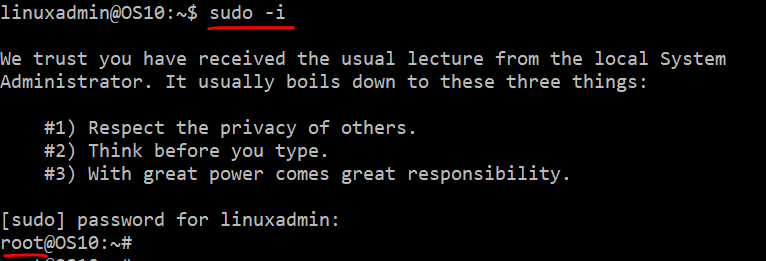
linuxadmin@OS10:~$ sudo -i      ------// get the root permission,
We trust you have received the usual lecture from the local System
Administrator. It usually boils down to these three things:
    #1) Respect the privacy of others.
    #2) Think before you type.
    #3) With great power comes great responsibility.
[sudo] password for linuxadmin:
root@OS10:~#
root@OS10:~# passwd -S admin      ------// check and make sure user status, not locked,
admin P 07/25/2022 0 99999 7 -1
root@OS10:~#

root@OS10:~# cat /etc/passwd | grep admin
...<output omitted>...
admin:x:1003:997::/config/home/admin:/opt/dell/os10/bin/clish
      ------// check the shell mode and make sure it's "/opt/dell/os10/bin/clish",
root@OS10:~#

Reset password,
root@OS10:~#
root@OS10:~# passwd admin
New password: <reset the password with user name : admin>
BAD PASSWORD: it is too short
BAD PASSWORD: is too simple
Retype new password: <retype the password : admin>
passwd: password updated successfully
root@OS10:~#
第 8 步:退出并尝试使用用户“admin”登录。
OS10 login: admin
Password: admin
Last login: Mon Jul 25 05:21:56 UTC 2022 on ttyS0
Linux OS10 4.19.208 #1d SMP Debian 4.19.208-1 x86_64
...<output omitted>...
%Warning : Default password for admin account should be changed to secure the system
%Warning : Default password for linuxadmin account should be changed to secure the system.
OS10#
   ------// login to the OS10 shell mode, password recovered successfully to the default (the same as user name),
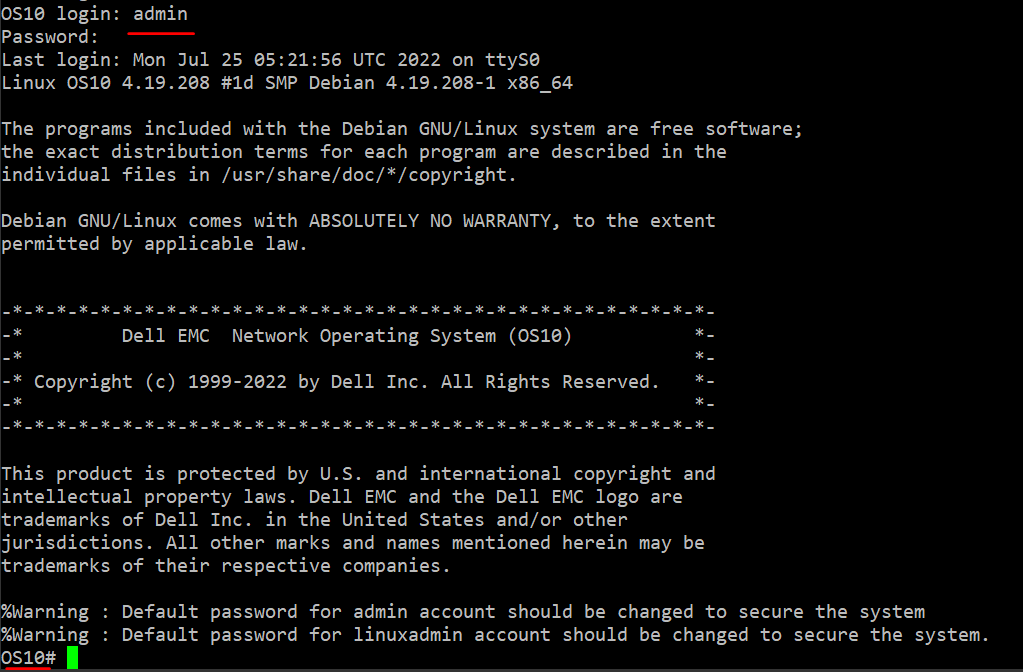
使用用户“admin”成功登录 OS10 shell。
请注意 %Warning 日志,您应设置自己选择的新密码。请记住新密码。
步骤 9 将新密码设置为 users 或 admin。
OS10#
OS10# configure terminal
OS10(config)#
OS10(config)# service simple-password      ------// this is optional, if want to set simple password.
OS10(config)#
OS10(config)# username admin password <input customer's password> role sysadmin
OS10(config)#
OS10(config)# system-user linuxadmin <input customer's password> linuxadmin
OS10(config)#
OS10(config)# end
OS10# write memory      ------// save changed configuration, DO NOT forget the new password !!!!
OS10#
其他信息
请参阅这些视频:
OS10 Linux管理员和管理员密码重置
持续时间:00:04:05 (hh:mm:ss)
如果可用,可以使用此视频播放器上的 CC 图标选择隐藏式字幕(字幕)语言设置。
您也可以在 YouTube 上观看此视频。
OS10 管理员密码重置
持续时间:00:02:16 (hh:mm:ss)
如果可用,可以使用此视频播放器上的 CC 图标选择隐藏式字幕(字幕)语言设置。
您也可以在 YouTube 上观看此视频。
受影响的产品
PowerSwitch S3048-ON, PowerSwitch S4048-ON, PowerSwitch E3200-ON Series, Dell EMC Networking MX5108n, Dell EMC Networking MX9116n, PowerSwitch S4048T-ON, PowerSwitch S4112F-ON/S4112T-ON, PowerSwitch S4128F-ON/S4128T-ON
, PowerSwitch S4148F-ON/S4148T-ON/S4148FE-ON, PowerSwitch S4148U-ON, PowerSwitch S4248FB-ON /S4248FBL-ON, PowerSwitch S5148F-ON, PowerSwitch S5212F-ON, PowerSwitch S5224F-ON, PowerSwitch S5232F-ON, PowerSwitch S5248F-ON, PowerSwitch S5296F-ON, PowerSwitch S5448F-ON, PowerSwitch Z9100-ON, PowerSwitch Z9264F-ON, PowerSwitch Z9332F-ON, PowerSwitch Z9432F-ON, SmartFabric OS10 Software
...
产品
S Series, Dell EMC Networking MX5108n, Dell EMC Networking MX9116n文章属性
文章编号: 000201897
文章类型: How To
上次修改时间: 22 1月 2026
版本: 12
从其他戴尔用户那里查找问题的答案
支持服务
检查您的设备是否在支持服务涵盖的范围内。