如何使用Wyse Management Suite删除应用程序
摘要: 本文介绍如何使用 Wyse Management Suite (WMS) 提供的 PowerShell 脚本确定用于远程卸载应用程序的命令。
本文适用于
本文不适用于
本文并非针对某种特定的产品。
本文并非包含所有产品版本。
说明
受影响的平台:
- 戴尔瘦客户端
受影响的产品:
- Wyse Management Suite
受影响的操作系统:
- Windows 10 IoT LTSC 2021
Windows 10 IoT LTSC 2021 瘦客户端出厂时预装了多个应用程序,并包含在恢复映像中。某些管理员可能想要删除环境中未使用的应用程序。必须确定相关的卸载命令才能执行此操作。本文档概述了该过程,并提供了几个常用安装的应用程序的示例命令。
确定相关卸载命令字符串的步骤:
- 在安装了目标应用程序的设备上以管理员身份登录
- 打开 Registry Editor (regedit.exe)
- 转至 HKLM\SOFTWARE\Microsoft\Windows\CurrentVersion\卸载 密钥
- 在注册表子项中搜索要卸载的应用程序的名称,并记下
DisplayName、 发布者或其他可用于 PowerShell 查询的标识数据。 - 转至 HKLM\SOFTWARE\WOW6432Node\Microsoft\Windows\CurrentVersion\卸载 键
- 在注册表子项中搜索要卸载的应用程序的名称,并记下
DisplayName、 发布者或其他可用于 PowerShell 查询的标识数据。提醒:- 可能必须运行多个关联的注册表项和卸载命令,因此请浏览所有注册表项以确保记下所有必需的卸载命令。
- 导出两个卸载注册表项并使用文本编辑器搜索信息可能更容易。
- 找到相关的注册表项后,请注意要卸载的应用程序具有的共同注册表值(例如,用于卸载的 VMware Horizon 客户端注册表项全部具有 VMware
DisplayName字段,而 Citrix 没有,并且更容易使用 Publisher 字段进行 Citrix 卸载)。 - 请注意所使用的卸载字符串命令。大多数程序使用 MsiExec.exe 命令进行卸载,但有些程序(如 Citrix)可能具有必须在 PowerShell 脚本中考虑的其他或不同的命令。
Citrix Workspace 删除:
要从瘦客户端中删除 Citrix Workspace 客户端,请搜索注册表项以确定注册表项中的常见搜索字符串。下面的屏幕截图显示了与 Citrix Workspace 客户端关联的注册表项之一的示例。
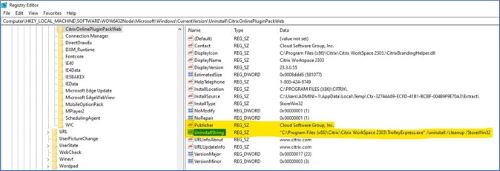
请注意下面的示例脚本中用于搜索相关键的 Publisher 条目。另外,请注意 UninstallString,在这种情况下,它不使用 MsiExec.exe 命令进行卸载,因此必须特别小心地与标准 MsiExec 命令一起处理此条目。
以下脚本示例从 Windows 10 瘦客户端中删除 Citrix Workspace 和关联的应用程序:
# this script will uninstall any program with Citrix Systems or Cloud Software Group in the Publisher field
# version 1 - August 6,2024
# search through the uninstall keys in the registry and find any entries with Citrix Systems or Cloud Software Group in the name of the software publisher
# and create a collection from the entries
$programs = Get-ChildItem -Path HKLM:\SOFTWARE\Microsoft\Windows\CurrentVersion\Uninstall,HKLM:\SOFTWARE\Wow6432Node\Microsoft\Windows\CurrentVersion\Uninstall | Get-ItemProperty | Where-Object {$_.Publisher -match "Citrix Systems" -or $_.Publisher -match "Cloud Software Group"} | Select-Object -Property DisplayName,Publisher,UninstallString

# for each registry entry in the collection, run the uninstall command
foreach ($program in $programs) {
   # if the uninstall command uses the MSIEXEC.exe run it with following parameters
    if ($program.uninstallstring -match "msiexec.exe"){
        start-process cmd.exe -ArgumentList "/c""$($program.uninstallstring) /quiet /norestart""" -Wait
    }
   # special command for the TrolleyExpress command to uninstall the main Citrix component as it does     not rely on MSIEXEC.exe to uninstall
   else {
        start-process cmd.exe -ArgumentList "/c""$($program.uninstallstring) /silent""" -Wait
    }
}
# check to see if the Citrix Workspace shortcut is on the desktop and delete it
if (test-path "C:\Users\Public\Desktop\Citrix Workspace.lnk") {
		remove-item "C:\Users\Public\Desktop\Citrix Workspace.lnk"
}
创建 PowerShell (ps1) 文件并将其复制到要在卸载应用程序策略中使用的 WMS 服务器。
VMware Horizon 客户端删除:
要从瘦客户端中删除 VMware Horizon 客户端,请搜索注册表项以确定这些项中的通用搜索字符串。下面的屏幕截图显示了与 VMware Horizon 客户端关联的注册表项之一的示例。
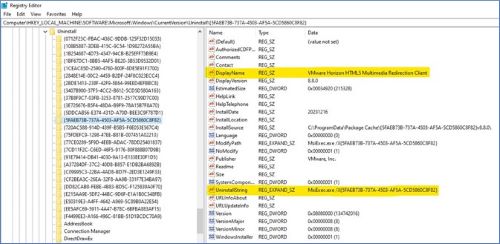
请注意 DisplayName 条目,在下面的示例脚本中用于搜索相关键。另外,请注意 UninstallString 要确保所有卸载命令,请使用 MSiExec.exe 命令。
以下脚本示例从 Windows 10 瘦客户端中删除 VMware Horizon 和关联的应用程序:
# this script will uninstall any program with VMWare in the title
# version 1 - August 6,2024
#
# search through the uninstall keys in the registry and find any with VMWare in the Name of the application (DisplayName) and create a collection of the entries
$programs = Get-ChildItem -Path HKLM:\SOFTWARE\Microsoft\Windows\CurrentVersion\Uninstall,HKLM:\SOFTWARE\Wow6432Node\Microsoft\Windows\CurrentVersion\Uninstall | Get-ItemProperty | Where-Object {$_.DisplayName -match "VMWare"} | Select-Object -Property DisplayName,UninstallString

# for each registry entry in the collection, run the uninstall command
foreach ($program in $programs) {
    start-process cmd.exe -ArgumentList "/c""$($program.uninstallstring) /quiet /norestart""" -Wait
}
创建 PowerShell (ps1) 文件并将其复制到要在卸载应用程序策略中使用的 WMS 服务器。
提醒:
- 本文档使用运行 Windows 10 IoT Enterprise LTSC 2021 内部版本 10.05.15.12.23.00 的 Latitude 3440 开发和测试。如果使用另一个内部版本,注册表项信息可能会略有不同。
- 有时,其他文件删除(如快捷方式)也必须编写脚本,例如 Citrix 删除的情况。必须执行测试以确定卸载是否已完成。
受影响的产品
Latitude Mobile Thin Client, OptiPlex Thin Client, Wyse Hardware, Wyse Management Suite文章属性
文章编号: 000222586
文章类型: How To
上次修改时间: 20 5月 2026
版本: 3
从其他戴尔用户那里查找问题的答案
支持服务
检查您的设备是否在支持服务涵盖的范围内。