How to Extract Dell Client Device Manager
摘要: This article provides information about how to extract Dell Client Device Manager (DCDM).
本文适用于
本文不适用于
本文并非针对某种特定的产品。
本文并非包含所有产品版本。
说明
There are several options for extracting the contents from a .cab file: Windows Explorer, Command Line, or any third-party archive applications that support .cab files.
Note: Due to the broad availability of third-party applications, no examples are provided.
Using Windows Explorer:
- From the folder where Dell Client Device Manager was downloaded, right click the cab file and select Open With > Windows Explorer.
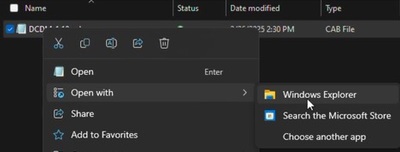 Note: For information about downloading Dell Client Device Manager, see How to Download Dell Client Device Manager.
 - Select all files, right click, and click Extract.
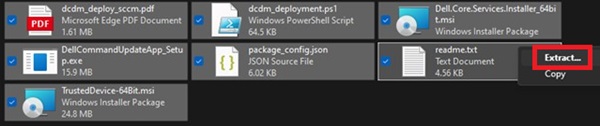
- Go to where you would like to extract the contents to using the Select a Destination window and click the Extract button.
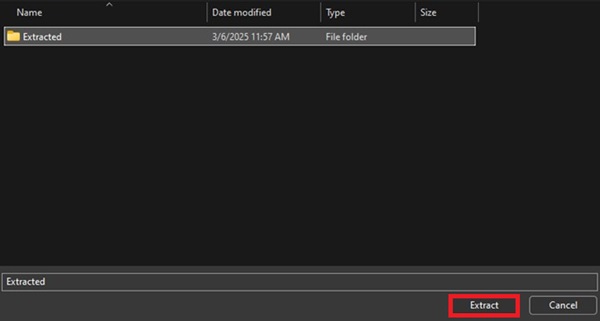 Note: The folder structure is lost, and the DCDM_Deployment.ps1 script does not work as designed when using Windows Explorer to extract the cabinet files. If you intend to deploy DCDM using the provided PowerShell script, you must create a new folder named Installers then move Dell.Core.Services.Installer_64bit.msi, DellCommandUpdateApp_Setup.exe, and TrustedDevice-64Bit.msi into it.
Using Command Line:
- Open the command prompt and set the directory focus to the folder where the cab file was downloaded.
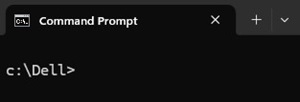 Note: For information about downloading Dell Client Device Manager, see How to Download Dell Client Device Manager.
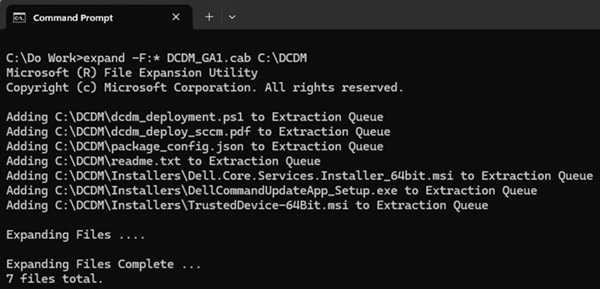
 - Type the following command:
expand -F:* cabfile_path existing_destination_folder
cabfile_path is the name of the Dell Client Device Manager cab file, and existing_destination_folder is the full path to a folder where the contents are to be extracted.
受影响的产品
Dell Client Device Manager文章属性
文章编号: 000299313
文章类型: How To
上次修改时间: 22 5月 2026
版本: 2
从其他戴尔用户那里查找问题的答案
支持服务
检查您的设备是否在支持服务涵盖的范围内。