PowerConnect: Enabling DHCP server on PowerConnect 2800
摘要: PowerConnect: Enabling DHCP server on PowerConnect 2800
本文章適用於
本文章不適用於
本文無關於任何特定產品。
本文未識別所有產品版本。
說明
The PowerConnect 2800 Series lets you enable the DHCP Server feature from the Switch. This article will detail the procedure.
Back to Top
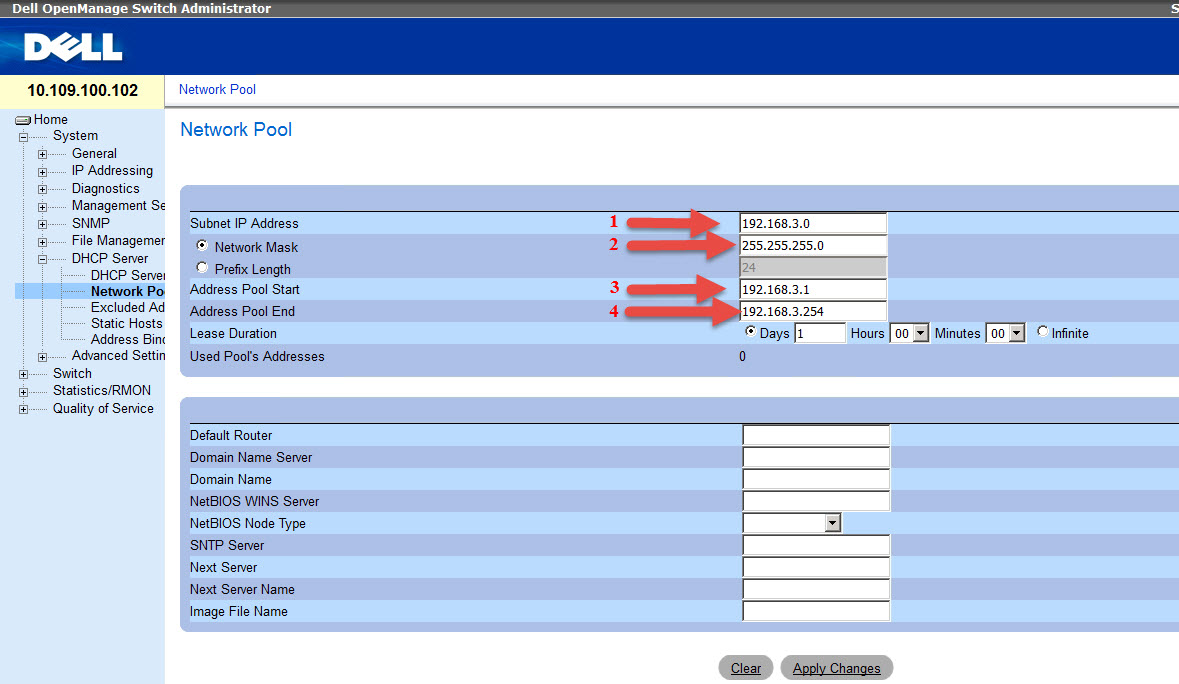
 Enter the Network Address(1) and Mask (2) and it will fill the Address Pool Start (3) and End (4) automatically.
Table of Contents:
- Enable Management Mode in Switch
- Enable DHCP Server on the Switch
- Set DHCP Pool scope
- Common configuration errors
1 - Enable mode Management in Switch:
- If the switch is not in managed mode, follow article HOW10276.
- Access Switch with your management IP
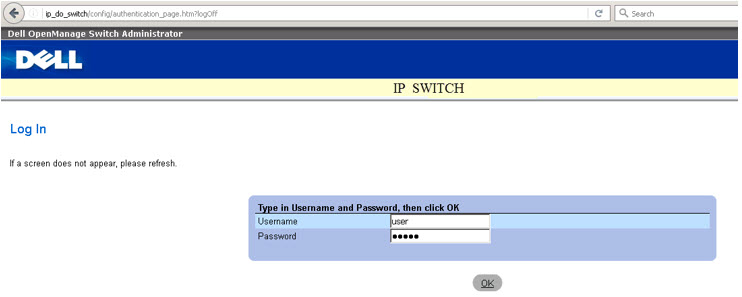
2 - Enable DHCP Server on the Switch.
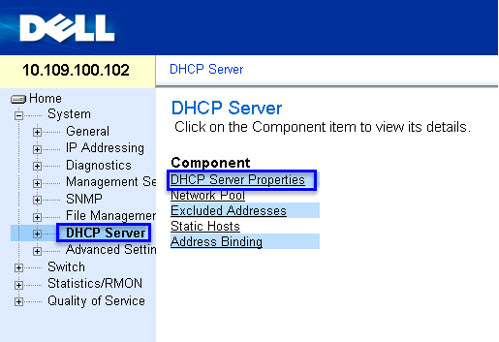
- To enable the DHCP server, go to System > DHCP Server > DHCP Server Properties:
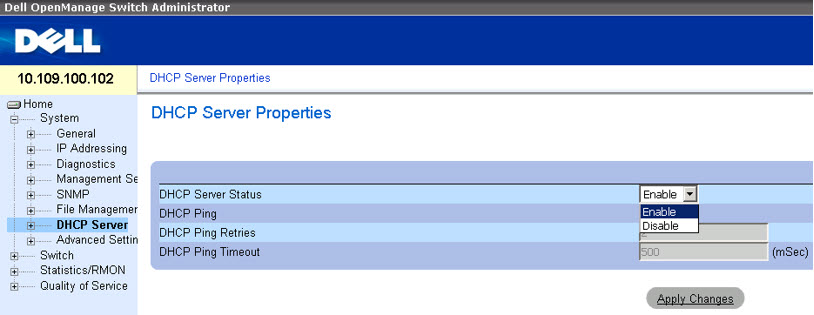
- On the option DHCP Server Status, select Enable and click Apply Changes:
Back to Top
3 - Configuring Network Pool.
- After enabling the DHCP Server, the Network Pool needs to be configured. Browse DHCP Server > Network Poll.
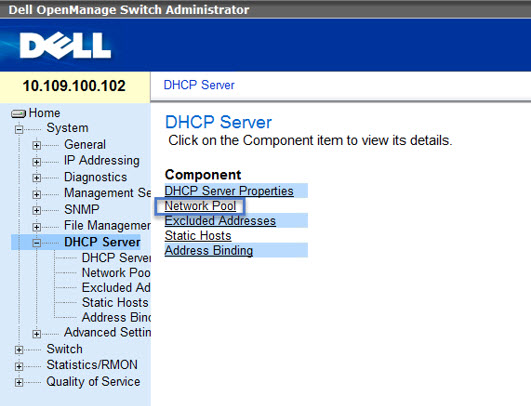
- Here you will choose the network addresses ranges and polls that will be delivered throughout the network and click Apply Change.
Enter the Network Address(1) and Mask (2) and it will fill the Address Pool Start (3) and End (4) automatically.
4 - Common configuration errors
- Error enabling the DHCP Server: "DHCP Server can't be configured. In order to enable DHCP server remove DHCP client on all interfaces."
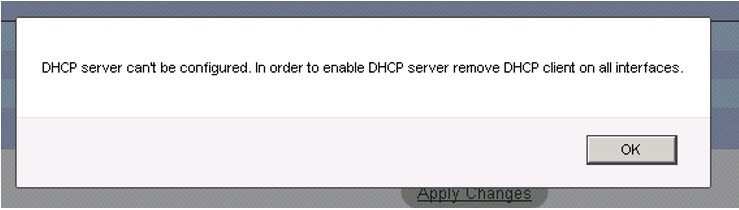
This error is due to the fact that DHCP is being used in the IP management. It must be disabled and a fixed IP needs to be set on the Switch.
- Addressing error for DHCP Pool:
"Illegal IP addresses rage or subnet configuration. Trying to configure a network pool on default IP interface."
This error happens because the default manage address 192.168.2.X is being used on the DHCP Pool. This address can't be used because it is reserved to manage.
受影響的產品
PowerConnect 2808, PowerConnect 2816, PowerConnect 2824, PowerConnect 2848文章屬性
文章編號: 000121675
文章類型: How To
上次修改時間: 13 3月 2025
版本: 5
向其他 Dell 使用者尋求您問題的答案
支援服務
檢查您的裝置是否在支援服務的涵蓋範圍內。