如何以系統管理員身分登入 Windows Embedded Standard 或 Windows IoT Enterprise Wyse 精簡型用戶端
摘要: 瞭解使用者如何使用 Windows Embedded Standard (WES) 或 Windows IoT Enterprise (WIE) 以管理員身分登入 Wyse 精簡型用戶端。
本文章適用於
本文章不適用於
本文無關於任何特定產品。
本文未識別所有產品版本。
說明
執行 Windows Embedded Standard 和 Windows IoT Enterprise 的 Wyse 精簡型用戶端需要登入的系統管理員帳戶才能:
- 啟用檔案型寫入篩選器。
- 停用檔案型寫入篩選器。
- 變更 Wyse Device Agent 中的設定。
受影響的作業系統:
- Windows Embedded Standard 7 (WES7)
- Windows Embedded Standard 7P (WES7P)
- Windows Embedded 8 Standard (WE8S)
- Windows 10 IoT 企業版 (WIE10)
執行 WES 或 WIE 的 Wyse 精簡型用戶端需要登入的系統管理員帳戶才能進行系統管理變更。
- 使用一般使用者帳戶登入時:
- 按一下開始功能表。
- 按一下使用者帳戶。
- 按住 Shift。
- 按一下登出。
- 放開 Shift。

- 在登入畫面,按一下系統管理員。

- 填入 密碼, 然後按下 Enter 鍵。
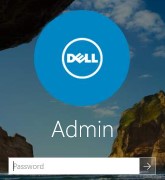 注意:系統管理員帳戶的預設密碼為
DellCCCvdi。
受影響的產品
Wyse Management Suite文章屬性
文章編號: 000126150
文章類型: How To
上次修改時間: 19 4月 2026
版本: 6
向其他 Dell 使用者尋求您問題的答案
支援服務
檢查您的裝置是否在支援服務的涵蓋範圍內。