如何将 Dell Security Management Server 的 SQL 数据库迁移到其他 SQL Server
摘要: 本文介绍如何将 Dell Security Management Server(以前称为 Dell Data Protection |Enterprise Edition Server)结构化查询语言 (SQL) 数据库迁移到另一个 SQL Server。
本文章適用於
本文章不適用於
本文無關於任何特定產品。
本文未識別所有產品版本。
說明
受影响的产品:
- Dell Security Management Server
- Dell Data Protection | Enterprise Edition Server
受影响的版本:
- v8.0.X 及更高版本
单击相应的 Dell Security Management Server 版本。有关版本信息,请参阅 如何确定 Dell Data Security 服务器版本。
警告: 将 SQL Server 数据库移至新版本的 SQL Server 时,请确认您的 Dell Security Management Server 版本支持 SQL Server 版本,然后再继续。有关兼容版本的更多信息,请参阅 Dell Security Management Server 系统要求。
v8.0.0 及更高版本
- 停止所有 [产品] 服务。
注:
- [Product] =
- v8.15 及更高版本 = Dell
- v8.14.1 及更低版本 = Dell Data Protection
- 有关更多信息,请参阅如何在 Dell Security Management Server 中停止和启动服务。
- [Product] =
- 从现有 SQL Server 创建完整的 SQL 数据库备份。
注意:有关更多信息,请参阅创建完整数据库备份 (SQL Server)。
- 从新的 SQL Server 还原 SQL 数据库。
注意:有关详细信息,请参阅将数据库还原到新位置 (SQL Server)。
- 确认所有预期的访问权限都应用于 SQL Server 和数据库。
注意: 有关更多信息,请参阅 如何为 Dell Security Management Server 配置 SQL。
- 从 Dell Security Management Server 中,转至
%ENV:SYSTEMDRIVE%\Program Files\Dell\Enterprise Edition\Server Configuration Tool\Credant.Configuration.exe。

- (可选)在开始菜单中搜索 Server Configuration Tool,也可以手动在 Dell 文件夹的 Run Server Configuration Tool 标题下找到它。
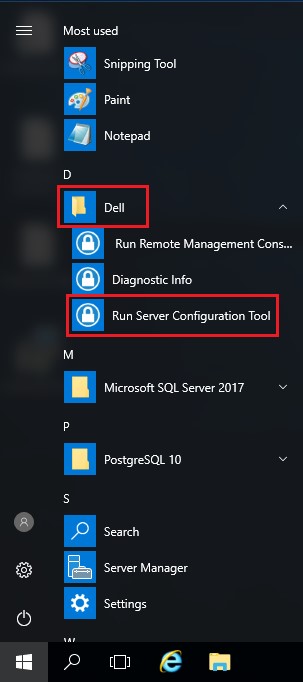
- (可选)在开始菜单中搜索 Server Configuration Tool,也可以手动在 Dell 文件夹的 Run Server Configuration Tool 标题下找到它。
- 单击 Database 选项卡。

- 在 Database 选项卡中:
- 填充新的 SQL 服务器名称。
- 填充 SQL 服务器端口。
- 填充 SQL 数据库名称。
- 选择身份验证方法。
- 如果选择了 SQL Authentication:
- 填充用户名。
- 填充用户名称密码。
- 转到步骤 8。
- 如果选择了Windows Authentication,请转至步骤 8。
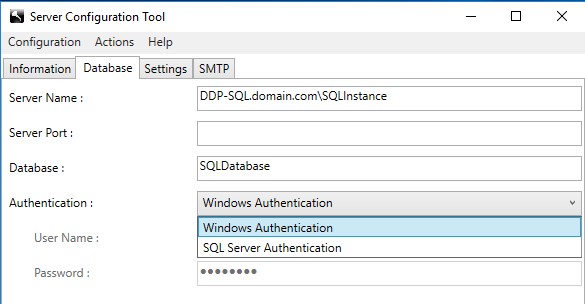 注:
注:- 服务器名称可以填充完全限定域名 (FQDN) 或 IP 地址。
- 如果实例正在使用中,则它可能会以 \ 开头填充,后跟服务器名称。
- 如果服务器端口留空,则默认为 1433,或者尝试与 SQL Server 浏览器(如果可用且已启用)通信,后者可以定义自定义或动态 SQL 端口。
- 如果选择 Windows 身份验证,则使用活动 Windows 账户连接到 Dell Data Protection 数据库。
- 您环境中的服务器名称、服务器端口、数据库、身份验证、用户名和密码可能与示例不同。
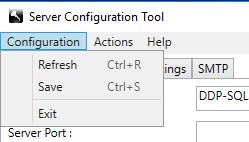
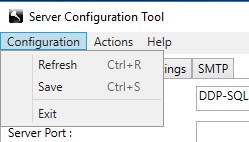
- 选择 Configuration,然后单击 Save。
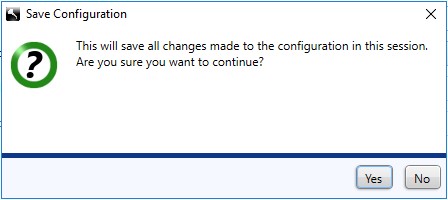
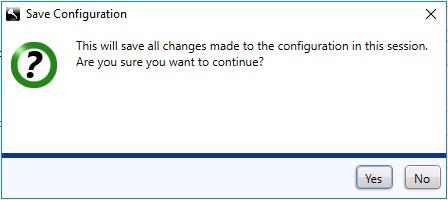
- 单击是。
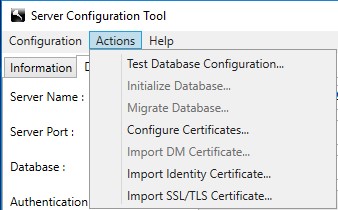
- 选择 Actions 菜单,然后单击 Test Database Configuration。
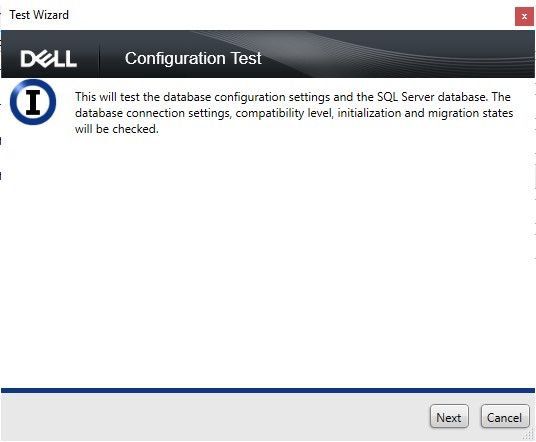
- 单击 Next。
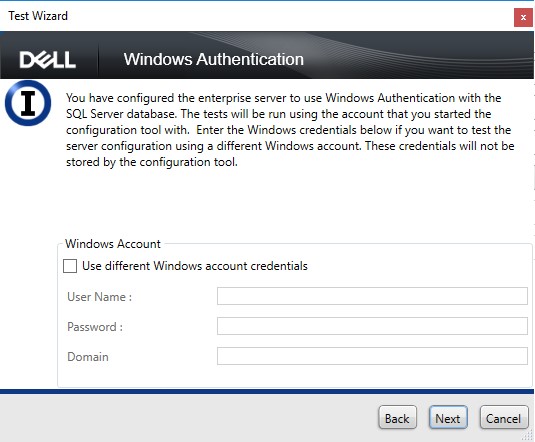
- 如果使用 Windows 身份验证,以下是可选操作:
- 选中 Use different Windows account credentials。
- 填充用户名。
- 填充密码。
- 填充域。
- 单击 下一步。
如果使用 SQL 身份验证,请单击 Next,然后转至步骤 13。
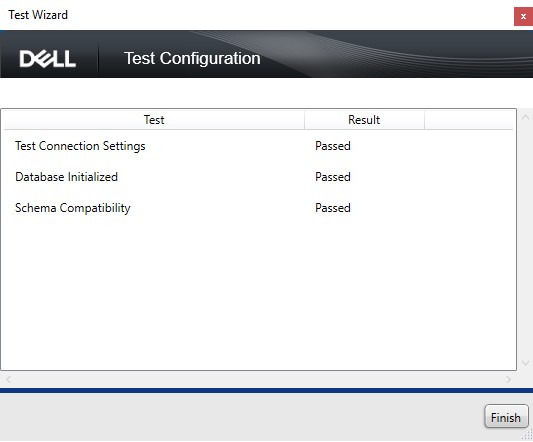
- 测试连接设置必须显示 Passed 才能继续。如果没有,请返回步骤 7 或使用不同的 Windows 账户凭据(步骤 12)。单击完成。
- 选择 Configuration 菜单,然后单击 Save。
- 单击是。
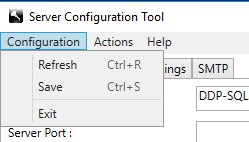
- 选择 Configuration 菜单,然后单击 Exit。
- 启动所有 [产品] 服务。
注:
- [Product] =
- v8.15 及更高版本 = Dell
- v8.14.1 及更低版本 = Dell Data Protection
- 有关更多信息,请参阅如何在 Dell Security Management Server 中停止和启动服务。
- [Product] =

受影響的產品
Dell Encryption文章屬性
文章編號: 000126174
文章類型: How To
上次修改時間: 16 7月 2026
版本: 10
向其他 Dell 使用者尋求您問題的答案
支援服務
檢查您的裝置是否在支援服務的涵蓋範圍內。