在部署 Windows S 模式和教育用 SE 期間,稽核模式會出現錯誤訊息
摘要: 本文提供在部署 Windows 10 S 模式、Windows 11 S 模式和 Windows 11 SE 教育版期間,稽核模式中出現的錯誤訊息相關資訊。
本文章適用於
本文章不適用於
本文無關於任何特定產品。
本文未識別所有產品版本。
症狀
受影響的平台:
- Latitude 3120
- Latitude 3140
- Latitude 3190
- Inspiron 3880
- Inspiron 3891
- Inspiron 3910
- Inspiron 5301
- Inspiron 5402/5409
- Inspiron 5405
- Inspiron 5502/5509
- Inspiron 5505
- Inspiron 13 5310
- Inspiron 13 5320
- Inspiron 14 5410/5418
- Inspiron 14 5415
- Inspiron 14 5420
- Inspiron 14 5425
- Inspiron 14 5406 二合一
- Inspiron 14 5410 二合一
- Inspiron 14 7415 二合一
- Inspiron 14 7420 二合一
- Inspiron 14 7425 二合一
- Inspiron 15 3501
- Inspiron 15 3502
- Inspiron 15 3505
- Inspiron 15 3510
- Inspiron 15 3511
- Inspiron 15 3515
- Inspiron 15 3520
- Inspiron 15 3521
- Inspiron 15 3525
- Inspiron 15 5510/5518
- Inspiron 15 5515
- Inspiron 16 5620
- Inspiron 16 5625
- Inspiron 16 7610
- Inspiron 16 7620 二合一
- Vostro 5301
受影響的作業系統:
- Windows 10 S 模式
- Windows 11 S 模式
- 教育用 Windows 11 SE
如果裝置已安裝 Windows 10 S 模式、Windows 11 S 模式或 Windows 11 SE,然後嘗試重新安裝相同的作業系統,則會失敗並顯示下列錯誤:
Windows 無法剖析或處理自動安裝回應檔案 [C:\Windows\Panther\Unattend.xml]
原因
依預設,S 模式和 SE 不允許執行任何命令,這是作業系統層級的限制。由於此限制,執行 unattend.xml 調用的批次指令檔會導致此錯誤訊息。
解析度
在 BIOS 中停用安全開機來安裝 S 模式或 SE,可讓安裝成功。Dell Technologies 建議您停用安全開機。在啟用安全開機的情況下,再次重複相同的步驟。
請按照以下逐步程序,在啟用安全開機的情況下還原裝置:
- 連接上有 S 模式或 SE 的 USB 隨身碟 。
- 開啟 裝置電源。
- 按下 F2 鍵數次以開機至 UEFI 韌體設定 (當畫面上出現 Dell 標誌時,請按下 F2 鍵)。
- 在 UEFI 固件設定>中,開機組態>安全開機>關閉。
- 按一下 套用 並 結束 UEFI 韌體設定 (此程序會將裝置重新開機)。
- Dell 標誌出現時,按下 F12 鍵,以顯示 開機裝置選取畫面。
- 選取 USB 金鑰 並按下 Enter 鍵 (這會從 USB 金鑰啟動)。
- 按照畫面上的指示開始部署。
- 裝置進入立即可用體驗 (OOB) 後,請按下電源按鈕五秒鐘,將裝置關機。
- 開啟 裝置電源。
- 按下 F2 鍵數次以開機至 UEFI 韌體設定 (當畫面上出現 Dell 標誌時,請按下 F2 鍵)。
- 在 UEFI 固件設定>中,開機組態>安全開機>轉向 ON。
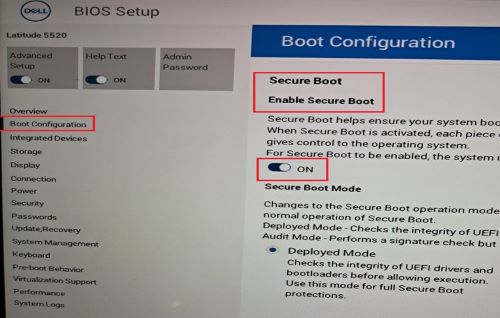
- 按一下 套用 並 結束 UEFI 韌體設定 (此程序會將裝置重新開機)。
- 在 Dell 標誌出現時按下 F12 鍵,以進入 開機裝置選擇選單。
- 選取 USB 金鑰 並按下 Enter 鍵 (這會從 USB 金鑰啟動開機)。
- 按照畫面上的指示開始作業系統部署。
- 裝置進入 OOB 後,請按照畫面中的指示操作,然後登入桌上型電腦。
- 開啟 系統內容 ,並確認作業系統為 S 模式或 SE。
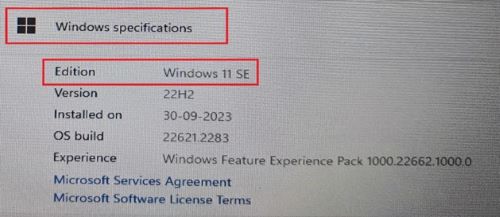
- 以滑鼠右鍵按一下開始功能表中>的 Windows 圖示 按一下系統>按一下關於
- 在 Windows 規格下,版本應顯示為:
- Windows 10 S 模式
- Windows 11 S 模式
- Windows 11 SE
受影響的產品
Inspiron 5301, Inspiron 13 5310, Inspiron 13 5320, Inspiron 5402/5409, Inspiron 5405, Inspiron 5406 2-in-1, Inspiron 14 5410 2-in-1, Inspiron 14 5410/5418, Inspiron 5415, Inspiron 14 5420, Inspiron 14 5425, Inspiron 7415 2-in-1
, Inspiron 14 7420 2-in-1, Inspiron 14 7425 2-in-1, Inspiron 3501, Inspiron 3502, Inspiron 3505, Inspiron 15 3510, Inspiron 15 3511, Inspiron 15 3515, Inspiron 15 3520, Inspiron 15 3521, Inspiron 15 3525, Inspiron 5502/5509, Inspiron 5505, Inspiron 15 5510/5518, Inspiron 5515, Inspiron 16 5620, Inspiron 16 5625, Inspiron 16 7610, Inspiron 16 7620 2-in-1, Inspiron 3880, Inspiron 3891, Inspiron 3910, Latitude 3120, Latitude 3140, Latitude 3190, Vostro 5301
...
文章屬性
文章編號: 000223620
文章類型: Solution
上次修改時間: 20 5月 2026
版本: 6
向其他 Dell 使用者尋求您問題的答案
支援服務
檢查您的裝置是否在支援服務的涵蓋範圍內。