Alienware Computers Do Not Meet the Requirements to Play Games
摘要: This article provides information about the key requirements set by game developers to deliver an optimal gaming experience on Alienware computers.
本文章適用於
本文章不適用於
本文無關於任何特定產品。
本文未識別所有產品版本。
症狀
Affected Platforms:
- Alienware Desktops
- Alienware Laptops
Evolving Security Requirements in Modern Gaming
Game developers are continuously strengthening security and anti-cheat mechanisms to protect fair gameplay and maintain user trust. As a result, anti-cheat systems are becoming more restrictive and increasingly integrated with both hardware and operating system components.
Modern approaches go beyond traditional software-based detection. Developers are now leveraging hardware-level dependencies and built-in Windows security features to ensure that games run in a controlled environment without unauthorized overlays, modifications, or tampering.
To support this shift, stricter platform requirements have been introduced. Technologies such as Trusted Platform Module (TPM) and Secure Boot are now commonly required. These features help verify the integrity, protect sensitive code, and ensure that only trusted software is executed. This not only helps prevent cheating but also safeguards user privacy.
A key component of these protections is the use of attestation checks. Before allowing a game to run, the computer evaluates whether the platform meets the required security standards. If the computer does not satisfy these criteria, the attestation process may fail, preventing access to the game.
Current Common Requirements
- TPM 2.0 enabled (commonly required on Intel platforms)
- Firmware-based TPM implementations (for example, AMD fTPM versions such as 3.x.x.x or 6.x.x.x) enabled on AMD platforms
- Ensure Secure Boot is enabled
These requirements are expected to evolve further over time, as developers continue to enhance anti-cheat protections and adapt to new threats.
The gaming industry is undergoing a shift toward hardware-enforced security models, where trust is established at the silicon level and propagated through firmware into the operating system. Anti-cheat systems are no longer limited to software monitoring but are instead leveraging cryptographic attestation, secure execution environments, and firmware-level validation.
While these measures significantly improve fairness and security, they also introduce stricter platform requirements. Computers that fail to meet these requirements may be unable to pass attestation checks, resulting in restricted access to modern games.
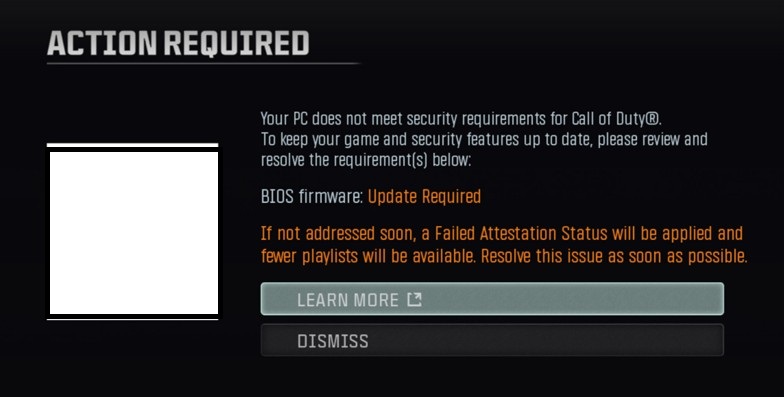
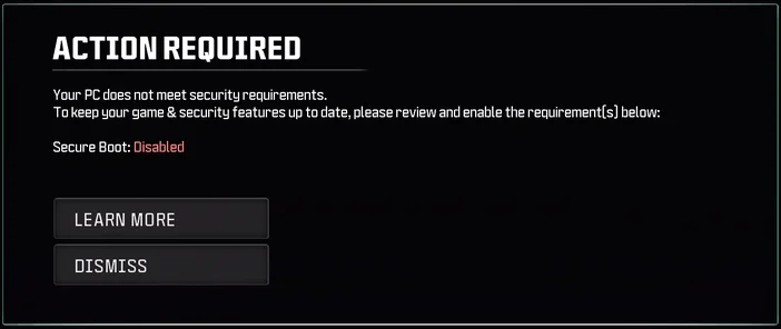
原因
The increasing use of hardware-based anti-cheat and computer attestation requires platforms to meet strict security standards to ensure fair gameplay and computer integrity.
解析度
Alienware platforms fully support the latest features as well security restrictions to ensure that your game is fully supported within all current shipped computers. Even the previous generations may be supported by some older Alienware models would not meet the security restrictions even now or in the future as the technological development evolves and older generations may not be in scope of further updates.
Ensure that your Alienware computers have the latest BIOS installed and TPM with the Secure boot is present or enabled within BIOS and Windows.
To confirm in Windows that your computer has TPM enabled and Secure Boot enabled, follow these steps:
- For Secure boot confirmation:
- Select Start or press Windows key on your keyboard and type:
msinfoand select System information
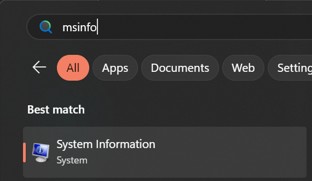
- Window System information is displayed
- Reference the Secure Boot State
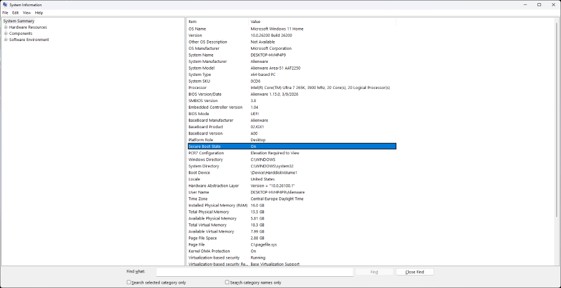
- If disabled reboot the computer and Enter BIOS and ensure that the Secure Boot option is enabled.
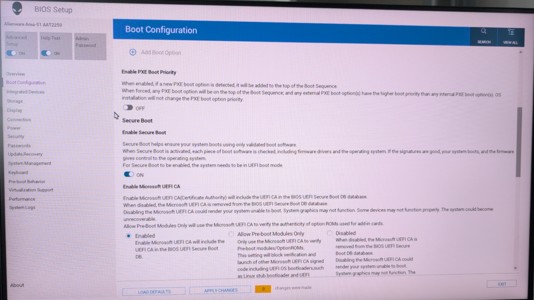
For command line check, use PowerShell with administrative privileges and type command:
Confirm-SecureBootUEFI
Note: The output will be one of the following
- True
- False
- Error
- For TPM confirmation:
- Select start (press Window key) and type:
tpm.mscand choose from the right selection to Run as administrator
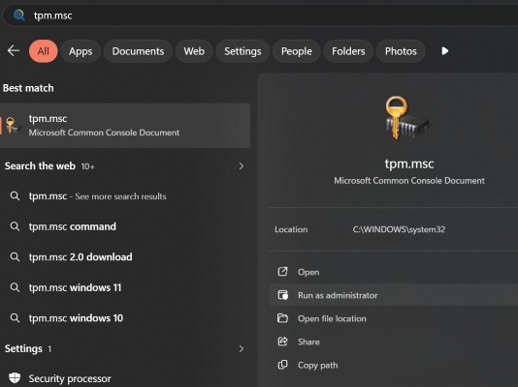
- Once the window opens the TPM status and version are displayed
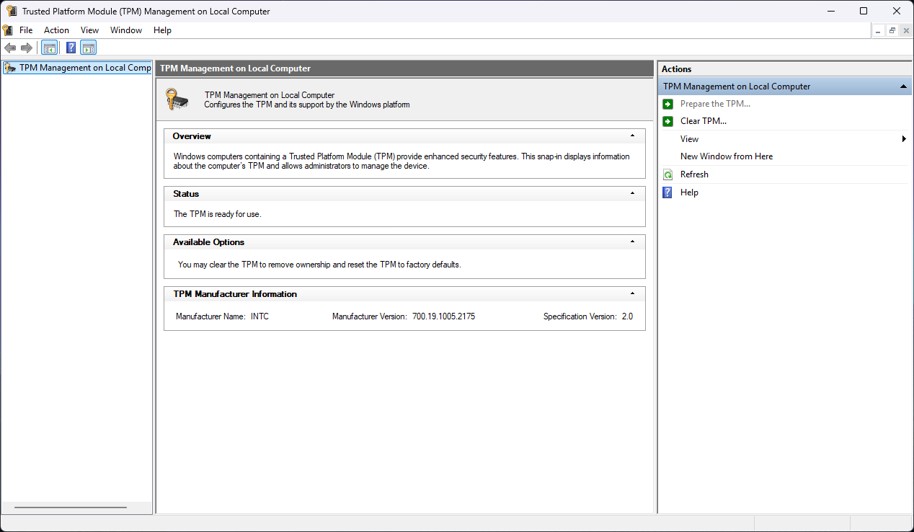
For command line check, use PowerShell with administrative privileges and type command:
get-tpm
- To check in the BIOS if the TPM is enabled:
- Reboot the computer and enter the BIOS
- Once in BIOS environment go to Security and look for Platform Trust Technology
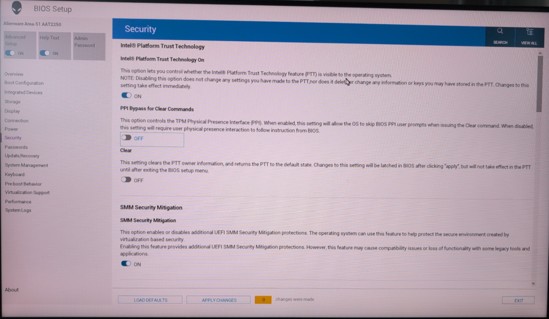
受影響的產品
Alienware, Alienware文章屬性
文章編號: 000491977
文章類型: Solution
上次修改時間: 23 7月 2026
版本: 1
向其他 Dell 使用者尋求您問題的答案
支援服務
檢查您的裝置是否在支援服務的涵蓋範圍內。