

5 Posts
0
1592
December 20th, 2022 17:00
Aurora R14, audio/video playback issues
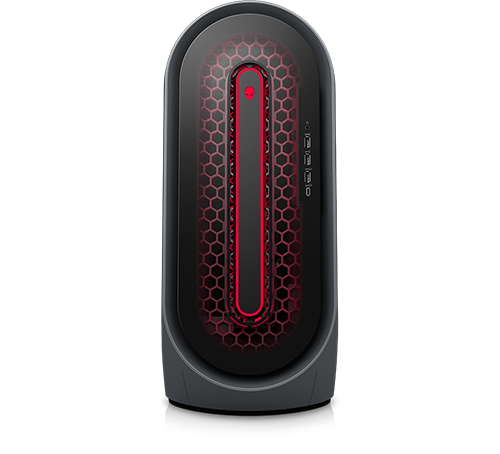
Alienware Aurora Ryzen Edition R14
Our company purchased an Aurora R14 earlier this year for use in animation and video production. The system had a 5900, 3080TI, 1TB NVME and 64GB 3600 RAM. Initially everything was good and as expected. We've purchased a number of these over the years for our staff to use and have been pleased overall.
Around October I started to notice that video playback would frequently break up, stutter and show distorted sections over the video. Audio would also break up and pop, whether watching a video or editing audio in Audition. The video issues occur with VLC, Windows Media Player, YouTube, Vimeo etc. Also, the point at which the video breaks up appears to be fairly random.
After trying the usual steps of updating drivers/bios, wiping/restoring the system, nothing seemed to help. I contacted Dell support and after running various diagnostics tests, updating drivers, performing additional factory resets/restores, it was decided that the motherboard and graphics card needed to be replaced.
A technician came out and noted that after the repairs, the issue remained. Dell then decided to send out a replacement system. The new system was mostly the same with the exception of the cpu and graphics card that saw a small upgrade to a 5900x and 3090.
I'm amazed to see that exactly the same problem is present on the new system. Audio/video breaking up and distorting. I took a screen recording of one of our test videos showing the video issues:
https://vimeo.com/782952275/f19204f58b
As a last ditch attempt I've tried removing Support Assist, disabling TPM and even installing a clean version of Windows 10 (the system came with 11). I've been searching various forums for weeks now trying to find a resolution to this issue. At this point I am at a loss and am wondering if anyone else has seen this with these Ryzen systems?
Any help would be appreciated. Thank you.
Larcade
1 Rookie
•
35 Posts
1
December 20th, 2022 19:00
Looks like a widespread issue affecting recent Aurora model.
Try the following:
Strange video tearing when streaming and video playback on certain things.
(Power management mode set to "Prefer maximum performance" under NVIDIA Control Panel fixes this issue)
MABU-ND
5 Posts
0
December 21st, 2022 15:00
Larcade, it looks like I spoke too soon. After doing a clean install of Windows 11 and changing the Nvidia power management to 'prefer maximum performance', the issue seems to be resolved. This has also resulted in a dramatic improvement in a number of apps, including Adobe Animate. Thank you!
Tesla1856
10 Wizard
•
18K Posts
•
71.5K Points
0
December 20th, 2022 20:00
1. The version of Windows-11 that should be clean-installed is Microsoft's (not Dell's OEM-customized version)
https://www.dell.com/community/Windows-General-Wiki/Guide-to-migrate-to-a-New-Windows-11-computer/ta-p/8307872
2. Remove all Dell Apps. However, with a clean-install of Windows-11, they should not be there in the first place.
3. No, do not do this.
If you mean disabling Windows Security/Core Isolation/Memory Integrity ... yes, that one thing can be turned Off.
4. No, please do not do this. Windows-10 is not the current Windows version by a long-shot.
Try these Windows settings (this is from my Intel/Nvidia desktop):
----------- Video Summary --------------------
Windows-11 Game-Mode is On (Enabled).
- Windows Security/ Device Security/ Core Isolation/ Memory Integrity = OFF
- Control Panel/ Programs And Features/ Turn Windows Features On-Off/ Virtual Machine Platform = OFF
Windows-11 in Settings/Display/Graphics
- Set these to High Performance (ie. use the dedicated Nvidia Graphics card)
- - for Steam, Origin, Epic, XBox App, or any other DRM and/or game Launchers
- - Fallout-76, World or Warcraft, or any Direct-X game.
- - Also any programs and Apps that are graphically demanding.
Windows-11 in Settings/Display/Graphics/Change Default Graphics Settings
- Hardware Accelerated GPU Scheduling (HAGS) is DISABLED
My Nvidia RTX-3080 driver is Game-Ready v511.79 WHQL (DCH)
NVIDIA Control Panel, 3D settings (for fallout76.exe or your game's main-exe file).
Vertical Sync.
- Enable and set to FAST (suppose to stop tearing, but with speed closer to Off than full On ).
Note: This is for a Non-G-Sync monitor/config.
------------ Summary End ----------------------
After clean-installing Windows-11( and applying above settings), if still having trouble, let me know and there are a few more minor things to try (but they should be built upon above config).
Romero7209
5 Posts
0
December 20th, 2022 20:00
Hi had the same issues hope this helps just removed the app support assistant it work for me.
https://www.dell.com/community/Alienware-Desktops/Aurora-R13-stutters-on-audio-video-and-gaming/m-p/8320789#M65458
MABU-ND
5 Posts
0
December 21st, 2022 06:00
Thanks Romero. Sadly I don't have SA installed as I'm running a plain Windows install at this time. I appreciate the idea though.
MABU-ND
5 Posts
0
December 21st, 2022 06:00
Thanks for the quick response, Jasper. Unfortunately I tried this work around after you suggested it and didn't notice any difference. The issue seems to be more than tearing and stutter, as I notice garbled video also.
MABU-ND
5 Posts
0
December 21st, 2022 06:00
Tesla, thanks for all this feedback. I'm going to work my way down the list today and get back to you.