

Unsolved
1 Rookie
•
2 Posts
0
23858
February 18th, 2021 11:00
No Boot to USB option Dell Optiplex 3080
No boot to USB option in a Dell OptiPlex 3080 with BIOS 1.3.2, nvme ssd
We are trying to boot to a usb which I created in Rufus and tried both GPT (non CSM) and MBR (CSM). I tried changing all related options and disabled/reenable secureboot. I also tried creating a Linux and WinPE bootable USB within backupper.
The only options are Windows Boot Manager, Lan1 and Lan2.. I know legacy boot is gone with this gen processor so that's not there.
I did read somewhere where if you wanted to boot to a CD/DVD, you need to manually add it, unfortunately I didn't see the "cd" option in the file system list.
I tried re-flashing 1.3.2 and defaulting the settings. Any help is appreciated.
Mike
No Events found!
Schmeggma
1 Rookie
•
2 Posts
0
February 18th, 2021 11:00
to add to my post, the USB drive doesn't even show up on the list.
redxps630
11 Legend
•
16.3K Posts
•
82.7K Points
1
February 18th, 2021 13:00
another used reported the following works in another ##8# Dell that has uefi class 3 (post sunset of legacy bios).
First and foremost prepare uefi bootable usb stick and plug it in pc before powering up, otherwise it would not show up in bios.
how to prepare uefi bootable usb
draly
1 Rookie
•
95 Posts
0
December 20th, 2024 22:14
I think you need to press F12 with your USB drive connected and formatted with UEFI the it will be listed if its not formatted with UEFI it will not appear
cbarbozac
1 Rookie
•
1 Message
•
2 Points
0
November 21st, 2025 17:19
Hello everyone,


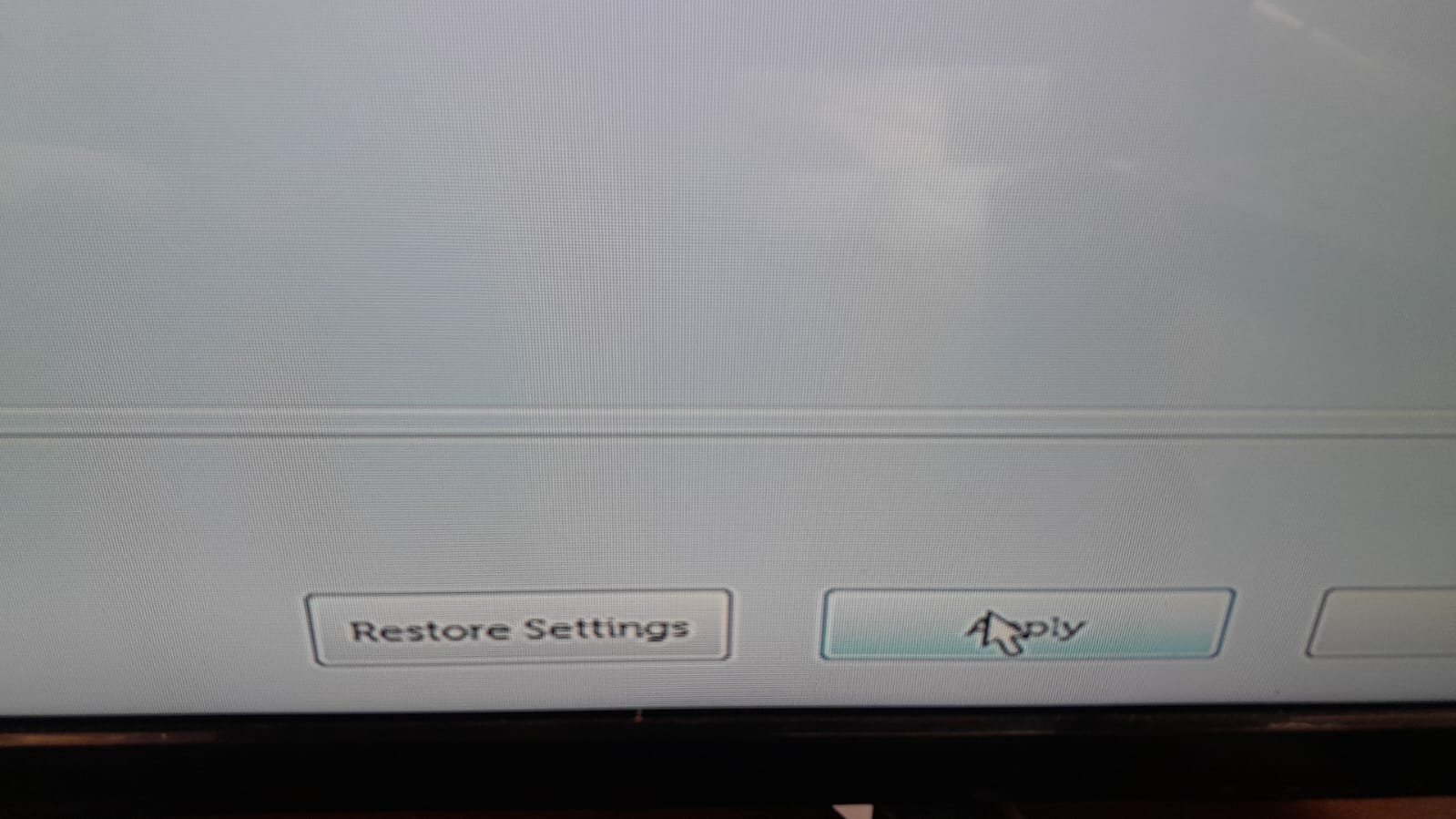

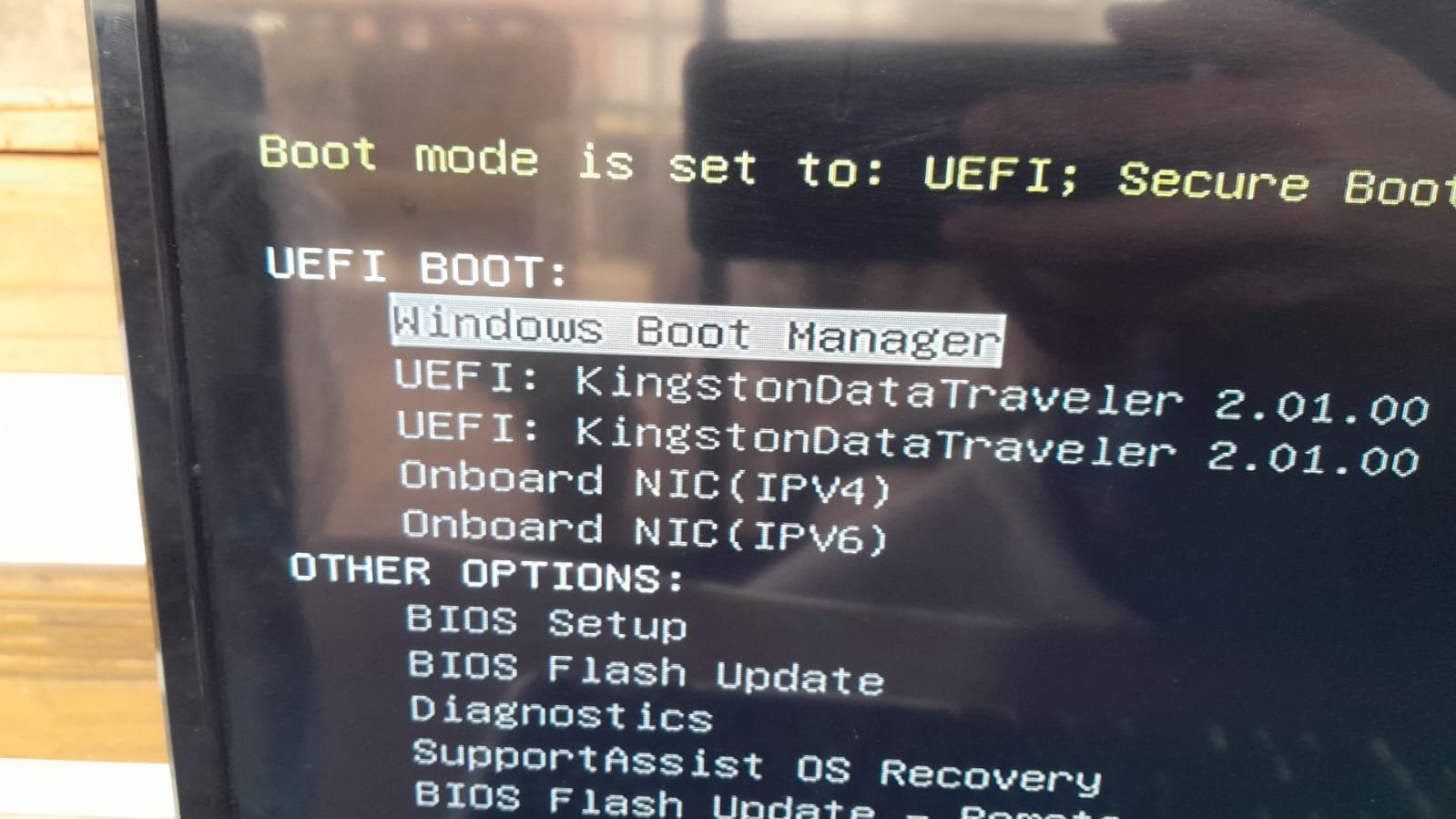
I resolved this issue following this steps ( Optiplex 3080) :
Note : Please are you sure its Secure Boot its disable in the Tree Setting here.
1. Press ON the PC and Press F2
2. Now in the tree Settings Boot display +General Menu:
You will see 4 option here :
- System Information
- Boot Sequence
- UEFI Boot Path Security
-Date/Time
Please Select the Boot Sequence and you will see to rigth side to the Boot Sequence Options
: view img 1
3. Uncheck this combox Windows Boot Manager:
4. Put your USB -ISO on Black USB the back to PC.
5. Apply and Save ,
5. Exit
6. In the Boot Process, press F12 a now you will see the USB with your ISO.
Please follow img 0-5
draly
1 Rookie
•
95 Posts
0
February 11th, 2026 10:03
The recent windows 11 25H2 iso has entry to UEFI I burned to double layer DVD and it was detected in my Dell 3080Mt on pressing F12
draly
1 Rookie
•
95 Posts
0
February 11th, 2026 10:50
@cbarbozac Why you have to uncheck the box for the windows boot manager? and what will happen if you do so?
Why you connect the USB drive to the back of the PC? is it different from front USB?