

Unsolved
1 Message
0
464
July 10th, 2022 17:00
XPS 8940, DVD not available
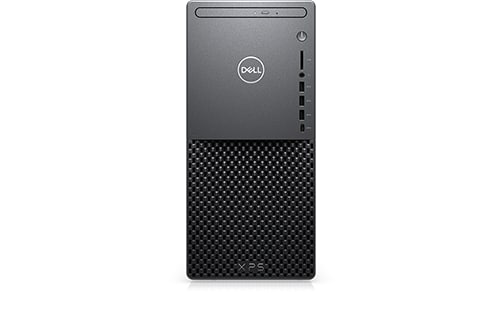
XPS 8940
In device manager list, the PLDS DVD +- RW DU-8A5LH has a yellow tringle on it and is now unavailable for use.
When opening the properties of the drive, the below error is stated in the comments:
Windows cannot start this hardware device because its configuration information (in the registry) is incomplete or damaged. (Code 19)
The Dell site and Dell tools state that there is no problem or drive update available.
The DVD drive is seen by the system BIOS but Windows does seem to see the drive but cannot use it for some reason.
Any ideas?
No Events found!
Vic384
6 Operator
•
3.2K Posts
0
July 10th, 2022 18:00
@PJLucarelli Perhaps this article may help: https://www.lifewire.com/how-to-fix-code-19-errors-2623182#:~:text=The%20Code%2019%20error%20will,then%20reinstall%20the%20hardware%20device.
RoHe
12 Elder
•
45.2K Posts
•
172.6K Points
0
July 11th, 2022 11:00
Manually set a System Restore point, to be safe.
Then open Device Manager and right-click the DVD drive entry and Uninstall. Then click Action>Scan for hardware changes on Device Manager toolbar and see if the DVD reappears and works now...
PLucarelli
1 Message
0
July 11th, 2022 13:00
We have tried this, does nothing but reload/use the same driver from Microsoft and drive still has yellow triangle with the same status and error in device manager,
Removing the drive and rebooting as well, only to have the same results.
redxps630
11 Legend
•
16.2K Posts
•
82.4K Points
0
July 11th, 2022 14:00
If you have third party application for the DVD such as roxio, disc creator or media creator, try uninstall all those app, then Device Manager - PLDS DVD +- RW DU-8A5LH w yellow tringle - right click uninstall device, restart pc.
RoHe
12 Elder
•
45.2K Posts
•
172.6K Points
0
July 11th, 2022 16:00
You can also try this:
And I suppose it's possible the DVD drive failed. Put a data CD (not a commercial music CD or any DVD) in the drive. Reboot PC and tap F12 when you see the Dell splash screen. Select the option to run diagnostics and run the drive tests, including DVD. Copy error message(s), if any. NOTE: Unless you run the optical drive test with a data CD in the drive, it's going to fail the diagnostics, even if the drive is good.