
Solved!
Go to SolutionAlert! TPM device is not detected.
Hi, I have a Dell Inspiron 3501 laptop with an 11th Gen Intel Core i5-1135G7 processor, which I bought 1.6 years ago. A few days ago, I installed some critical updates from Windows, including the BIOS update 1.25. Since then, I get an alert saying “TPM device is not detected” every time I turn on my system, and it also asks me for the Bitlocker recovery key frequently. Moreover, I cannot shut down my PC normally; it goes into sleep mode instead. I have to enter boot manager to turn on my system.
When I run the command tpm.msc on the command prompt, I get a message that says " Compatible TPM cannot be found " on my system.
Can anyone please help me with this issue? I would appreciate any advice or suggestions. Thank you in advance.
0
1
Posted January 6th, 2025 18:38
If you're accessing this discussion due to TPM issues with your PowerEdge, please refer to the threads below:
TPM information missing or getting TPM failure
"TPM failure." during POST on Poweredge T620
Feel free to reply to those threads if you still need help with your server.
(edited)
#IWork4Dell

0
1
Posted August 16th, 2023 13:25
To receive assistance from DELL-Cares chat support, they need to verify the warranty status and ownership. Click the DELL-Cares username. On the right, click, "Send this user a private message". Provide to them the private Dell computer monitor Service Tag and all of your troubleshooting.
Jesse L (retired)
0
2
Posted August 19th, 2023 11:43
@Jesse L (retired) I’m very disappointed with my Dell computer. It developed a problem after an update, which was not my fault. The warranty ran out seven months ago, but I expected a more durable device for the price I paid. I have used laptops from other brands and never had such a bad experience. I already had to replace the battery eight months ago because it drained too fast. Now Iam facing problem with my computer's TPM Module, might be a problem with the motherboard. Is this the kind of service I get for choosing Dell?
(edited)
0
1
Posted August 18th, 2023 10:56
If your Dell laptop is showing an error that the TPM (Trusted Platform Module) device is not detected, it could indicate a few potential issues. The TPM is a security component that provides hardware-based security features. Here are some steps you can take to troubleshoot and address the issue:
Check BIOS/UEFI Settings:
- Restart your laptop and enter the BIOS/UEFI settings by pressing the appropriate key during boot (usually F2, F12, Delete, or Esc).
- Look for TPM-related settings in the BIOS/UEFI. Make sure TPM is enabled and configured correctly.
- Some laptops might have options to enable or disable the TPM. Ensure it's enabled if available.
Enable TPM in Windows:
- If the TPM is detected in BIOS/UEFI but not in Windows, it might be disabled in the Windows settings.
- Press Win + R, type "tpm.msc" and press Enter to open the TPM Management Console.
- If prompted, restart your computer to initialize the TPM.
Update BIOS/UEFI and Drivers:
- Check the Dell support website for BIOS/UEFI updates and driver updates related to the TPM.
- Outdated firmware or drivers might cause compatibility issues with the TPM.
Physical Inspection:
- If you're comfortable, you can open the laptop and ensure that the TPM module is properly connected to the motherboard.
- Be cautious and consult your laptop's manual or Dell's support resources for guidance on safely accessing internal components.
Clear TPM: (Note: This might require expert assistance or advanced knowledge.)
- In some cases, the TPM might be stuck in a bad state. Clearing the TPM and re-initializing it can sometimes resolve issues.
- Clearing the TPM might also require re-enrollment in certain security features.
Security Software:
- Certain security software or third-party applications might interfere with the TPM's functionality.
- Temporarily disable any security software and see if the issue persists.
Hardware Issue:
- If you've tried the above steps and the TPM is still not detected, there might be a hardware issue with the TPM module itself.
- Contact Dell's customer support or take the laptop to an authorized service center for diagnosis and repair.
Remember that dealing with BIOS/UEFI settings and hardware components can be sensitive, so if you're not comfortable with these steps, it's best to reach out to Dell's customer support or seek assistance from a professional technician.
(edited)
0
1
Posted August 19th, 2023 13:02
@Gokul1999 In addition to the great directions by @AdrianG001 have you accessed the BIOS (F2 immediately at boot) and confirmed that PTT is enabled?
Also this forum thread may be of some help as well.
(edited)

I am not a Dell employee...I am forum volunteer
Serious work on an E5430 and constantly building and working on an i5-6500 Desktop
0
1
Posted August 19th, 2023 15:13
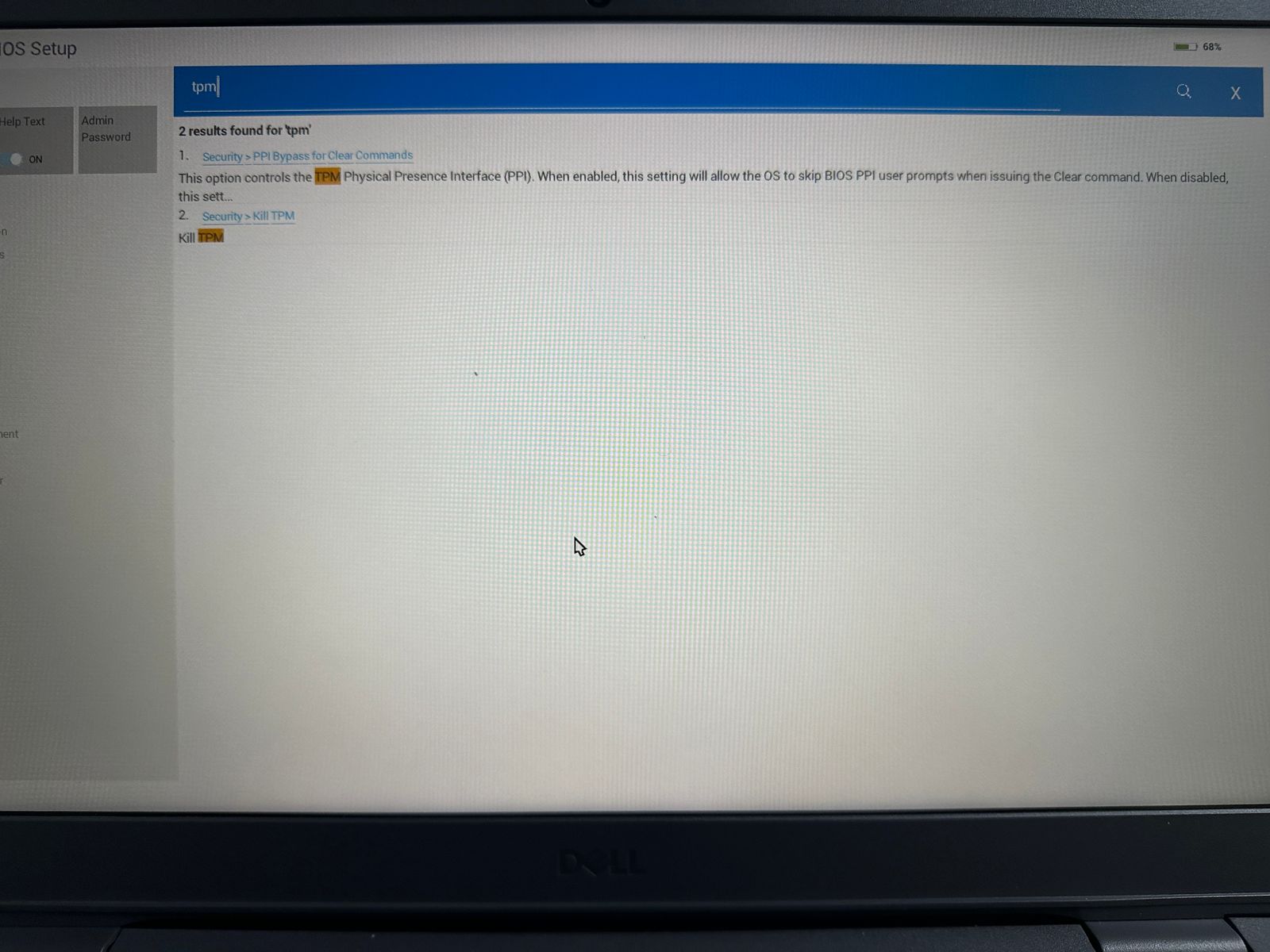
@AdrianG001 When I look for tpm in the bios settings, this is what I see. When I run the command tpm.msc on the command prompt, I get a message that says " Compatible TPM cannot be found " on my system. I’m expecting your advice.Thank for the help.
(edited)
0
0
Posted August 19th, 2023 19:53
@Gokul1999 You do not have to open the system up at all. The settings are in the BIOS as I described (F2) and just look for PTT in the security settings.
I am not a Dell employee...I am forum volunteer
Serious work on an E5430 and constantly building and working on an i5-6500 Desktop

DELL-Nat M
Community Manager
•
3726 Posts
•
21071 Points
0
0
Posted January 20th, 2025 18:46
If your system is still under warranty, please contact support by clicking on Get Help Now at the bottom right corner of the screen to receive individualized support.
Steps to Check if Your System Has a TPM Chip
Before you start troubleshooting, make sure your system has a TPM chip. Here are three ways to do this:
Using TPM Management Tool:
Windows + Rto open the Run dialog box.tpm.mscand press Enter.Using Device Manager:
Windows + Xand select Device Manager.Using BIOS/UEFI:
F2,Delete, orEscduring startup).Steps to Enable TPM
If your system has a TPM chip, proceed to the next steps:
Update BIOS:
Enable TPM in BIOS/UEFI:
F2(or the appropriate key for your system) to enter the BIOS setup.Additional Guidance:
How to Troubleshoot TPM Article
TPM Video
(edited)
#IWork4Dell