

Unsolved
1 Rookie
•
4 Posts
8
7952
September 11th, 2022 10:00
m15 R4, keyboard does not work, again
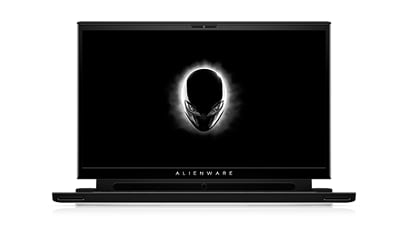
Alienware m15 R4
This is beyond frustrating at this point. I have had this Alienware m15 R4 for a year. It's in great condition, used mainly in a desktop manner. No damage or anything. However, after some recent updates my keyboard has begun to work intermittently. A Dell representative has remoted in to the computer and went through a trial of resetting and uninstalling/reinstalling whatever. A tech came to my house and replaced the keyboard and motherboard. However the RGB lights on the keyboard were unresponsive. I then called Alienware tech support, where they then remoted in and reinstalled AWCC (Alienware Command Center). In the AWCC it showed two built-in keyboards, one was the unresponsive one and one was the working one. The working keyboard shown in the AWCC allowed us to change the RGB, cool. However, two days later I'm right back to where I started, AWCC only shows the one non-working keyboard, so can't change RGB and the keyboard functionality does not work. I'm guessing the system is detecting some ethereal keyboard that exists on some different plane. Someone just fix this, please. This is once again, very annoying.
kenozoro
1 Rookie
•
2 Posts
3
September 12th, 2022 01:00
Same! Mine is still not working after I woke it up from sleep yesterday. Troubleshooting and even workarounds i found online have not helped. LEDs are still on, but keys do nothing. External keyboard plugs in and works fine. Plz fix!
meatybobby
1 Rookie
•
3 Posts
2
September 12th, 2022 03:00
+1, Keyboard didn't work after waking up from sleep yesterday. External keyboard still works.
Syed Jalal
1 Rookie
•
29 Posts
0
September 12th, 2022 04:00
You may try to delete the redundant keyboard layouts in the Alienware Command Center application. Download and update the Keyboard firmware using the Keyboard Firmware Update Utility available for this product from Dell's "Drivers & Downloads" webpage.
Alex Roth
1 Rookie
•
4 Posts
0
September 12th, 2022 09:00
I've done that already. Also it had shown multiple keyboards, one being the working one. But now only the non working keyboard is visible in awcc.
Alex Roth
1 Rookie
•
4 Posts
0
September 12th, 2022 09:00
does the keyboard show up in awcc?
DELL-Chris M
Community Manager
•
56.9K Posts
•
232.1K Points
0
September 22nd, 2022 03:00
Update = An agent arranged for the depot repair service for this m15 R4. Awaiting conclusion.
Alex Roth
1 Rookie
•
4 Posts
2
September 23rd, 2022 16:00
Just received my laptop after repair. The keyboard works, by replacing the main logic board. However, the AWCC does not recognize any of the rgbs on the laptop, nothing is shown. Also, my powersupply just doesn't work. This is honestly one of the most frustrating experiences with dell and alienware. I will probably never buy from here again, to be honest.
SoBiSSiAn
6 Posts
2
November 26th, 2022 16:00
I've just come across this same issue. Using the work around I found online I was able to get the keyboard working, but only until the next restart then I had to use the method again.
Work Around Method -
Use on-screen keyboard to log into windows.
Open device manager and locate the Unknown USB device showing trouble.
Uninstall Device
Use power button to put laptop to sleep, then wake up again with power button to log back in.
Keyboard will work until next reboot.
After trying different things to update this driver I finally found a permanent fix. Navigate to Dell support drivers and downloads page. Under the Category filter check off Mouse, Keyboard, & Input Devices. Install the Intel HID Event Filter Driver. after a reboot my keyboard has been functioning properly.
zhanover
1 Rookie
•
2 Posts
3
January 11th, 2023 04:00
Popping in here to say that this issue is still happening. Great job, Dell - you have permanently destroyed my confidence in your ability to build computers. I use Macs for most everything anyways, my Alienware m15 r6 was a gaming laptop and will now be going to ebay to become someone else's problem.
My solution was to use the on-screen keyboard to get through PIN screen, then uninstall the unrecgonized USB device in Device Manager, then download a BIOS update and restart.
Thanks to all the other users who submitted workarounds and fixes. Why Dell cannot straighten this out after 2+ years of this issue happening is beyond me.
Reynardic
1 Rookie
•
1 Message
2
February 8th, 2023 15:00
Been using the workaround for about 8-9 months now, there was a recent alienware update but that didn't work. Reporting in another R4 user without a working keyboard.
AGrimmett
1 Rookie
•
7 Posts
2
March 29th, 2023 13:00
My Alienware m15 r4 is doing that exact same thing and has been for months. Putting the computer to sleep after removing the device from Device Manager always works and the keyboard continues to work until I restart. I even did a clean install of Windows 11 in an attempt to fix the issue but that did not help.
It seems a lot of people are having this issue. Is it a hardware issue if the workaround ALWAYS fixes the keyboard? It seems more software related to me but I'm no expert.
It would be nice if Dell gave us an update as to what exactly is causing the issue and if it is something that can be fixed with a software/BIOS update or not... As long as this issue has been around, they have to know what is causing it, right?
Noside1997
1 Message
0
March 29th, 2023 14:00
The HID Event Filter Driver just worked for me as well. Thanks for the solution! I have been troubleshooting for months now.
AGrimmett
1 Rookie
•
7 Posts
2
March 29th, 2023 14:00
The HID Event Filter Driver did not work for me, unfortunately... Glad it helped someone out, though!
AGrimmett
1 Rookie
•
7 Posts
1
April 1st, 2023 08:00
I wanted to share how I finally fixed my issue in hopes it helps others. I'm not sure if it will continue to stay fixed when Windows and Dell pushes out updates. I also rolled back to Windows 10 so not sure if re-installing Windows 11 will break my fix. However here is what I did:
1. Went into Device Manager and made sure everything related to the USB and Keyboard had the Power Management options turned off (unchecked) under Properties.
2. Installed the latest version of Alienware Command Center. I did not have it installed since I rolled back to Windows 10 but was using it in Windows 11 when issues with the keyboard started. When I installed, I reset my computer. When I hit the Enter button, I got a blue screen with a "USBHUB3.sys" error. My computer restarted and everything booted but still had the "Unknown USB Device" error in Device Manager and still had to put my computer to sleep to fix it.
3. I noticed that my processor wasn't running at the correct speed. I went into Power Options and saw that it had changed from High Performance to Balanced. My High Performance option was no longer there. I had to create a new profile. I did so but did not change any of the default settings that I can remember.
I reset my computer and the keyboard just started working. I've shutdown my laptop a couple of times to test it and all is well for now. I want to upgrade back to Windows 11 but I'm afraid to at this point..lol
So, it seems to be a software issue... either with the USB drivers, AWCC, Windows or a combination of those things. I hope we can get an explanation and a real fix.
Hope this helps.
AGrimmett
1 Rookie
•
7 Posts
2
April 1st, 2023 09:00
Okay... it looks like AWCC had a default Balanced power setting within the app. It must be changing the Windows setting back to Balanced on restart. I changed the power plan in AWCC to High Performance and now my keyboard has stopped working on restart, again....
Changing both Windows and AWCC back to Balanced did not help fix the issue. Not sure what is going on here but I cannot get the keyboard back now.. Please help us..