

Unsolved
3 Posts
0
189
November 15th, 2023 16:56
Not much with command prompts
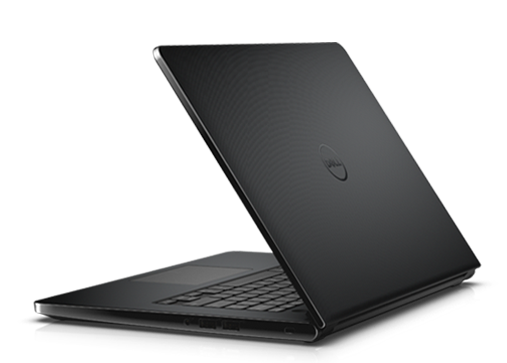
Inspiron 3452
Purchased a Dell Inspiron Laptop 14-3542 new in 2018, it featured Windows 10 O/S and a small SSD but all worked well. Then about six months ago the O/S would not boot. Since then my spare time has been spent attempting to determine the problem.
So far I have gained little information as to the problem needing a solution.
- The result of pressing the power button is the display of “Preparing Automatic Repair” then about 2 minutes later is followed by “Diagnosing Problem“ and finally the message “Automatic Repair couldn’t repair your PC”. However, the last message lists a txt file that may contain information related to this problem which I attempted to display.
- Now after using the Command Prompt in an attempt to view that txt file more trouble appeared since using Command Prompt only displays “X:\windows\system32” rather than “C:\”, as I understand, is an indication that Windows is not successfully loading.
- A Command Prompt that seem to work is the (diskdrive get status) which gets two “OK” responses.
- But the bottom line I am unable to view the information which is located in the following file location, ”F:\Recovery\WindowsRE\WinRE.wim\System32\Logfiles\Srt\SrtTrail.txt”. Is there another way to view that information?
- I have also tried loading a Windows 10 DVD to re-establish the O\S which appears to load files however before entering the installation phase the following message is received, “Windows cannot be installed to this disk. The selected disk is of the GPT partition style”. In addition, “Windows cannot be installed to this disk. This computer’s hardware may not support booting to this disk. Ensure that the disk’s controller is enabled in the computer’s BIOS menu”. I’m only ‘feeling my way with Command Prompt’ so not sure about accomplishing that goal.
Looking for any help I can find, Thanks.
No Events found!
ejn63
12 Elder
•
31.2K Posts
•
154.3K Points
0
November 15th, 2023 18:33
You don't need the command line, but you should download the latest Windows 10 install media using the MS Media Creation tool, and prepare a flash drive rather than using a DVD. Unless you're installing in legacy/CSM mode (this is a 2015 model system, so it wasn't new in 2018 when you received it, so it will have both legacy and UEFI options), the installer will load to a GPT disc without issue.
(edited)
help John
3 Posts
0
November 16th, 2023 14:48
@ejn63 Thanks for time and effort in your response to my issue.
However, the same problem exists with my Windows 10 DVD (attempt A) or the Windows 10 loaded onto a USB from the Media Creation Tool (attempt B) as both end up with the same response during setup (to restart the PC.) As there is no workable Windows O\S currently available on that PC, the instructions from both attempts to restart the computer and complete Windows setup is not possible.
The initial comment you made (don't need the command line) relates to my desire to view the log file generated during the Automatic Repair. Perhaps that info would be helpful to see what the repair reported since the nature of that problem remains an unknown.
ejn63
12 Elder
•
31.2K Posts
•
154.3K Points
0
November 16th, 2023 15:14
If there is data on the drive you need, remove the drive from the system and attach it to a working system by USB (you'll need teh appropriate adapter for whatever drive type -- 2.5 SATA, M.2 SATA or M.2 NVMe -- you have.
Then proceed with a clean install of Windows.
Before the last step, it'd be a very good idea to run a full drive diagnostic (F12 at powerup) to rule out a hardware failure with the drive.
help John
3 Posts
0
November 21st, 2023 17:54
Once more thanks for your input however this laptop has no hard drive as it contains a SSD so no way to remove or isolate that I know. Good idea on running the diagnostic tool which I have performed several times with passing results.
Poking around I believe the problem is related to partitions of the disk which I'm working on now.
Again thanks for your input.